
See a CloudTalk call land on the timeline
In a demo we show the connection screen, how a call with its summary reaches the record, and how the outcome updates your call campaign.
Your team calls in CloudTalk. Lumo then files each call on the right person, company, deal and lead, with the recording, transcript and summary CloudTalk produced. The outcome flows into your call campaign, so nobody has to retype a conversation at the end of the day.
Picture a sales rep on a Tuesday. Twenty calls. Four of them go well. One customer mentions a competitor. Another asks for a price indication for next quarter. CloudTalk has the call, recording included. The CRM has nothing. Or it has "called, positive", typed at half past five if there was time left.
A week later a colleague calls the same customer. They do not know a price was promised. They do not know a competitor is in the picture. The recording exists, but nobody goes digging in a second system for last week's call. So the customer gets the same question twice, and your company sounds like the left hand has no idea what the right hand is doing.
The calling is not the problem. CloudTalk handles calls well. The problem is the gap between two systems. The call lives in the phone system, the customer lives in the CRM, and a person has to stitch them together by hand every single time. That works at ten calls a day. It stops working in a sixty call block.
That is why Lumo has a built in CloudTalk integration. Lumo does not place calls and does not record anything itself. What it does is fetch every call once CloudTalk has processed it, work out who it belongs to and put it on that person's timeline. With the recording, the transcript, the summary, the topics and the sentiment that CloudTalk's AI added. If the call was part of a call campaign, the outcome updates that campaign too.
Lumo is a RevOps CRM that brings Marketing, Sales and Customer Success & Support together in one place, built for people and for AI agents. A call that sits on the record is visible to everyone who works with that account: the rep, the support colleague, the marketer building a segment. This page covers how to connect CloudTalk, what you get for each call, how outcomes reach your calling campaigns and cadences, and what is deliberately left out.
The names below are the labels you see on screen.
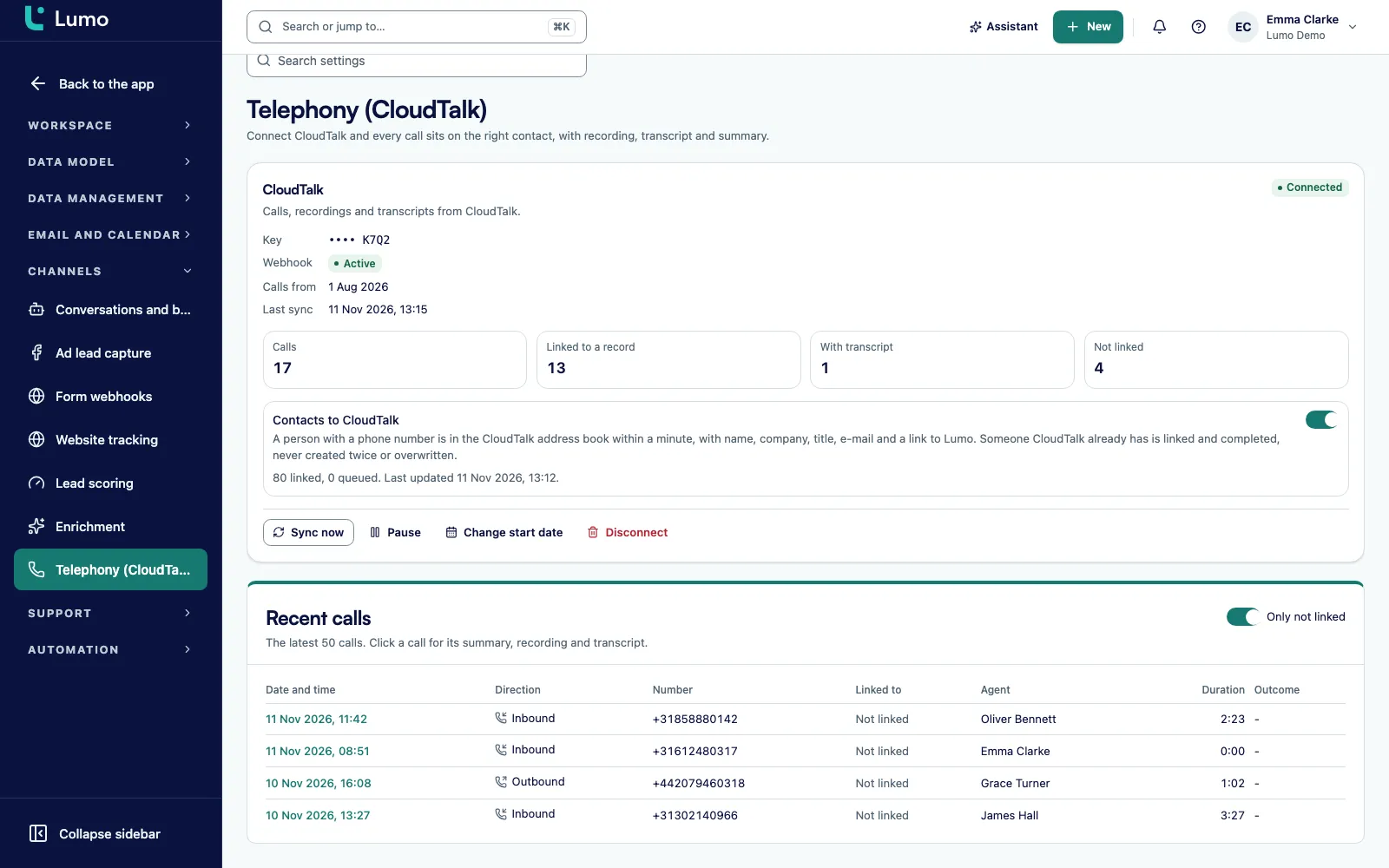
Telephony is a module you switch on or off per workspace under Settings, Modules. Once it is on, Settings shows the Telephony screen with the heading Connect CloudTalk. Only an admin can change the connection.
Create an API key in CloudTalk (Account, Settings, API keys). In Lumo, fill in API key ID, API key secret and Import calls from, then click Connect. Lumo tests the key and creates the webhook in CloudTalk for you.
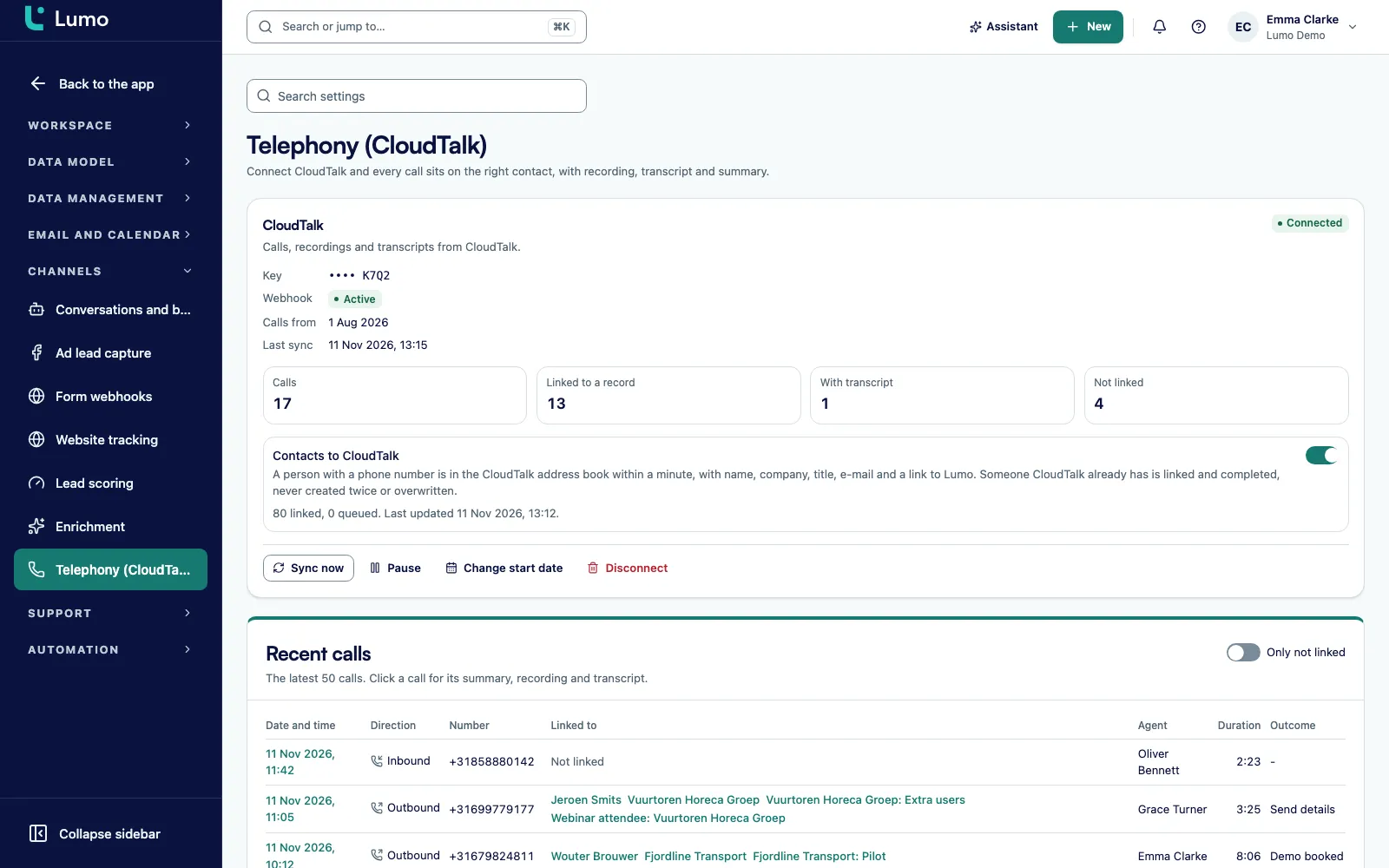
At the top the connection shows Connected, Failing or Paused, and the webhook shows Active, Missing or Error. Below that you see the counts Calls, Linked to a record, With transcript and Not linked.
Every number in Lumo is a phone link, including Call now in call mode. If CloudTalk is set as the app for phone links on your computer, CloudTalk places the call. The conversation happens in CloudTalk.
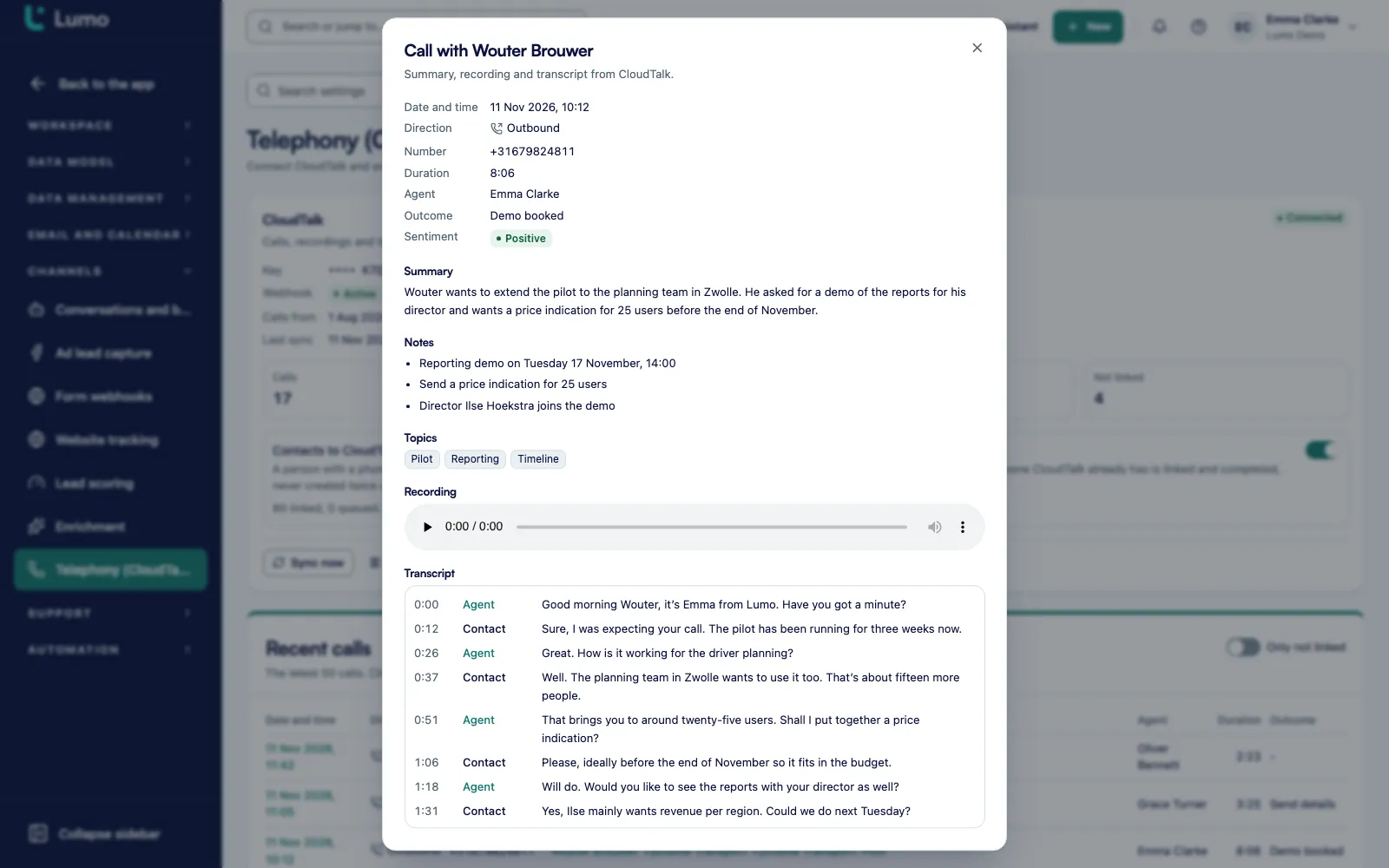
Once CloudTalk has processed it, the call appears on the person's timeline. Transcript and recording opens the summary, notes, topics, sentiment, recording and transcript.
With the Contacts to CloudTalk switch, Lumo adds people with a phone number to the CloudTalk address book. It is off by default. You decide whether to turn it on.
Lumo links a call twenty minutes after it ends. First by phone number, in international format. If that fails, Lumo checks whether the CloudTalk contact carries a Pipedrive link, and then the email address. Once the person is found, Lumo also attaches the call to their primary company, an open deal and an open lead.
When someone calls who Lumo has never seen, Lumo creates a new contact with that number as the phone number. Only a call with no usable number stays Not linked. The Recent calls list shows the last 50, and the Only not linked filter narrows it to the few calls that still need a person to look at them.
Coming from Pipedrive, where CloudTalk already mirrored call activities through Pipedrive into Lumo? Lumo takes over that existing activity instead of adding a second one next to it. More on how people and companies fit together is on contact management.
Each call shows up on the timeline as a card. You see the direction, duration, agent, outcome and sentiment as chips, with the summary and topics underneath. An unanswered call is marked Not answered. So at a glance you can tell there were three attempts without contact and one good eight minute conversation.
Click Transcript and recording to open the call. The transcript is split by speaker: agent, contact or other. Sentiment is positive, neutral or negative. You play the recording inside Lumo, but it streams from CloudTalk. Lumo does not store it.
Worth knowing: the transcript, summary, topics and sentiment come from CloudTalk's AI, not from Lumo. Lumo fetches them and puts them in the right place. Transcripts arrive every two minutes, six calls at a time, and only for recorded calls of at least ten seconds. Every call also counts as an activity, so it shows up in activities and calendar as well.
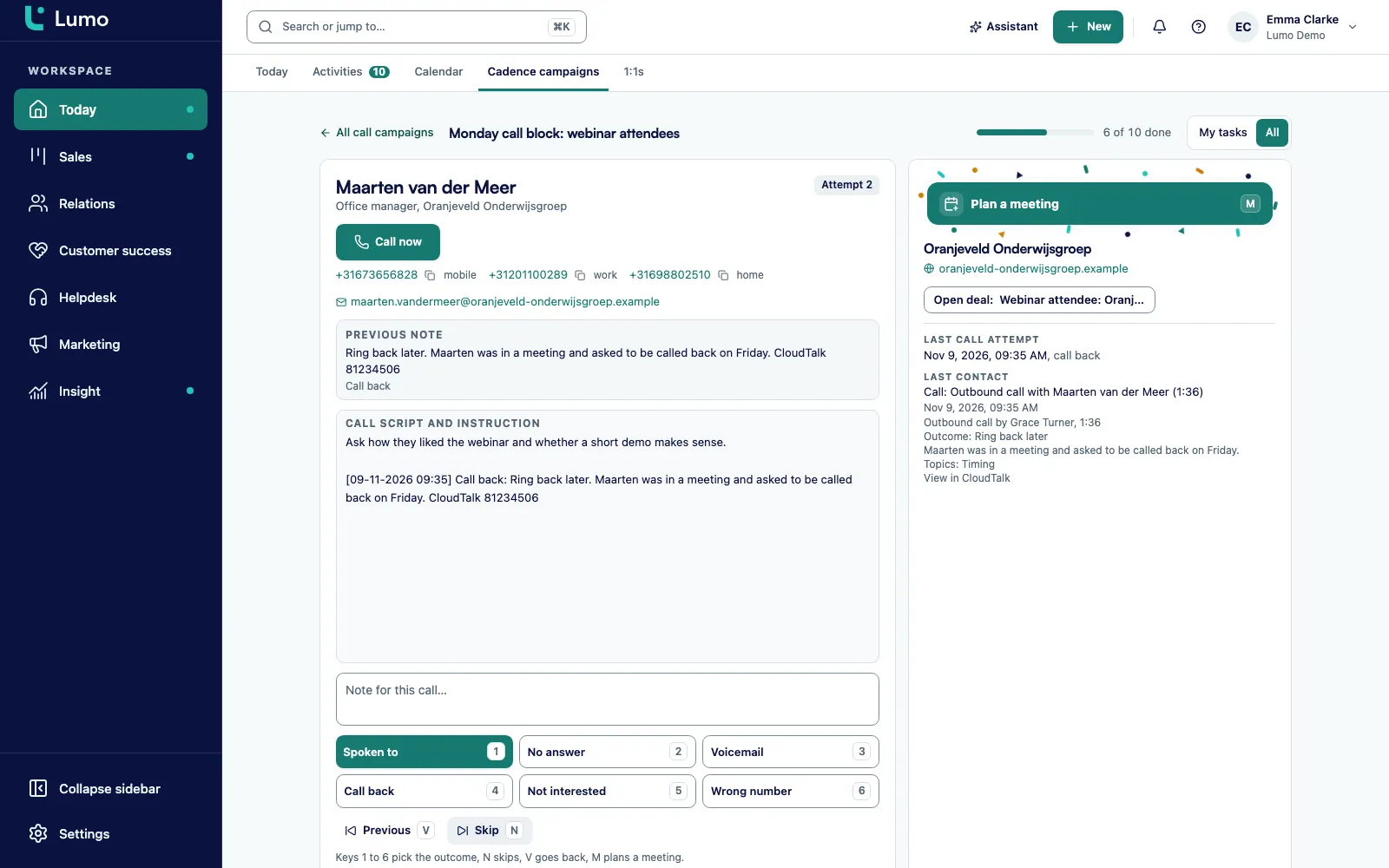
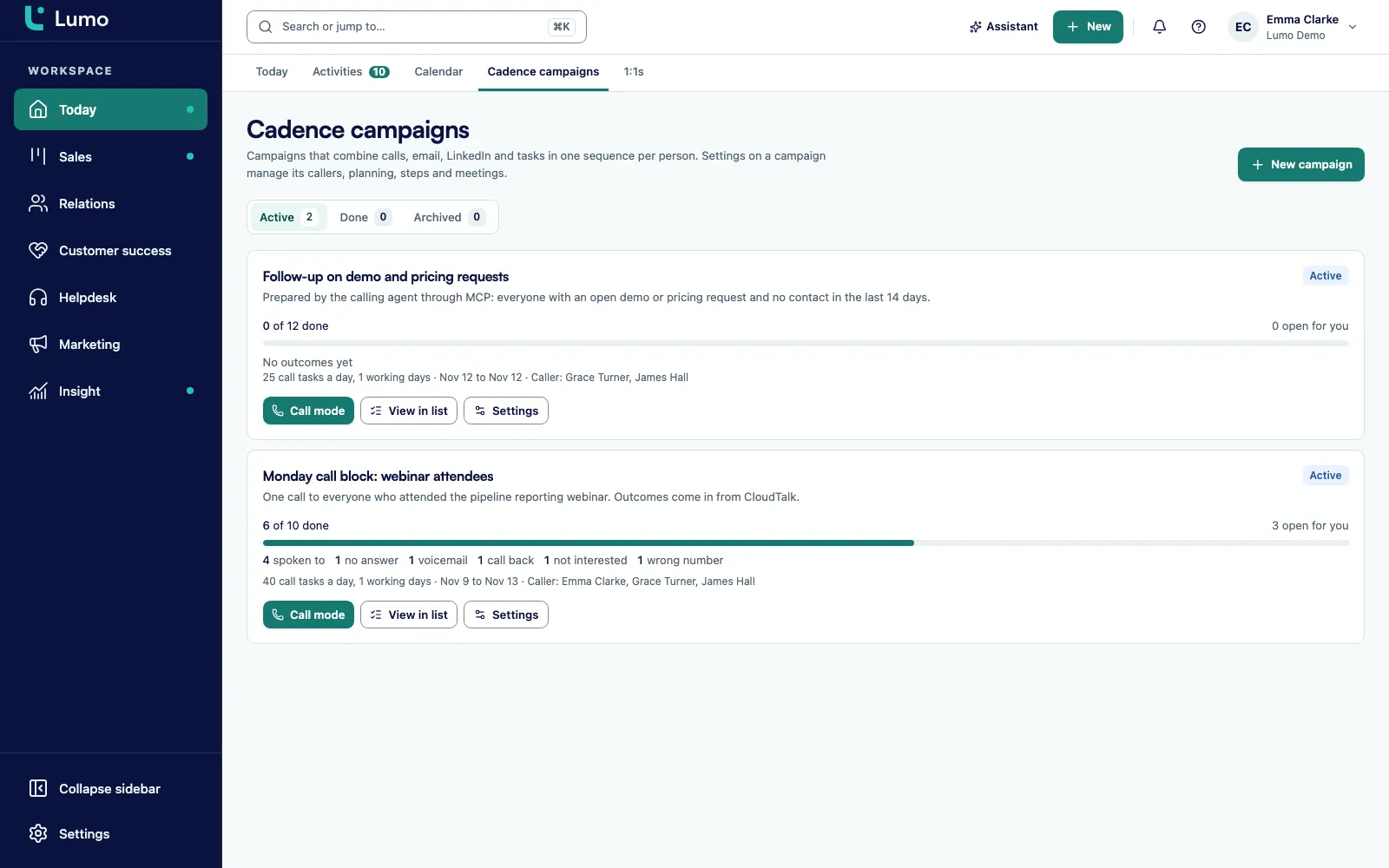
When your team calls from a call campaign, nobody should have to pick the outcome twice. So Lumo reads the outcome from CloudTalk, from the dialer disposition or from the tags, and passes it on to the campaign.
An appointment, a sale, a request for information, interest, bad timing or the wrong person becomes Spoken to. Do not call again, no interest or not a fit becomes Not interested. A wrong number stays Wrong number. A callback with a set time keeps the call open until that time. A callback without a time, reception, no answer and voicemail keep it open until 9:00 on the next working day.
This only happens for a call action in an active campaign that existed before the call, and where no newer attempt has been logged. That way an old call never overwrites what a colleague just chose in call mode. If a Cadence is attached to the campaign, the follow up steps move with it: the after-call email on Spoken to, the LinkedIn step on no answer, or nothing more on Not interested.
It also works the other way. With the Contacts to CloudTalk switch, Lumo adds every person with a phone number to the CloudTalk address book. Within a minute, with name, company, job title, email and a link back to Lumo. When that person calls in, your agent sees in CloudTalk who it is.
This sync is new and is set per workspace. It is off by default. You turn it on when you want it. Once it is on, it covers every way a person can enter Lumo: the screen, the API, the MCP server, an import, a web form, a call campaign, or enrichment through Apollo or ProspectPro.
Lumo only adds to CloudTalk. It never overwrites and never deletes anything there. It avoids duplicates by checking the CloudTalk ID and the exact number. The pace is steady: ten people per run, around 40 requests a minute. If a person still fails after six attempts, the switch shows it along with the error message.
Each item below works this way in the app.
Lumo creates the webhook in CloudTalk and checks the signature on every event. Disconnecting removes the webhook. Calls already fetched stay in Lumo.
The webhook reports a call within seconds of CloudTalk finishing its processing. Lumo also fetches the history every 5 minutes with a 2 hour overlap, so nothing slips through.
Connection Connected, Failing or Paused. Webhook Active, Missing or Error, with a Repair webhook button when something is off.
Buttons for Sync now, Pause, Resume, Change start date and Disconnect. Disconnecting asks you to confirm first.
Every number is a phone link with a copy button next to it. Which app places the call depends on the user's computer or phone.
Each call shows Positive, Neutral or Negative sentiment and the topics CloudTalk picked up, as chips on the timeline.
Only an owner or admin can see and change the connection. Every team member can read calls, transcripts and recordings.
CloudTalk allows roughly 60 requests a minute. A long history therefore fills in over hours, not minutes. New calls keep coming in through the webhook in the meantime.
Who gains from a call that sits on the record?
You call, pick an outcome in CloudTalk and move on. The notes, transcript and summary end up with the customer. More on how reps work in Lumo is on Lumo for sales teams.
You see per campaign how many people were reached without anyone keeping a tally. And you read a tricky call in the transcript instead of listening to all of it.
When a customer calls with a question, that call sits next to the tickets and email on the same company. Whoever calls next knows what was going on.
With the switch on, people from a form or campaign are in CloudTalk within a minute. If one of them calls back, your team sees in CloudTalk who it is.
You check the integration on one screen: status, webhook and the Linked to a record and Not linked counts. Anything that did not match is one filter away.
The customer picture is complete. Calls sit on the same timeline as deals, quotes and tickets, and they do not leave when someone leaves.
Say a software reseller has three account managers who call every customer whose licence renews within sixty days. This is a made up example to show how it works, not a customer story.
The admin switches on the Telephony module and connects CloudTalk with a start date two weeks back. A couple of hours later the history is in. The Telephony screen shows, say, 210 calls, nearly all linked to a record and a few not linked. Those turn out to be calls from withheld numbers. The admin also turns on Contacts to CloudTalk, so every customer with a number is in the CloudTalk address book.
The sales manager sets up a call campaign on a saved filter of people, with an after-call email step on Spoken to. On Thursday at 10:00 Daniel opens call mode and clicks Call now. CloudTalk dials. The customer wants to renew, but with twenty more seats and a different billing contact. Daniel picks the Interested outcome in CloudTalk and hangs up.
About half an hour later the call is on the customer's timeline. CloudTalk's summary mentions the extra seats and the new billing contact. Sentiment shows Positive. The call action in the campaign is marked Spoken to, and the after-call email is waiting in the Steps panel, because the outcome flowed into the Cadence. Daniel reads it, adds the seat count and sends it.
The next call goes to voicemail. Daniel picks Voicemail in CloudTalk. Lumo keeps the call action open until 9:00 the next working day. The following week a support colleague takes a call from the same customer about a login issue. She opens the company, sees Thursday's call with its summary, and knows a renewal with extra seats is in progress before she says a word.
The honest part first: there are no MCP tools for telephony. An agent cannot fetch calls, transcripts or recordings from CloudTalk through the MCP server or the REST API. The in-app AI assistant has no telephony tools either. The conversation itself is something you look at on screen.
What an agent can do sits around the call. With `create_call_campaign` and `add_call_campaign_people` it sets up a call campaign. With `get_call_queue` it reads the queue, including numbers, context, lead, deal and signals. With `record_call_outcome` it logs an outcome. For the surrounding steps there are `create_cadence`, `preview_cadence_audience` and `add_people_to_cadence`, and `record_person_signal` reports a signal on a person. The call activity itself is a normal activity, which an agent handles through the general activity tools, such as `log_activity` for logging one.
If Contacts to CloudTalk is on, it also applies to people an agent creates. An agent that adds leads from a source into Lumo fills the CloudTalk address book at the same time. How agents work in Lumo is covered in headless CRM and AI agents and API and integrations.
This is what we go through on a first CloudTalk connection.
A CloudTalk call is a call activity in Lumo. It sits on the timeline of the person and the company, and in activities and calendar. Anyone who opens the account sees it next to the email, the notes and the meetings.
In call mode for your calling campaigns and cadences you click Call now. When you then pick the outcome in CloudTalk, Lumo updates the campaign and the follow up steps move on. Interested? Press M in call mode to book a meeting straight away, see the meeting scheduler.
The call is also attached to the open deal and open lead, so anyone opening a deal in pipeline management sees what was discussed last. And when new people arrive through a form or enrichment, the Contacts to CloudTalk switch adds them to the CloudTalk address book too.
For an overview of every integration, from Gmail and Google Calendar to the API and the MCP server, see integrations.
Lumo does not place calls. There is no telephony inside Lumo, no softphone and no browser dialer. A number is a phone link, and your computer decides which app dials. If your team calls with CloudTalk, make CloudTalk that app. The call then runs through CloudTalk and lands in Lumo afterwards.
Lumo does not record anything either. The recording comes from CloudTalk and is streamed. If you disconnect CloudTalk, recordings no longer play, but transcripts stay. Transcript, summary, topics and sentiment come from CloudTalk's AI. Today the integration works with CloudTalk only. Older CloudTalk dialer campaigns do not pass on a callback time, so those call actions come back at 9:00 the next working day.
You click a number or Call now in call mode. That is a phone link, and whichever app your computer uses for phone links places the call. If that is CloudTalk, CloudTalk dials. Lumo has no telephony of its own.
No. CloudTalk records. Lumo shows the recording but streams it from CloudTalk and does not store it. Without the connection the recording no longer plays, while the transcript remains.
CloudTalk reports a call 2 to 30 minutes after it ends, once its AI processing is done. Lumo links it twenty minutes after the call. Expect roughly twenty minutes to half an hour after the call. Lumo also fetches the history every 5 minutes.
CloudTalk's AI. Lumo fetches the transcript, summary, topics and sentiment and attaches them to the call on the timeline. Transcripts are only fetched for recorded calls of at least ten seconds.
Lumo creates a new contact with that number as the phone number and attaches the call. Only a call with no usable number stays Not linked.
No. It is a switch per workspace and it is off by default. Once you turn it on, every person with a phone number reaches the CloudTalk address book within a minute. Lumo only adds there and never overwrites or deletes.
Yes, for a call action in an active campaign that existed before the call and has no newer attempt. Appointment or interested becomes Spoken to, no interest becomes Not interested, and voicemail or no answer keeps the call action open until 9:00 the next working day.
No, there are no MCP tools for telephony. An agent can set up call campaigns, read the queue with get_call_queue, log outcomes with record_call_outcome and drive a Cadence.
Only an owner or admin can see and change it. Every team member can read calls, transcripts and recordings on the records.
Today it works with CloudTalk only. If your team calls with something else, the phone links in Lumo still work, and you log the outcome and note in call mode.
In a demo we show the connection screen, how a call with its summary reaches the record, and how the outcome updates your call campaign.