Send one link. Your prospect picks a time that is free in your Google Calendar, and the meeting is booked. In Lumo it lands on the person and the lead or deal straight away, with a Google Meet link attached. Built for sales reps, account managers and anyone who books intro calls.
Each booking becomes an activity on the lead or deal
Why booking a call still takes five emails
A prospect replies to your email: "Sounds interesting, let's talk." You suggest Tuesday at ten. He can't do Tuesday, but Thursday afternoon works. On Thursday afternoon you are with a customer. Three emails later there is a slot next week, and you still have to create the invite yourself. With the right video link, the right address and the right time zone, because he is in Rotterdam and his colleague is in Dublin.
So most teams add a separate scheduling tool. That takes care of the back and forth. But now the meeting lands in a system that knows nothing about your CRM. Who booked? An existing customer, an open deal or a new name? Someone works that out later, or nobody does. The meeting is in the calendar, but not on the deal. And the sales manager sees no booked intro calls in the CRM, while everyone's calendar is full.
The second problem is internal. An SDR spends the morning on the phone and reaches someone who would like a demo. Then the search starts. Which account manager is free on Thursday? He opens three calendars, or posts in the team chat and promises to call back. Often that call back never happens.
That is why the scheduler is part of Lumo. Every user can have their own booking page, with the meeting types they offer. Open slots come from their Google Calendar. A booking finds or creates the person in Lumo, adds an activity to the deal or creates a lead, puts the meeting with a Meet link in the calendar and sends the confirmation from the user's own Gmail.
For the second problem there is Team scheduling. From the calling screen, a colleague books a meeting in the calendar of a teammate who is free, while the prospect is still on the line.
You can see it on this site. Our demo page runs on the same scheduler. Pick a time there and you book straight into Sander's calendar and arrive as a lead in our own Lumo workspace.
How it works
The names below are the labels you see on screen.
Connect Gmail and your calendar
Under Settings, Gmail you connect Gmail with calendar access. Under Settings, Google Calendar you switch the calendar on. Without that connection Lumo cannot read open slots or create meetings.
Create your booking page
Go to Settings, Booking page. Choose an address of 3 to 40 characters, check your working hours and booking rules and create the page. The page is off by default. It goes live once Booking page is on is switched on.
Add meeting types
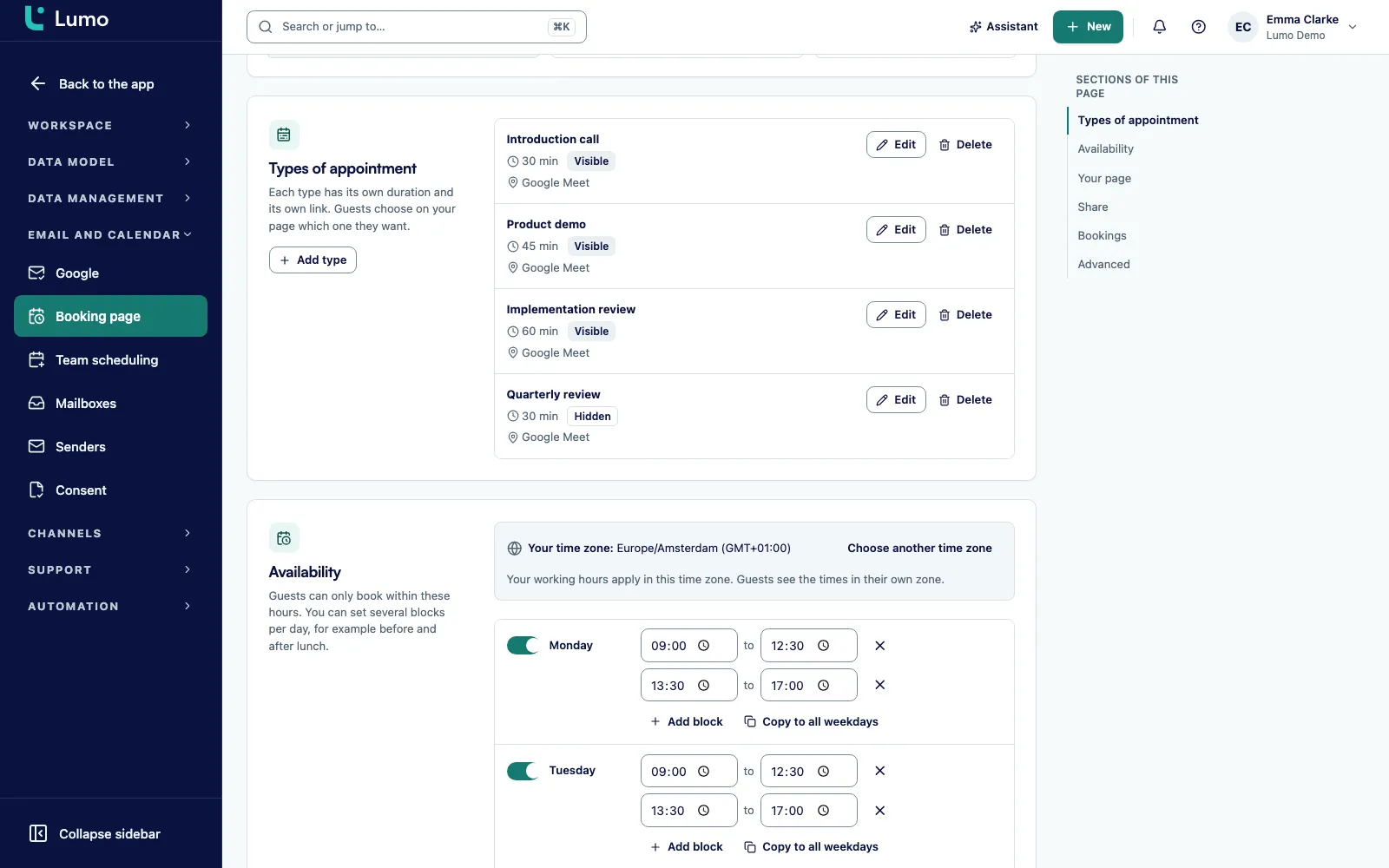
Under Types of appointment click Add type. Give it a title, a description and a length, for example a 30 minute intro call. Each type is Visible or Hidden.
Share the link
Under Links to share you copy the link to your page or to a single meeting type. Put it in your email, your signature or on LinkedIn. Or open Embed on your website and paste the code into your own site.
Your prospect books
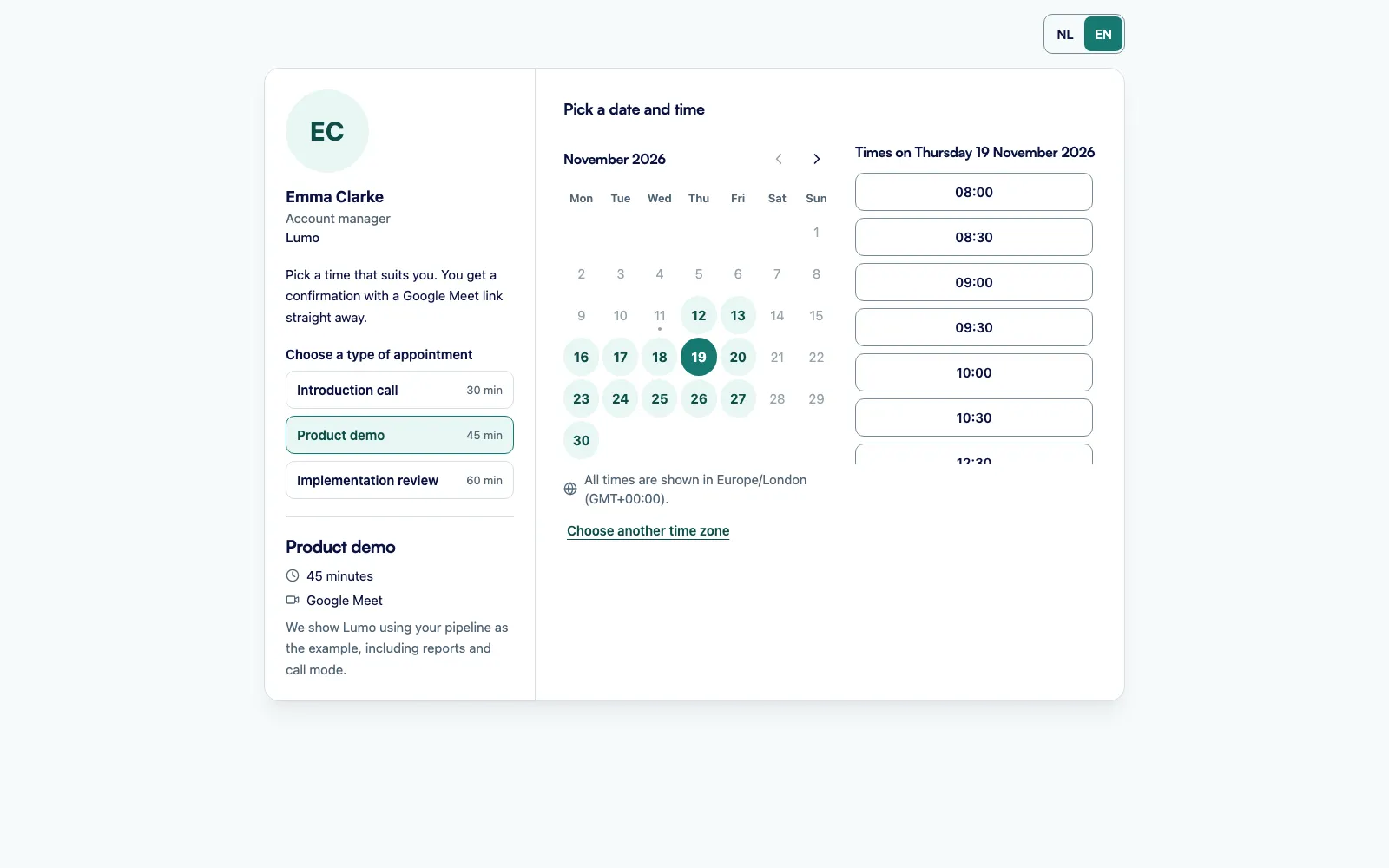
Your guest sees Choose a type of appointment, then Pick a date and time, fills in their details and clicks Confirm appointment. They see Your appointment is scheduled and a Join via Meet button.
Follow your bookings
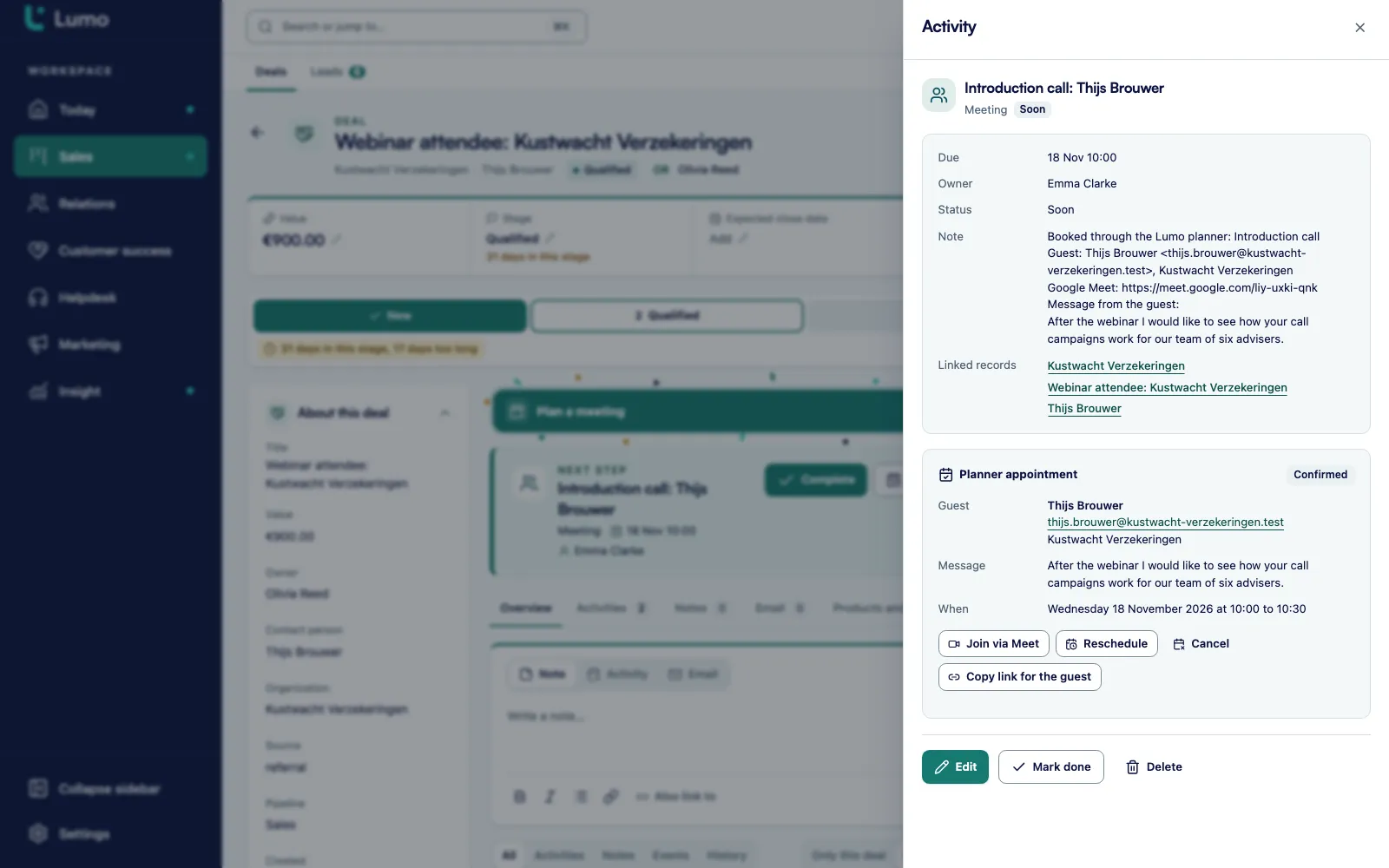
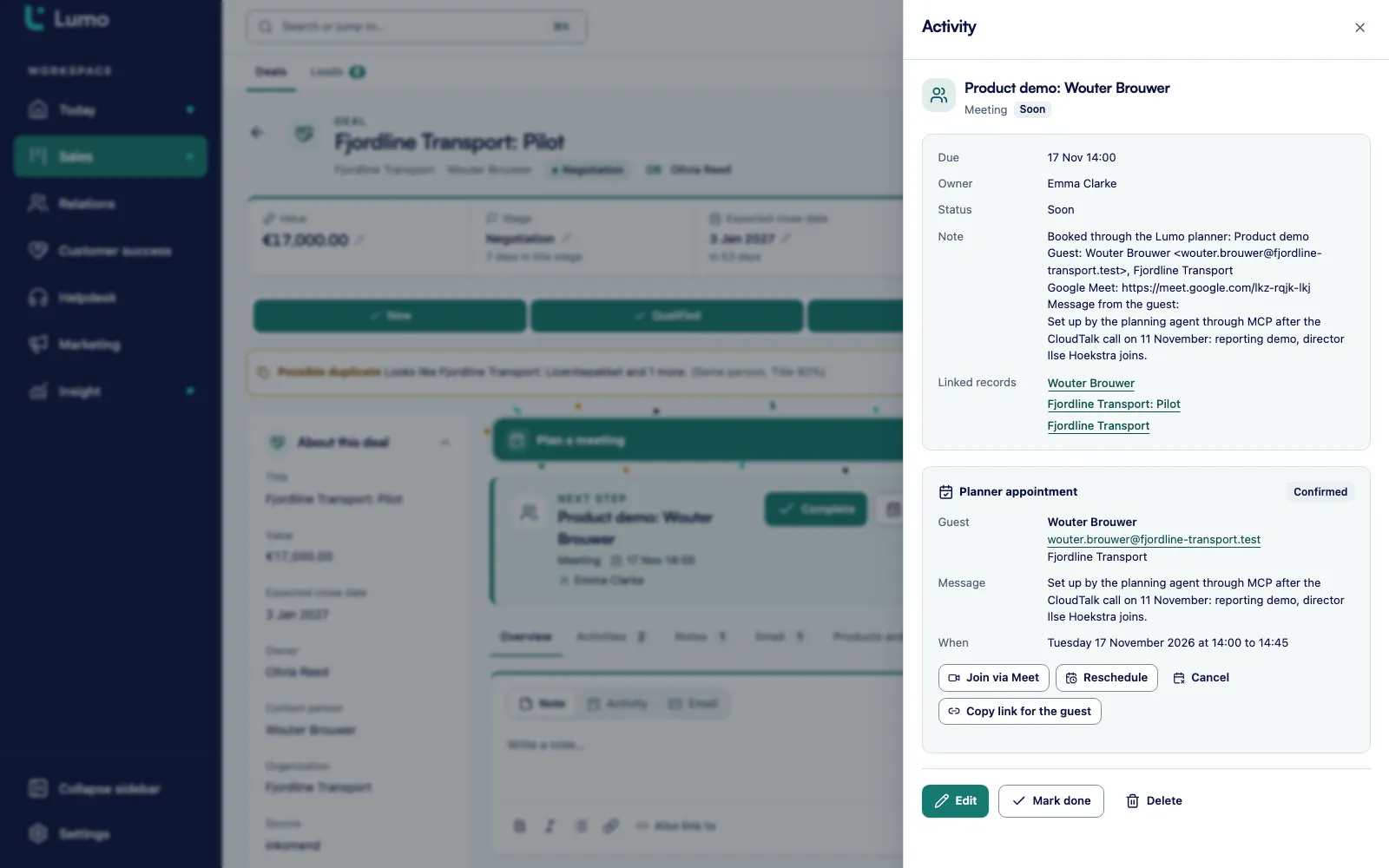
The meeting shows up under Bookings, as an activity on the person and the deal or lead, and in Google Calendar. You reschedule or cancel it there, or in the Planner appointment block on the activity.
Your booking page lives at app.lumoheaven.com/plan/ followed by the address you choose. At the top are your name and a short introduction, and if you like a profile photo and your company logo. Below that are the meeting types set to Visible. Every type also has its own link, so you can send a prospect straight to the right meeting instead of a menu.
For each type you set the length, from 5 to 480 minutes, and a location note. A type can have its own buffers, its own minimum notice and its own booking window. A short intro call can be booked for tomorrow, while a two hour workshop needs a week's notice and keeps time free before and after.
Your guest sees times in their own time zone. Lumo detects it, and they can change it with Choose another time zone. The page is available in English and Dutch. Your guest does not need an account. They enter a name and email address, and optionally a company and a message.
To put the scheduler on your own website, open Embed on your website. You choose between Iframe (works everywhere) and Script (adjusts the height by itself). Our own demo page uses the script.
Address of 3 to 40 characters, page off by default
Meeting length from 5 to 480 minutes per type
Profile photo and logo as PNG or JPEG, up to 1 MB
Status card: Online, Turned off or Not set up yet
Embed as an iframe or as a script
A scheduler is only as good as the times it offers. Lumo shows a slot only when it falls inside your working hours, sits on the interval, comes after the minimum notice, falls within the booking window, is not busy in Google Calendar and does not clash with another booking.
By default all your Google calendars count. You can also pick 1 to 10 yourself, for example your work calendar and a shared team calendar, but not the one with birthdays. Events marked as free, events you declined, your working location and birthdays never block time.
The defaults are deliberately calm. Working hours Monday to Friday from 09:00 to 17:00, with up to 4 blocks per day. Four hours of minimum notice, so nobody books you for ten minutes from now. A window of 60 days ahead, a 30 minute interval and no buffers. You can change all of it.
If Lumo cannot read your calendar for a moment, the page shows no times rather than showing everything as free. At booking time Lumo always checks Google once more. If the slot has just gone, your guest is told someone else just booked it. Lumo rules out double bookings on the same slot. Tested: three bookings for the same time at the same moment result in one.
Working hours Monday to Friday 09:00 to 17:00 by default, up to 4 blocks per day
Four hours minimum notice, 60 days ahead, 30 minute interval
Buffers before and after a meeting, 0 by default
All calendars automatically, or pick 1 to 10
This is where it differs from a separate scheduling tool. A booking does five things in Lumo at once. Lumo looks up the person by email address. If they do not exist yet, Lumo creates them with planner as the source and without marketing consent. If that person has an open deal, Lumo uses it. If not, a new lead is created. The deal or lead gets an activity of the type meeting. Your Google Calendar gets an event with a Meet link and your guest as an attendee.
Lumo never overwrites the details of an existing person. If your guest types a different company name than the one on file, the existing data stays. Lumo also does not link an existing organization automatically. You do that yourself, so no wrong link is made.
The confirmation is sent from your Gmail. It sits in your Sent folder and on the person's timeline, like your other email. It contains a link the guest uses to reschedule or cancel. Google also sends its own invitation, unless you switch off Send the guest a Google invitation. By default your guest gets a reminder 24 hours ahead. Set it to 0 to turn it off.
Person matched on email, or created with planner as the source
Existing deal used, otherwise a new lead
Activity of the type meeting with a Google Meet link
Confirmation and reminder from your own Gmail
Statuses Confirmed, Cancelled and Held
A public booking page belongs to one person. Inside your team, though, you often want to book in someone else's calendar. An SDR reaches a decision maker and wants to set a meeting with an account manager right away. That is what Team scheduling is for.
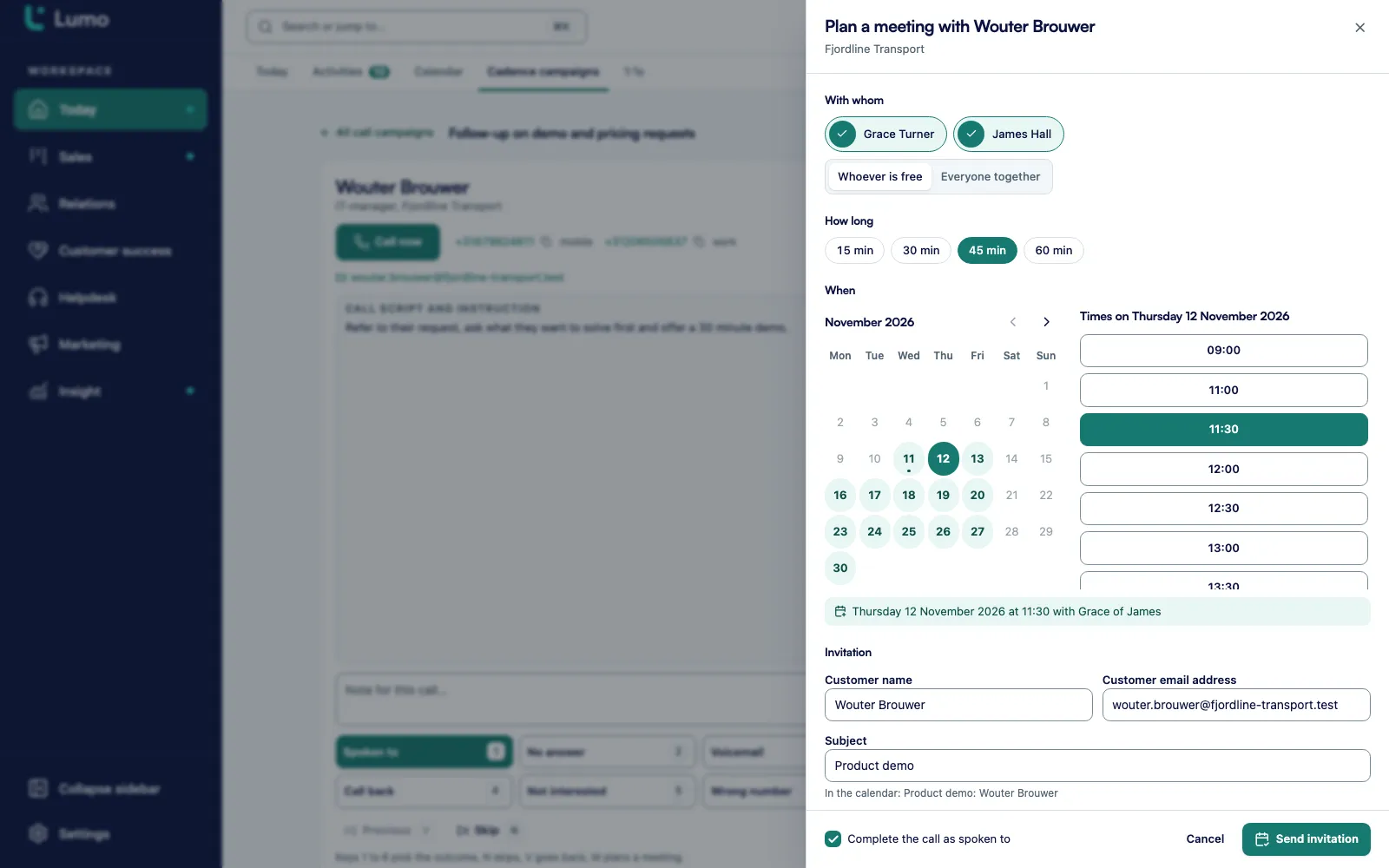
An admin picks which colleagues can receive meetings under Settings, Team scheduling, in the list Who takes meetings. In the calling screen of a calling campaign there is then a Plan a meeting button, also on the M key. The caller chooses one of two modes.
With Whoever is free they see every time at least one colleague is free. The meeting goes to the free colleague with the fewest upcoming team meetings. New conversations are spread fairly, without anyone keeping score. With Everyone together they only see times when all selected colleagues are free, for example for a call with an account manager and a consultant together.
You can limit per calling campaign who receives meetings. With Complete the call as spoken to ticked, Lumo closes the call attempt when the meeting is booked, so the caller moves straight on to the next person.
Admin chooses who receives meetings
Plan a meeting button in the calling screen, M key
Whoever is free: the free colleague with the fewest upcoming team meetings
Everyone together: only times when everyone is free
Can be limited per calling campaign
What is in the scheduler
Every item below works like this in the app.
Meeting types
Each type has a title, description, length from 5 to 480 minutes and a location note. Visible or Hidden, with optional buffers, notice and window of its own.
Google Meet on every booking
Each booking gets a Google Calendar event with a Meet link. After booking, your guest sees a Join via Meet button.
Email from your own Gmail
Confirmation and reminder are sent from your Gmail as plain text. The reminder goes out 24 hours ahead by default.
Reschedule and cancel
Your guest does it with Reschedule or Cancel from the link in the email. You do it in your bookings list or on the activity. A cancellation records who did it: the guest, you or the system.
Abuse limits
One email address can book up to 5 times in 24 hours and hold up to 3 future meetings with one host. Each host accepts up to 20 bookings per hour.
No double bookings
Lumo checks Google again at booking time and locks the slot. Three simultaneous bookings for the same slot result in one.
Embed on your site
Choose an iframe that works anywhere or a script that sizes itself. Or simply share the link from Links to share.
Permissions
Every user manages their own page. With read access only, you can view the booking page but not change it.
By role: who gets what out of it
Sales reps and account managers
You share your link in every first email and in your signature. You have one type for a 30 minute intro and one for an hour long demo. Whatever gets booked sits on the right deal or arrives as a new lead in lead management, so you prepare in the same place you already work.
SDRs and callers
You work through a call list and book a meeting for a colleague with Plan a meeting, without calling the prospect back later. How call mode works is on calling campaigns and cadences.
Sales managers
Booked intro calls are activities of the type meeting. You see them in activities and calendar, per owner. With Whoever is free, Lumo spreads new team meetings across the colleagues you selected.
Customer success
A fixed type for a quarterly review or a check in. Your customer picks a time and the call sits on the person's timeline.
Marketing
A webinar or trade show brings in names. Put the link to the right meeting type in the follow up email or on a landing page. A new person gets planner as the source, so you see where they came from, and no marketing consent is assumed.
RevOps and leadership
One place for meetings, without a separate scheduling tool with its own subscription and its own list of names. The data lives in the same workspace as everything else, under the same roles and permissions.
An example: a recruitment agency with five consultants
Say a recruitment agency with five client consultants and one business developer wants hiring managers to book their own intro calls. This is a made up example to show how it works, not a customer story.
Each consultant creates a page under Settings, Booking page. Priya picks the address priya, so her link becomes app.lumoheaven.com/plan/priya. She adds two types: a 20 minute intro call and a 45 minute vacancy intake. The intake gets its own notice of one day and a 15 minute buffer afterwards, so she has time to write up the brief. She selects her work calendar and leaves her personal calendar out.
On Monday a hiring manager in Manchester replies to a proposal: "Can we go through the role together?" Priya sends the link to the intake. The hiring manager sees times in UK time, picks Wednesday at 11:00 and enters a name, email and company. Lumo finds the person by email, sees the open deal and adds a meeting to it. Priya's Google Calendar shows the intake with a Meet link. The confirmation is in her Sent folder. On Tuesday the hiring manager gets the reminder.
Meanwhile the business developer, Sam, is working through a calling campaign of companies that recently posted vacancies. He reaches an HR director who wants a conversation with someone who knows their sector. He presses M, chooses Whoever is free and sees the times when at least one consultant is available. He picks Friday at 14:00. The meeting goes to Daniel, who has the fewest team meetings that week. The call attempt is marked as reached and Sam dials the next number.
On Friday the managing director opens the activity overview and sees how many meetings were booked this week and with whom. No email ping pong, and no meetings that only exist in one person's calendar.
Your agent books meetings through MCP and the API
Everything in the scheduler also works without a screen. An AI agent or a script uses the Lumo MCP server or the REST API, where every MCP tool has its own endpoint. The agent uses an API key with the scopes calendar:read and calendar:write, and can never do more than the user who created the key.
An agent reads your settings with get_planner_settings and your links with get_planner_links. It asks for open slots with get_planner_availability, checks which calendars count with get_planner_calendars and reads bookings with list_planner_bookings and get_planner_booking. It updates your page with update_planner_profile and manages meeting types with create_planner_event_type, update_planner_event_type and delete_planner_event_type.
The most useful one is create_planner_booking. With it, an agent books on behalf of a prospect, for example after the prospect named a time in an email thread. The booking goes through the same steps as one made on the page: person, lead or deal, activity, Google Calendar event and confirmation. With reschedule_planner_booking it moves a meeting, with cancel_planner_booking it cancels one. Deleting and cancelling require explicit confirmation.
Two things do not work through MCP: uploading a profile photo or logo, and Team scheduling, which runs in the calling screen. Read more about how agents work in Lumo on headless CRM and AI agents.
Scopes calendar:read and calendar:write
Open slots with get_planner_availability
Book on behalf of a prospect with create_planner_booking
Cancel and delete only with confirm: true
How to set it up
This is what we go through for a first booking page.
Connect Gmail with calendar access and switch on your calendar under Settings, Google Calendar.
Choose which calendars decide when you are busy. Leave out calendars with birthdays or public holidays.
Pick a short address that is easy to say, such as your first name.
Set your working hours to when you actually take calls, not what your contract says.
Start with one or two meeting types. A 30 minute intro call is enough to begin.
Choose a minimum notice and a buffer that fit your day. The default of four hours is a good start.
Switch on Booking page is on and make a test booking from a personal email address.
Add the link to your email signature and embed the scheduler on your contact page.
If your team books from calling campaigns, have an admin choose under Team scheduling who receives meetings.
How the scheduler connects to the rest of Lumo
A booking is a normal activity. It appears in activities and calendar, on the Today screen and on the person's timeline. The calendar sync with Google runs both ways, every five minutes.
The confirmation is sent through your Gmail, so it sits on the person like any other email. How email works in Lumo is covered on email and Gmail.
When someone books who is not in Lumo yet, a new lead is created. You work it like any other lead in lead management. If there is already a deal, the meeting goes there, and after the call you move it forward in your pipeline.
If you want something to happen after a booking, such as a prep task, build a rule in automations that reacts to a new activity.
Today the scheduler works with Google Calendar and Google Meet. Lumo reads availability only from Google Calendar and the video link is always a Meet link. You need a connected Gmail account with calendar access. The integration with Outlook and Microsoft 365 is on the roadmap. If you work in Outlook, the rest of Lumo works for you today, and you log meetings by hand as activities on the deal. Your guests do not need an account at all.
A public booking page belongs to one user. A page that spreads bookings across several colleagues, or a group meeting with several guests, does not exist. To spread meetings inside your team, use Team scheduling from the calling screen with Whoever is free.
There are no paid meetings. There is no captcha and no verification of the guest's email address. Lumo protects the page with limits per email address and per host. With some Google accounts the Meet link arrives a little later. Lumo then books the meeting without a link, and you check in Google Calendar whether the link was added later.
Frequently asked questions about the meeting scheduler
What is the Lumo meeting scheduler?
Your own booking page as a user, at app.lumoheaven.com/plan/ followed by your address. A prospect picks an open time from your Google Calendar. The meeting goes into your calendar with a Google Meet link and onto the person and the deal or lead in Lumo as an activity.
Does it work with Outlook or Microsoft 365?
Not yet. The scheduler reads availability from Google Calendar and creates Google Calendar events with Meet. The integration with Outlook and Microsoft 365 is on the roadmap. Until then you use every other part of Lumo as normal and log meetings by hand as activities.
Which video link does a meeting get?
Always Google Meet. After booking, your guest sees a Join via Meet button, and the link is in the Google Calendar event.
What happens in my CRM when someone books?
Lumo matches the person by email or creates them with planner as the source. An open deal is used, otherwise a new lead is created. An activity of the type meeting is added to it. Existing person details are never overwritten.
Can I offer several meeting types?
Yes. Under Types of appointment you add as many as you need, each with its own length from 5 to 480 minutes and optionally its own buffers, notice and window. Each type also has its own link.
Can I spread bookings across my team?
Not on the public page, which belongs to one user. Inside the team you can, with Team scheduling. From the calling screen a colleague uses Plan a meeting with Whoever is free, and the free colleague with the fewest upcoming team meetings gets the meeting.
How do I add the scheduler to my website?
Under Embed on your website you choose an iframe or a script that adjusts its own height, and paste the code into your page. Our own demo page works this way.
Can my guest reschedule?
Yes. The confirmation email has a link with Reschedule and Cancel buttons. You can do the same from your bookings list, on the activity or through the MCP server.
What if someone just booked the same slot?
Lumo checks Google again at booking time and locks the slot. If it is gone, your guest is told someone else just booked it and picks another time.
Can AI agents book meetings?
Yes, through MCP or the REST API with the scopes calendar:read and calendar:write. An agent asks for open slots with get_planner_availability and books for a prospect with create_planner_booking. Team scheduling and uploading a photo or logo are not available through MCP.
Keep reading
Book a demo, using the scheduler itself
You book the demo through the same scheduler this page describes. In the call we set up a booking page together and look at what happens in Lumo when someone books. Lumo is built by Sales Surge, with more than 150 CRM implementations behind it.