
See a quote go from deal to signature
In the demo we build a quote from a deal, send it and sign it together, so you see the whole route.
You build the quote from the products already on the deal. Lumo puts it in a PDF with your logo and the customer's, sends it from your own Gmail, and the customer signs online with a code sent to their inbox. The proof and the signed PDF come back to the deal.
The call went well. The buyer says: "Send me a proposal." Then the work starts. The rep looks up prices in an old quote, copies them into a Word file, adjusts the discount, exports a PDF and emails it. Two days later the buyer calls about a line that no longer matches what was agreed. The rep fixes it and sends version two, while the CRM still shows the deal value from version one.
Then the signature. The buyer prints the PDF, signs, scans and sends it back. Or does not, because the printer is at the office and they work from home. Nobody knows if the quote was even opened. And when there is a dispute about the terms six months later, someone searches three mailboxes for the version that was actually signed.
So the problem is not making a document. The problem is that the quote lives apart from the deal. Prices sit in two places, versions sit in mailboxes and the signature sits on paper. Every step in between is manual, and manual is where things stall.
In Lumo the quote starts on the deal. The product lines with quantity, price, discount and billing frequency are already there, because you use them for the deal value in your pipeline. The quote takes a snapshot of those lines. You can keep updating the deal afterwards without changing the quote you sent. Sending goes from your own mailbox, the customer signs online, and the proof comes back to the same deal. One place shows what was offered, when it went out and who signed it.
That is not a big promise. It is one place instead of four. For the steps around it, from first proposal to signed deal, read the guide from quote to signed deal.
A quote has six statuses: Draft, Sent, Signed, Declined, Expired and Void. This is the route from Draft to Signed.
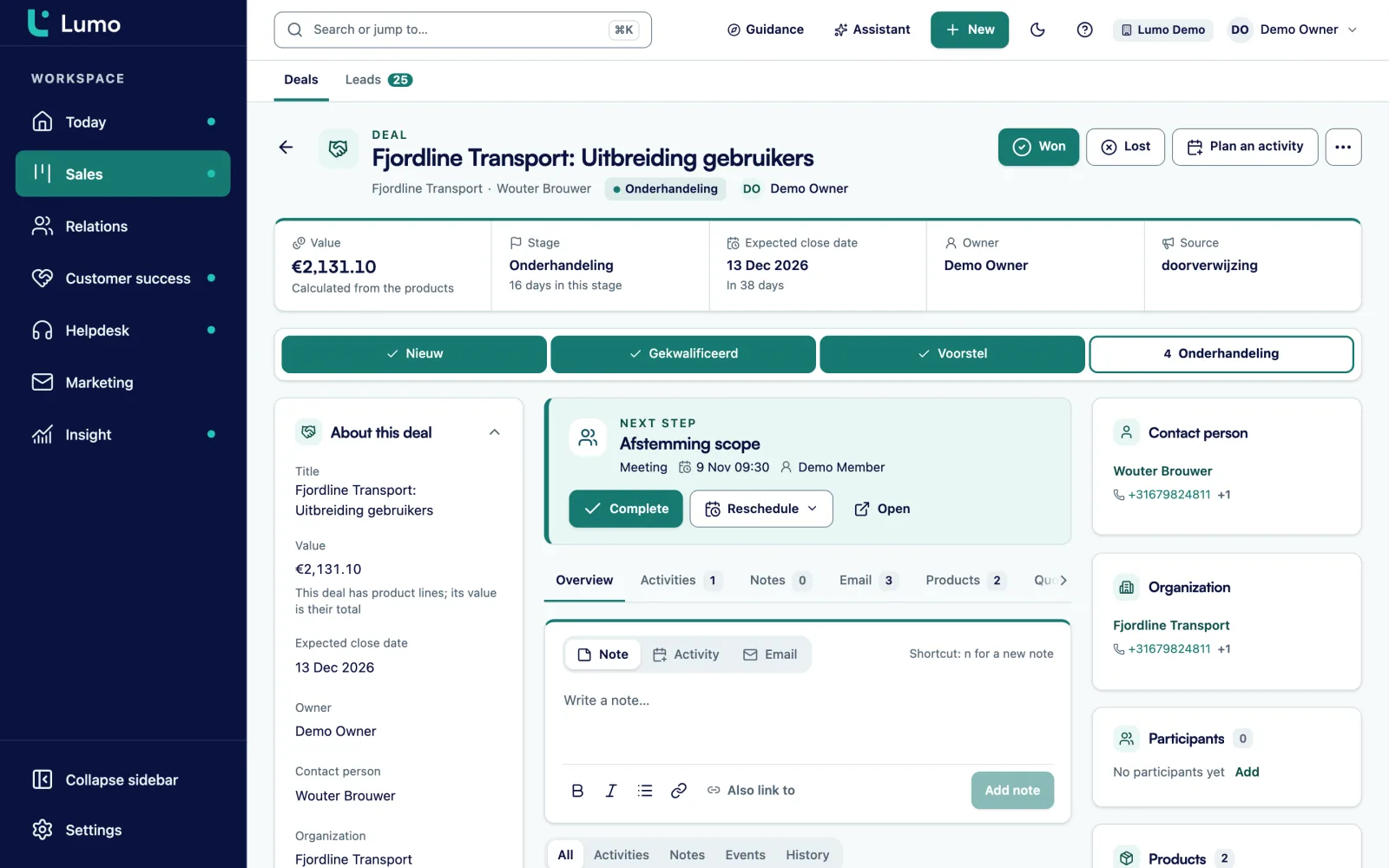
Add products to the deal with quantity, unit price, discount percentage and billing: one-time, weekly, monthly, quarterly, semi-annually or annually. The deal value is the sum of those lines.
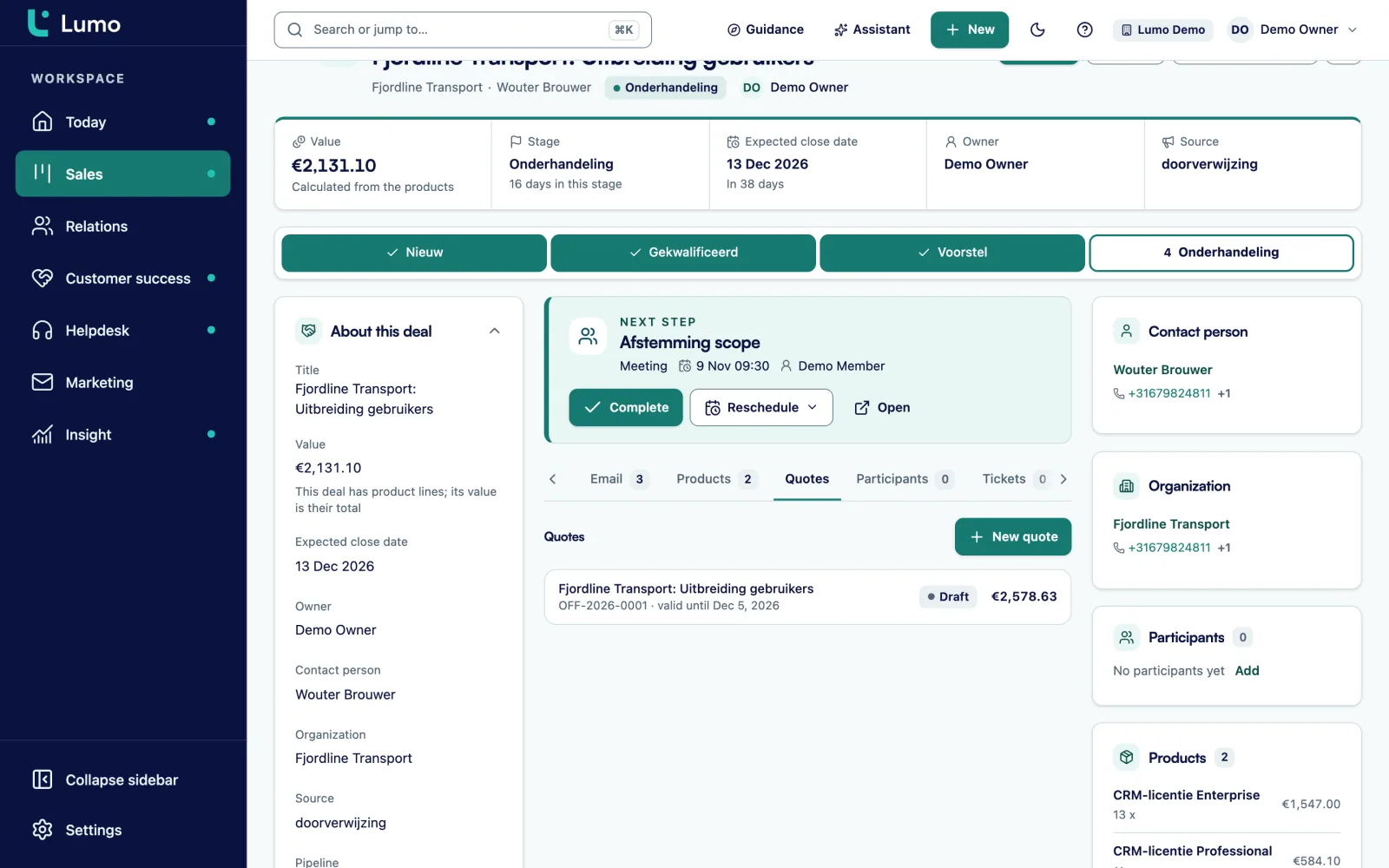
On the Quotes tab of the deal, choose New quote. The lines come from the deal. Fill in the title, valid until, VAT percentage, introduction and terms. Refreshing the lines from the deal pulls in changed products while the quote is still a draft.
The preview shows the PDF exactly as the customer gets it, with your logo and the customer organization's logo. While the quote is a draft you can still change everything.
Choose Send and fill in the recipient, the signer's name, the subject and your message. The email leaves your connected Gmail with the PDF attached and a signing link. The quote is now Sent and can no longer be edited.
The customer opens the link, reviews the quote and requests a 6-digit code to confirm their email address. Then they type their full name, tick to agree and sign. They can also decline, with an optional reason.
The signed PDF gets an evidence page and is emailed to the customer. A note lands on the deal and the quote shows as Signed. You move the deal stage yourself.
A quote in Lumo is not a separate file you keep next to the CRM. It belongs to the deal and reads the product lines from it. Each line shows the name, a description, quantity, unit price, discount percentage, billing frequency and number of cycles. Leave the cycles empty and the line runs on. At the bottom you see the subtotal, VAT and total.
In the settings you record once what belongs on every quote: company name, address, email, phone, Chamber of Commerce number, VAT number and IBAN. You also choose the prefix of the quote number, how many days a quote is valid by default (1 to 365) and the default VAT rate. A default introduction and default terms prefill the text, so nobody copies the terms from an old file again.
Your workspace logo sits top left on every quote. If the customer's organization has a logo in Lumo, it appears too. Both as PNG or JPEG.
The customer receives an email with the PDF and a link to the signing page. That page has three steps: review, code and sign. First the customer reads the quote and can open the PDF in a new tab. Then they request a 6-digit code, sent to the signer's email address. The number of attempts is limited. After too many wrong codes the link stops working and the customer asks for a new one.
After the code the customer types their full name and ticks that they agree with the quote and its terms. That counts as their signature. Lumo then adds an evidence page to the PDF with the time, IP address, device and a SHA-256 hash of the document. The customer gets the signed PDF by email and can also download it right away.
A note appears on the deal, and the signed PDF is stored with the quote. Nobody has to search for the version that was really signed.
Every quote has its own audit log. It records each event: quote created, quote updated, PDF generated, quote sent, quote viewed, code sent, code verified, quote signed or declined, voided or expired. Each entry shows who did it: a user, the signer or the system.
The entries are chained together with a hash. A check tells you whether the chain is intact. If it says the chain is intact, nothing changed in between. If it is broken, Lumo says so. That lets you show later what was sent, when the customer opened it and when they signed.
If a quote no longer applies, you void it. The signing link stops working, and that cannot be undone. To change a quote that was already sent, you void it and create a new one. How Lumo handles data and permissions is described under security and privacy.
The quote copies the deal's product lines. Change the deal afterwards and the quote you sent stays as it was.
Choose billing frequency and number of cycles per line. Without cycles a line runs on and counts as one year in the deal value.
Your workspace logo top left and the customer organization's logo on the same PDF, as PNG or JPEG.
The quote leaves the rep's own mailbox with the PDF attached. The email lands on the deal, like the rest of your email.
Review, code and sign. The code has 6 digits and a limited number of attempts.
Time, IP address, device and a SHA-256 hash of the document, attached to the signed PDF.
Each event is chained to the previous one. A check reports whether the chain is intact.
Each quote has an end date, or none if you leave it empty. After that it shows as Expired and you create a new one.
This is a made-up example to show the flow, not a customer case.
Say a software reseller with six account managers sells licences to mid-sized firms, with a support plan on top. Account manager Tom has a call in the morning with the operations lead of a logistics company. They agree on 40 user licences billed monthly, a one-time onboarding package and an annual support plan for two years.
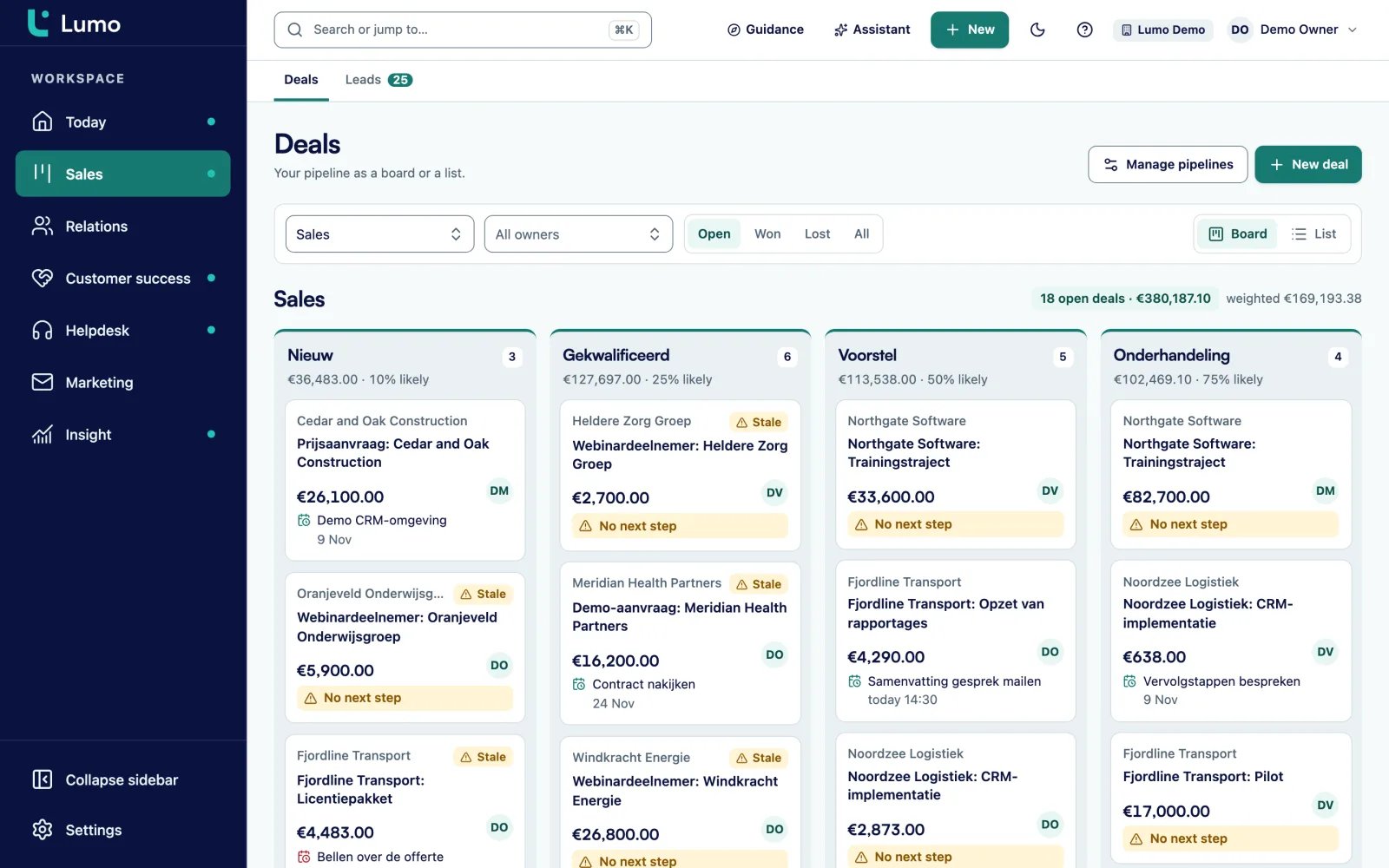
After the call Tom adds the products to the deal. Forty licences, monthly, ongoing. Onboarding, one-time. Support, annually, two cycles. Lumo works out the deal value from the lines, and his manager sees the deal with the right value in the Proposal stage on the board.
Then he creates a new quote. The lines are already there. The default introduction and terms come from the settings, and validity is set to 30 days. He adds two sentences about the call to the introduction, previews the PDF and sees the customer's logo next to his own company's. He sends it from his Gmail with the operations lead as the signer.
At four o'clock the buyer opens the link. In the audit log Tom sees quote viewed, then code sent and code verified. Ten minutes later it says quote signed. The signed PDF with its evidence page is on the deal and in the buyer's inbox. Tom marks the deal as won and schedules an activity for the kickoff.
Had the buyer asked for a change, Tom would have voided the quote and created a new one with refreshed lines. The old signing link would have stopped working.
Do this once before the team sends its first quote.
A quote is the end of a route that starts earlier. The product lines come from the deal in your pipeline, and the deal value on the board is the same sum as on the quote. The customer and their organization come from contact management, including the logo printed on the PDF. The email goes through your connected Gmail and then sits on the deal timeline.
If you want fixed steps after signing, such as a task for the project lead once a deal is won, you set that up with automations. They react to the deal stage, not to the signature itself. That is why the rep moves the deal after signing. The revenue you win shows up in reports on won deals.
The PDF, the customer email and the signing page are in Dutch, even when the app is set to English. For English-speaking customers you write the introduction, terms and line names in English yourself. The fixed labels stay Dutch.
The signature is a typed name with an email code, an evidence page and an audit log. That is a simple electronic signature, not a qualified signature under eIDAS. There is one signer per quote, no reminder emails yet, and you move the deal stage yourself after signing. Convert SVG logos to PNG first.
Working in Outlook or Microsoft 365? Sending with a signing link runs through a connected Gmail today. The Outlook and Microsoft 365 integration is on the roadmap. Until then you create the quote and PDF in Lumo, open the PDF in a new tab and send it from Outlook. Put your personal Lumo BCC address in Bcc and the email lands on the right person, organization and deal. You then record the customer's approval as a note on the deal.
It is a simple electronic signature: a typed name, an agreement tick and an email code, with an evidence page and a hash-chained audit log. It is not a qualified signature. Ask your lawyer whether it is enough for your contracts.
Yes, that is the only way. The quote takes a snapshot of the products on the deal. Then you adjust title, introduction, terms, VAT and validity. While it is a draft you can refresh the lines from the deal.
No. A sent quote is locked, so the customer signs what they received. Void it and create a new one. The old signing link then stops working.
No, there is one signer per quote. If a second person has to approve, send a second quote or record that approval as a note on the deal.
The fixed text of the PDF, the customer email and the signing page is Dutch. You write the introduction, terms and line names yourself, so those can be in English.
No. A note is added to the deal and the quote shows as Signed. You move the stage yourself, for example from the deal board.
Yes. The audit log shows quote viewed as soon as the customer opens the signing page, followed by code sent and code verified.
You create quotes and PDFs in Lumo as usual. Sending with a signing link goes through Gmail today, and the Outlook and Microsoft 365 integration is on the roadmap. Until then send the PDF from Outlook with your Lumo BCC address in Bcc, so the email lands on the deal.
No, reminder emails are not built yet. Schedule a follow-up task on the deal a few days after sending.
In the demo we build a quote from a deal, send it and sign it together, so you see the whole route.