
See your own week in Lumo
In the demo we connect a Google Calendar and show how your meetings land on the right deals and what shows up on Today.
Calls, meetings, tasks and deadlines sit in Lumo on the person, organization, deal or lead they are about. The Today screen sets up your day, and Google Calendar syncs both ways.
Ask a rep what they need to do tomorrow and the answer comes from four places. A few meetings are in the calendar. A callback is on a sticky note. A quote they still need to chase, they remember. And the CRM holds tasks from three weeks ago that were never ticked off, because they were done anyway. So nobody trusts the task list, and everyone looks at their calendar.
That works as long as the rep is not ill, not on holiday and does not leave. After that, nobody knows which customer is waiting for a call. A sales manager who wants to know whether every demo has a follow-up meeting has to look it up deal by deal. And meetings in the calendar never reach the CRM, so it looks as if nothing has happened with a customer for weeks.
The problem is usually not discipline. It is that CRM activities are disconnected from the calendar and from the deal. Whoever books a meeting in Google Calendar then has to type it into the CRM again. Whoever creates a task in the CRM never sees it where they plan their day. Double work gets skipped, and then neither side is right.
In Lumo an activity is always linked to a person, organization, deal or lead. It has a type, an owner, a date and a status. The Today screen puts your tasks, the leads that need follow-up and your stalled deals together. And Google Calendar syncs both ways: a meeting with a known customer in your calendar becomes an activity on the right deal, and a call you plan in Lumo goes to your calendar. You record it once. Why fast follow-up matters so much is in the guide lead follow-up.
The screens and buttons as they are named in Lumo.
Connect Gmail first. Then turn on the calendar under Google Calendar. If Lumo asks you to Extend permissions, you grant calendar access once in the Gmail settings.
From a person, organization, deal or lead, choose Plan an activity. Pick the type: Call, Meeting, Task, Email, Deadline or Other, with subject, owner, date, time and note.
At the top of the Activities list is Quick add. Type a subject, press Enter and the activity is in. Activities without a date are fine too.
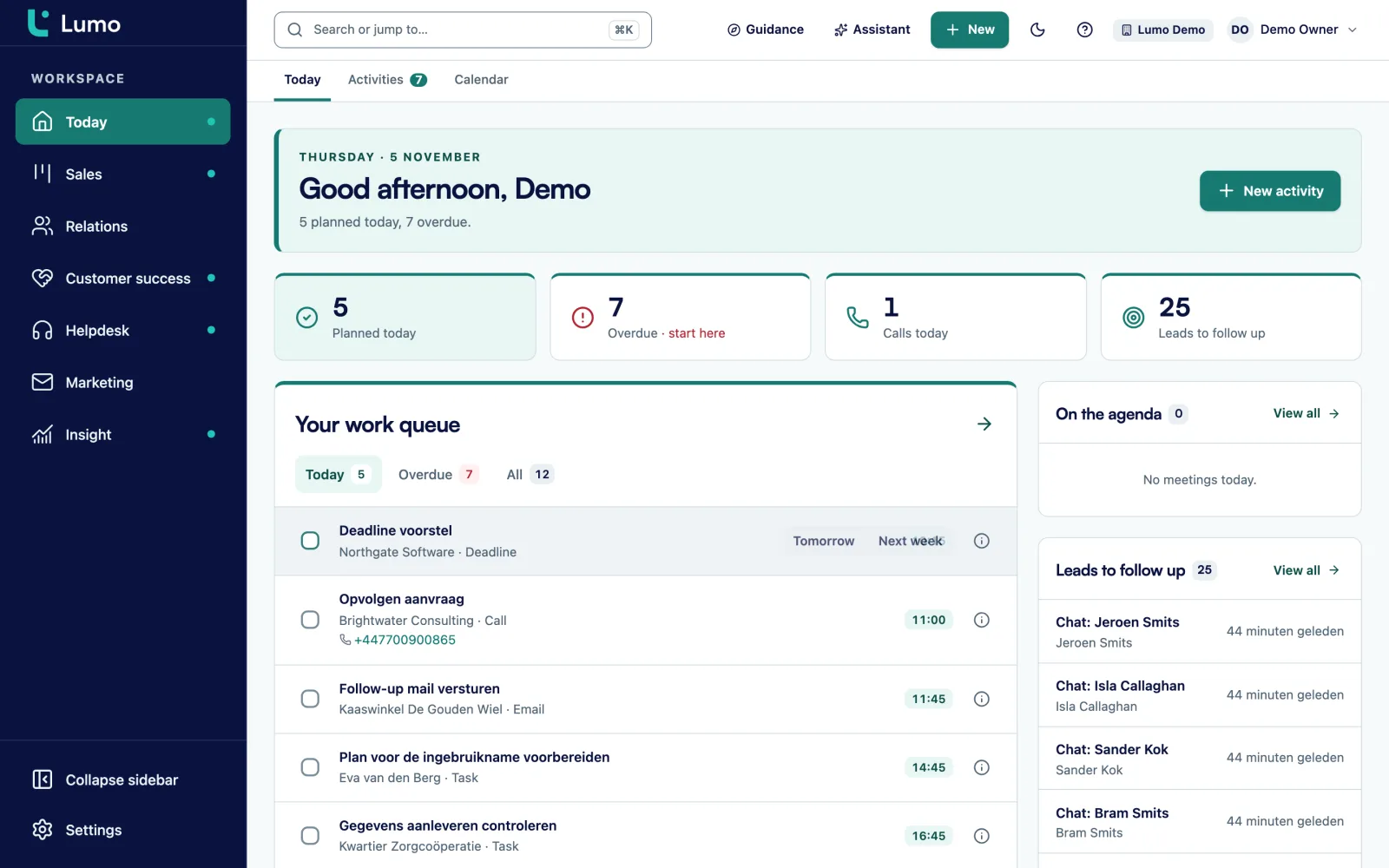
Open Today. Overdue items are on top. Mark done, or move to Tomorrow or Next week.
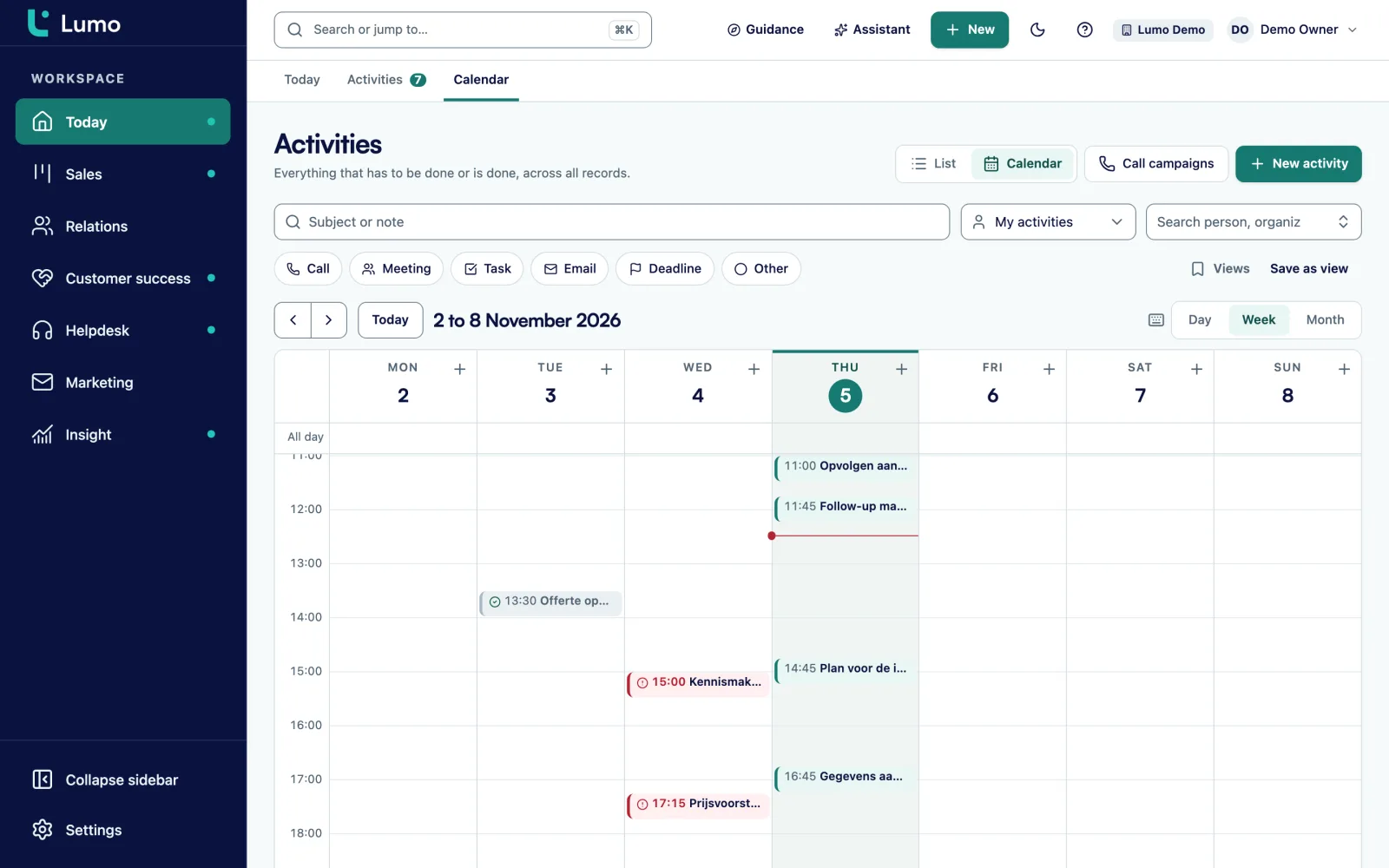
Choose Calendar and then Day, Week or Month. Drag an activity to another day, or use Alt plus an arrow key to move it a day or a week.
Today is the first screen you open. You see today's activities, with overdue items on top. Next to them, the leads waiting for follow-up and the deals that have been in their stage longer than set. If you use the helpdesk, you also see tickets whose response time is nearly up or already breached. If you use campaigns, you see which ones send or are scheduled today.
Everything on Today comes from the rest of Lumo. You do not have to maintain anything for it. A stalled deal leaves the screen as soon as it moves, a lead as soon as you pick it up. Every line clicks through to its record.
So you start the day doing, not searching. And when a colleague is ill, someone else can take over their day by filtering the list on that owner.
The Activities list shows everything that needs doing or has been done, across all records. It groups into Overdue, Today, Soon, No date and Done. Filter on owner, status, type, period and the record an activity is linked to. Save a combination you use often with Save as view, and with Share with the team a colleague can use it too.
If you work through a lot of activities, use the shortcuts. j and k browse, x marks done, e edits, n creates a new one and the space bar selects. For a selection you assign an owner, change the type or move the date in one go, up to 200 activities per action.
Every activity has a subject, a type, an owner, a date and time or a deadline, a note and linked records.
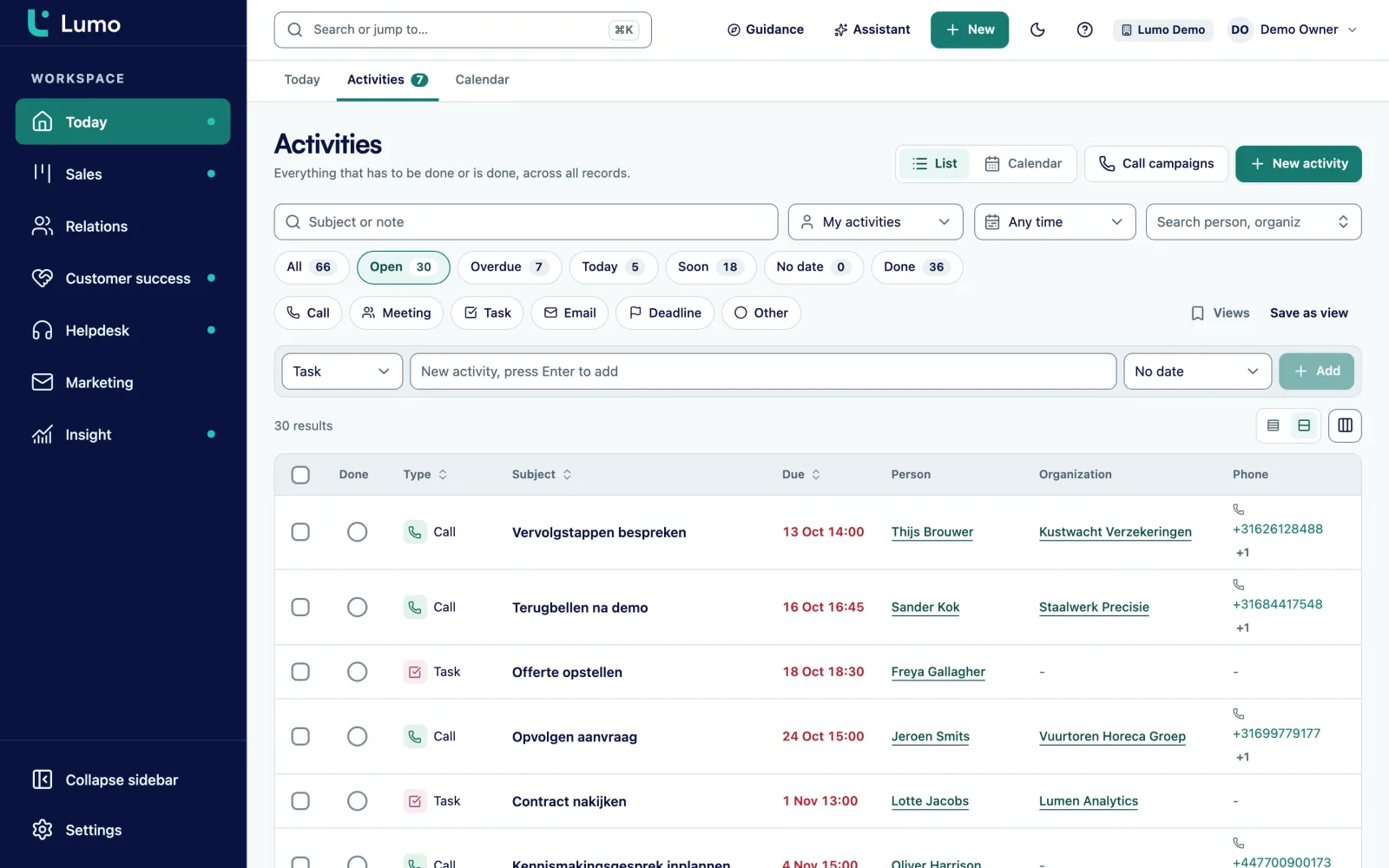
The calendar shows your activities by day, week or month. Drag an activity to another day to move it. The keyboard works too: Alt plus left or right arrow moves a day, Alt plus up or down moves a week.
The Google Calendar sync runs both ways. From Google to Lumo: a meeting with a known contact becomes an activity of type meeting, linked to the person, the organization and the most recently updated deal, open deals first. From Lumo to Google: your own meetings and calls from Lumo go to the calendar you choose under Write CRM appointments to.
Lumo never sends invitation emails and never edits Google events it did not create. Private events and focus time are skipped. When an event changed on both sides, the newest change wins. You can connect up to ten calendars per user.
Call, Meeting, Task, Email, Deadline and Other. Change the type of a selection in one go.
An activity hangs off a person, organization, deal or lead, so it shows on that record's timeline.
A task without a day stays in the No date group until you give it one.
Mark done with one click or with x, and fix a mistake with Undo or Reopen.
For example "all team calls this week", saved and shared with colleagues.
An automation creates an activity when a deal changes stage or stalls. Activity completed is also a trigger.
Add custom fields to activities too, such as the call outcome as a select.
Ask the AI assistant to plan a call on a deal. It does so with your permissions.
An example, not a customer story. Say a marketing agency has five account managers. They book client meetings in Google Calendar and work in Lumo with a New projects pipeline.
Monday. A client books a meeting through an account manager's invite. Because the contact is a known person in Lumo, the meeting becomes an activity of type meeting, linked to the person, the organization and the open deal "Spring campaign". Nothing has to be retyped.
Tuesday. After the meeting she plans two activities on the deal: a task "write proposal" due Friday, and a call "walk through proposal" next Tuesday at 10 am. The call appears in her Google Calendar right away. The task stays in Lumo only.
Wednesday. An automation has created a task on another deal that has been in the Quote stage for fourteen days. The task is on Today, with the deal listed below as stalled. She calls, and the client asks for another week. She marks the task done and moves the next call a week ahead in the calendar with Alt and the down arrow.
Thursday. A colleague is ill. The team lead filters the Activities list on that owner, selects today's six calls and assigns them to herself in one go.
Friday. The proposal task is done. The deal timeline now shows Monday's meeting, the completed task and the planned call, in order. Whoever opens the deal knows exactly where it stands.
Activities show on the timeline of contacts and deals, and the next step on a deal card is the next activity. Leads needing follow-up come from lead management. Email with the same customer sits on the same record through Gmail. Automations create activities without anyone having to remember. And the other connections Lumo offers are listed under integrations.
Calendar sync works with Google Calendar today. The Outlook and Microsoft 365 integration is on the roadmap. If you use an Outlook calendar, you plan your activities in Lumo itself and use the calendar and the Today screen like everyone else. A phone number in Lumo is a link that calls through your own phone or calling software. Lumo does not log or record calls itself, so record the outcome as a note on the activity.
Call, Meeting, Task, Email, Deadline and Other. You link an activity to a person, organization, deal or lead.
Both ways. Meetings with known contacts become activities in Lumo, linked to the person, the organization and the most recent open deal. Your own meetings and calls from Lumo go to the calendar you choose.
No. Lumo never sends invitation emails and never edits events it did not create.
The Outlook and Microsoft 365 integration is on the roadmap. Until then you plan activities in Lumo itself, and the calendar, list and Today screen work exactly the same.
Up to ten calendars per user. Private events and focus time are skipped.
The newest change wins.
Yes. Filter the list on that owner, select the activities and assign them. That works for up to 200 activities per action.
No. Phone numbers are links that call through your own phone. Record the outcome as a note on the activity.
In the demo we connect a Google Calendar and show how your meetings land on the right deals and what shows up on Today.