
See your own mail on your deals
In the demo we connect a Gmail account or show the BCC address with Outlook, and look together at what lands on your records.
Connect Gmail and mail with known contacts lands on the person, the organization and the deal by itself. You send from the record out of your own mailbox. On Outlook, you log mail with your personal BCC address.
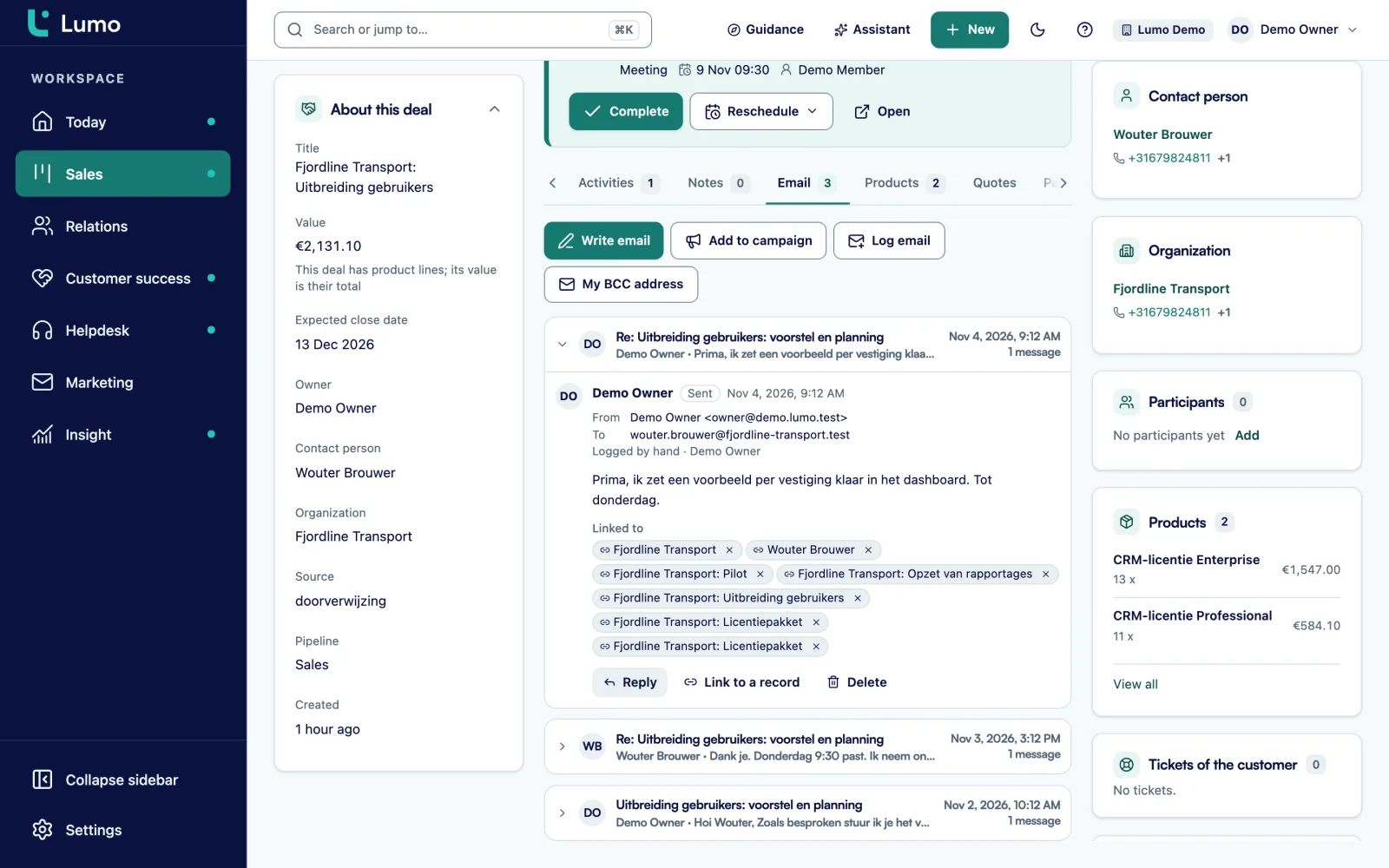
Most agreements with customers are made by email. The discount you promised in March. The buyer's question about delivery times. The "fine, send us a proposal" that really started the deal. And all of that mail sits in one person's inbox. When that person is on holiday, a colleague does not know what was agreed. When they leave, it is gone.
So in many CRMs you move mail over by hand. You paste an email into a note, or forward it to an address and hope it lands in the right place. That lasts about a week. Other CRMs pull in everything: your whole inbox, including mail with your accountant and your children's school. Then nobody dares to connect their mailbox.
Lumo sits in between. Connect Gmail and Lumo only looks at mail with at least one known contact, as sender, recipient or in cc. Only that mail is stored and linked to the person, the organization and the deal. The body of any other mail is never fetched. Per connection you choose whether only you see the mail or your whole team. And if you want a conversation out, you exclude it.
If your team works in Outlook or Microsoft 365, you are just as welcome. The Outlook and Microsoft 365 integration is on the roadmap. Until then every user has a personal BCC address that works with any mail client. Put it in Bcc or forward a mail to it, and it lands on the right person, organization and deal. Further down you read exactly how that works in practice. What GDPR means for your email is in the guide B2B email marketing and GDPR.
The screens and buttons as they are named in Lumo.
Go to Gmail in Settings and choose Connect with Google. Grant permission at Google and leave every box ticked. The status turns to Connected.
Under who sees your synced mail, choose Only me or My team, and how many days Lumo looks back on the first sync. The default is 90.
The status shows the first sync is running. After that it reads up to date, and new mail comes in by itself. Every record shows the mail on its Email tab.
On a person, organization or deal, choose to write an email. Insert fields to add the first name or organization. Confirm and send.
On the Email tab, open your BCC address and create one. Copy it straight away, it is shown only once.
A mail that comes from nowhere else is logged by hand: direction, from, to, subject, text and date.
After connecting, Lumo fetches the mail of the last 90 days. You can set that yourself, from 1 to 3650 days. After that, new mail arrives on its own. For every mail with a known contact Lumo stores the subject, body, sender and date, and of attachments only the name, size and type. Spam, trash and drafts are skipped.
Lumo links the mail to the person, the organization and the deal. On the Email tab of every record, messages are grouped by subject, marked received or sent. External images are blocked by default, because they can reveal that you opened the mail. Show images switches them on.
Visibility is set per connection. Choose Only me and nobody else sees your mail, not even on shared records. That is enforced in the database. Choose My team and colleagues see the mail on the records it belongs to. If you switch later, it applies to mail already stored as well.
You write a mail from the record it is about. The recipient is already filled in. Add Cc and Bcc, up to twenty recipients per mail, and insert fields for first name, last name, full name, organization or your own name. Those fields are filled in per recipient. Before sending you confirm once more who gets the mail.
The mail leaves your own Gmail. So it is in your Sent folder, and the customer simply replies to you. The reply comes back to the record through the sync. A template you made for a campaign can be reused for a one-to-one mail. The tracking and the unsubscribe line are stripped, so it stays an ordinary email.
There are two limits per user: 30 mails per hour and 200 per day. To mail many people at once, use a campaign. A quote also goes out through your Gmail, with the PDF attached and a link to sign. More on quotes.
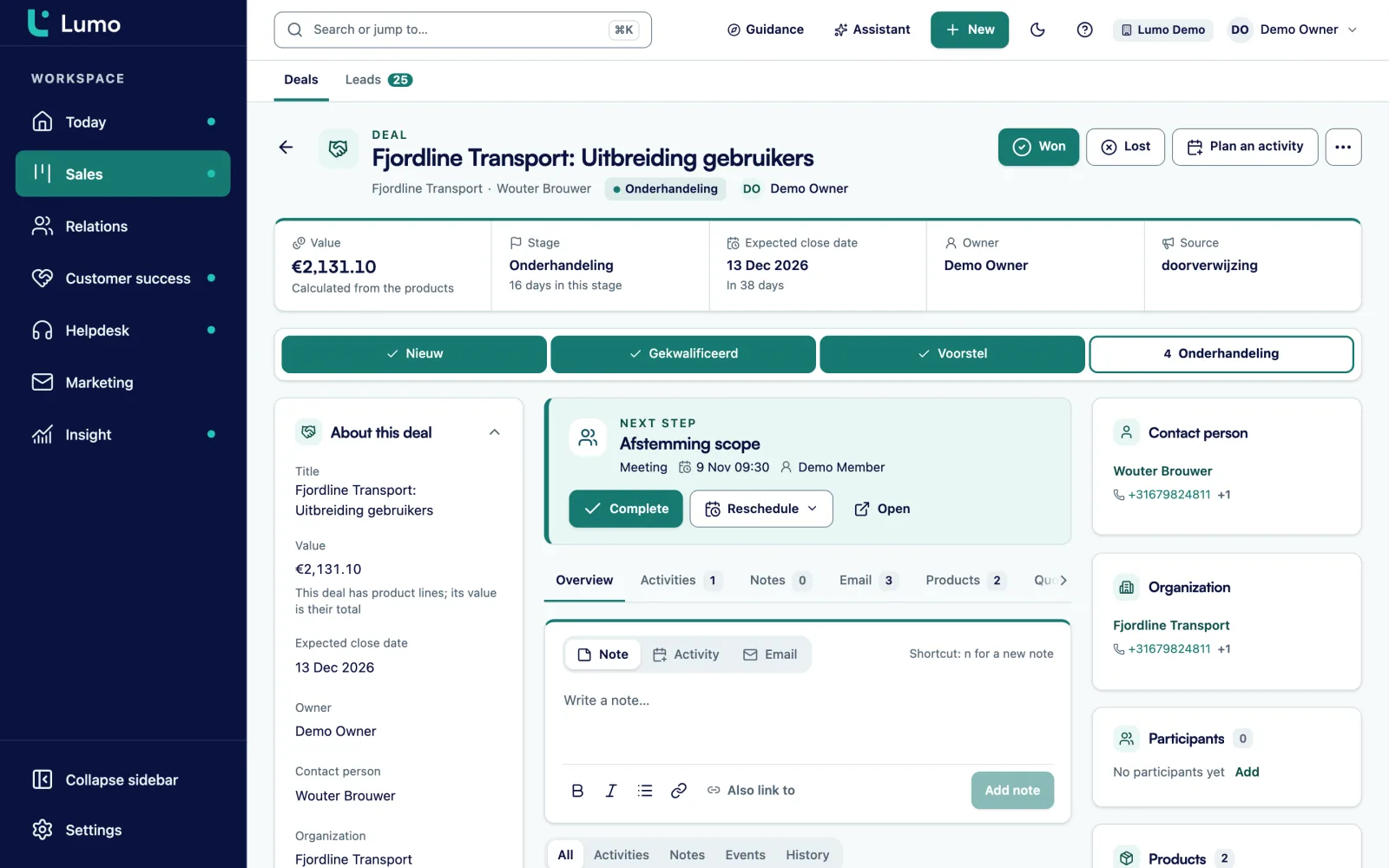
Every user can create a personal BCC address. It works with any mail client: Outlook, Microsoft 365, Apple Mail or the mail app on your phone. There are two ways to use it.
When sending. You write to a customer in Outlook and put your BCC address in the Bcc field. The customer does not see it. Lumo receives a copy and puts the mail on the person, the organization and the deal, marked as logged via BCC.
Afterwards. A customer emails you and you want it in Lumo. Forward the mail to your BCC address. It comes in as forwarded and lands on the right records. It never becomes a ticket, even if you use the helpdesk.
A tip that helps in practice: save your BCC address as a contact in Outlook, so you never have to remember it. The address is shown only once. If you lose it, create a new one, and the old one stops working. Any mail you have elsewhere, you log by hand. The Outlook and Microsoft 365 integration is on the roadmap. Until then pipeline, quotes, helpdesk, campaigns and reports work exactly the same for Outlook users.
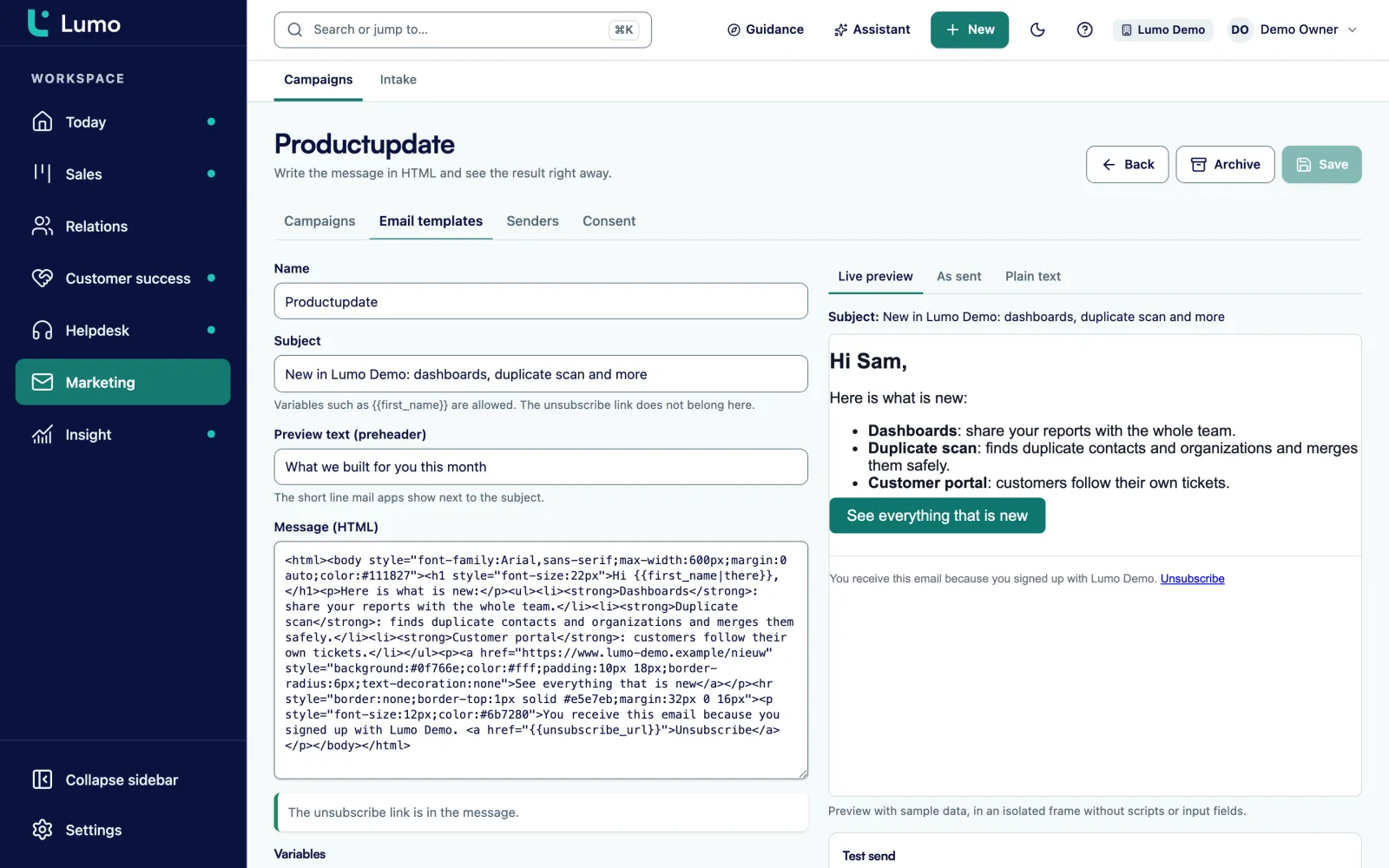
You build templates in the campaigns module, in HTML with variables and defaults, a preheader and a plain-text version generated for you. You see a live preview and send a test to yourself or a colleague in the workspace.
That template is not only for campaigns. For a personal mail from Gmail you pick the same template as a starting point. Lumo then strips the tracking and the unsubscribe line, because they do not belong in a person-to-person email. So your team has one place for texts like an intro mail, a follow-up after a demo or a reminder for an expiring quote.
What you should know: a personal mail is not tracked for opens or clicks. That is only available in campaigns, where you can switch it off per template too. More on templates and campaigns at email campaigns.
Do not want a conversation in the CRM? Exclude it on the Email tab.
If a mail is on the wrong record, or on none, link it to a record or unlink it.
A new Gmail connection is private. That is enforced at database level, not only on screen.
From 1 to 3650 days on the first sync. The default is 90.
When you disconnect you choose to keep or delete the stored mail, and Lumo revokes the permission at Google.
Lumo reads your mail and only sends when you click send. It never labels, archives or deletes anything in Gmail.
The same Google connection also switches on calendar sync. Activities and calendar
A quote goes out through Gmail with the PDF attached and a link to sign.
An example, not a customer story. Say a software company has a sales team of six on Google Workspace and a customer success team of four on Outlook.
The sales team. In the first week every rep connects Gmail with the default 90 days. They choose My team as visibility, so a colleague who takes over a deal sees the mail. After the first sync, every customer shows the mail of the last three months. A rep who mails privately with a friend who happens to be a customer excludes that conversation. They write follow-ups after a demo from the deal with the "Demo follow-up" template, with the first name as a field.
The customer success team. Each of them creates a BCC address and saves it as a contact called "Lumo" in Outlook. When they mail a customer about a renewal, they add Lumo in Bcc. When a customer question comes in that matters for the deal, they forward it to their BCC address. A few older mails in a shared folder they log by hand. They plan meetings in Lumo itself, so they show on Today and in the calendar.
The result. On a customer's organization page the sales mail from Gmail and the customer success mail via BCC sit side by side, each with its source. A rep preparing an upsell first reads what customer success emailed the customer last month. Nobody has to be asked.
Once the Outlook and Microsoft 365 integration arrives, the customer success team can switch to sync. Whatever they logged through BCC until then stays where it is.
Mail shows on the timeline of people and organizations and on the deal in your pipeline. The same Google connection switches on calendar sync. For mail to large groups you use campaigns, with consent and unsubscribes handled. And how Lumo treats the mail in your CRM is on security and privacy.
Mail sync works with Gmail today. The Outlook and Microsoft 365 integration is on the roadmap, and until then you use the BCC address or log mail by hand. The BCC address works once an inbound domain is set up for your workspace, and we take care of that during setup. An ordinary mail from Lumo goes without attachments, only a quote goes with a PDF. And open or click tracking exists for campaigns only, not for personal mail.
Only mail with at least one known contact, as sender, recipient or in cc. Mail with only unknown people, spam, trash and drafts are not stored.
Not if you choose Only me, which is the default. That is enforced in the database. Choose My team and colleagues see the mail on the records it belongs to.
The Outlook and Microsoft 365 integration is on the roadmap. Today the personal BCC address works with Outlook and any other mail client: put it in Bcc or forward a mail to it. You can also log mail by hand.
Put your personal BCC address in the Bcc field when you mail a customer, or forward a mail to it. Lumo puts it on the right person, organization and deal, without making it a ticket.
Yes, from your own Gmail. Up to twenty recipients per mail, 30 mails per hour and 200 per day per user.
Not for personal mail. Opens and clicks are tracked for campaigns only. Email campaigns
You choose whether the stored mail stays or is deleted. Lumo stops fetching and revokes the permission at Google.
No. Lumo never labels, archives or deletes anything in Gmail, and only sends when you click send.
A quote goes with its PDF. An ordinary mail from Lumo goes without attachments. For received mail, Lumo stores only the name, size and type of attachments.
In the demo we connect a Gmail account or show the BCC address with Outlook, and look together at what lands on your records.