
Turn your follow-up agreements into rules
In the demo we build the first three rules for your pipeline together and run a dry run on sample data.
A rule in Lumo says: when this happens and this is true, do that. A deal moves to Proposal and a call is ready for the owner. A lead sits idle for a week and the owner gets a task. You test every rule with a dry run first.
A deal reaches Proposal. The account manager sends the quote and plans to call in three days. Then an urgent job comes in, a colleague is off sick and the week is gone. The quote sits with the customer for ten days before anyone calls, and by then the customer has talked to someone else.
Nobody does that on purpose. It goes wrong because the next step lives in someone's head, not in the system. With five deals you can keep track. With fifty deals per rep you cannot. Follow-up then depends on who is busiest, not on what the customer needs.
CRM automation solves exactly that one piece: the follow-up that is always the same. A deal in Proposal always means a call in three days. A new lead from the website form always gets an owner. A deal that has been idle for two weeks always gets a task and a label. Those are not decisions. They are agreements, and agreements fit in a rule.
In Lumo you build a rule from a trigger, conditions and one or more actions. You test it with a dry run on your real data, without changing anything. Then you switch it on and watch the run log. Our guide on fast and consistent lead follow-up shows how to build a daily follow-up rhythm.
A rule always has three parts. You build it yourself, or you ask the AI assistant to prepare it.
When should the rule look? For example deal stage changed, filtered to the New business pipeline and the Proposal stage.
What must be true? For example deal value greater than 10,000 and the Source field is not empty. You combine comparisons such as equals, contains, is one of and is empty.
What should happen? Create an activity, create a note, update a field, assign an owner or add a label.
The dry run shows which records the rule would fire on and what it would do. Nothing is saved.
Once the rule is on, the run log shows what it did each time. You can switch it off in the Rules overview.
A rule that fires too often is worse than no rule. The team gets tasks that make no sense and ignores them within a week. So every rule starts with a clear trigger and tight conditions.
The triggers are: deal created, deal stage changed, deal won, deal lost, lead created, person created, organization created, activity completed, deal stale and lead stale. For the last two you choose the number of days. Deal triggers can be filtered by pipeline and stage, so a rule for new business does not fire in your renewals pipeline.
Then come the conditions. You compare fields with equals, not equals, greater than, greater than or equal, less than, less than or equal, contains, is one of, is empty and is not empty. That lets you build a rule that only fires for deals above a certain amount, or only for leads from a certain source.
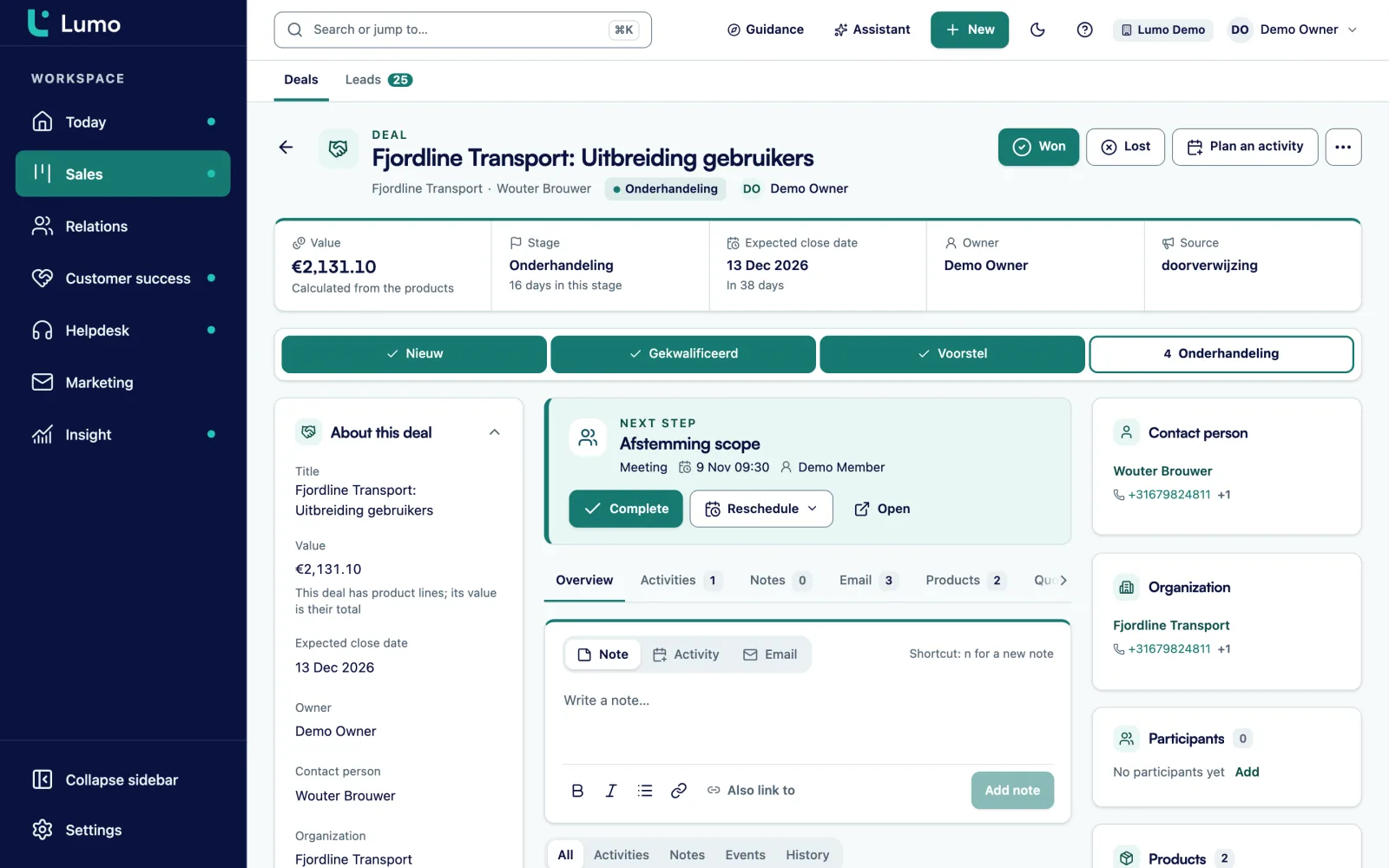
The actions are small and predictable on purpose. A rule can create an activity, such as a call for the deal owner in three days. It can add a note to the timeline. It can update a field, such as a custom field holding the follow-up status. It can assign an owner. And it can add a label, so a list shows straight away which deals need attention.
One rule can run several actions. A deal idle for two weeks then gets a task for the owner and the label Stale in one go.
What a rule does not do is send email. That is a deliberate choice. Mail to a customer should come from a person, or from a campaign with consent and an unsubscribe link. If you want a follow-up to people who did not open a campaign, you set that up in the campaign itself. See email campaigns.
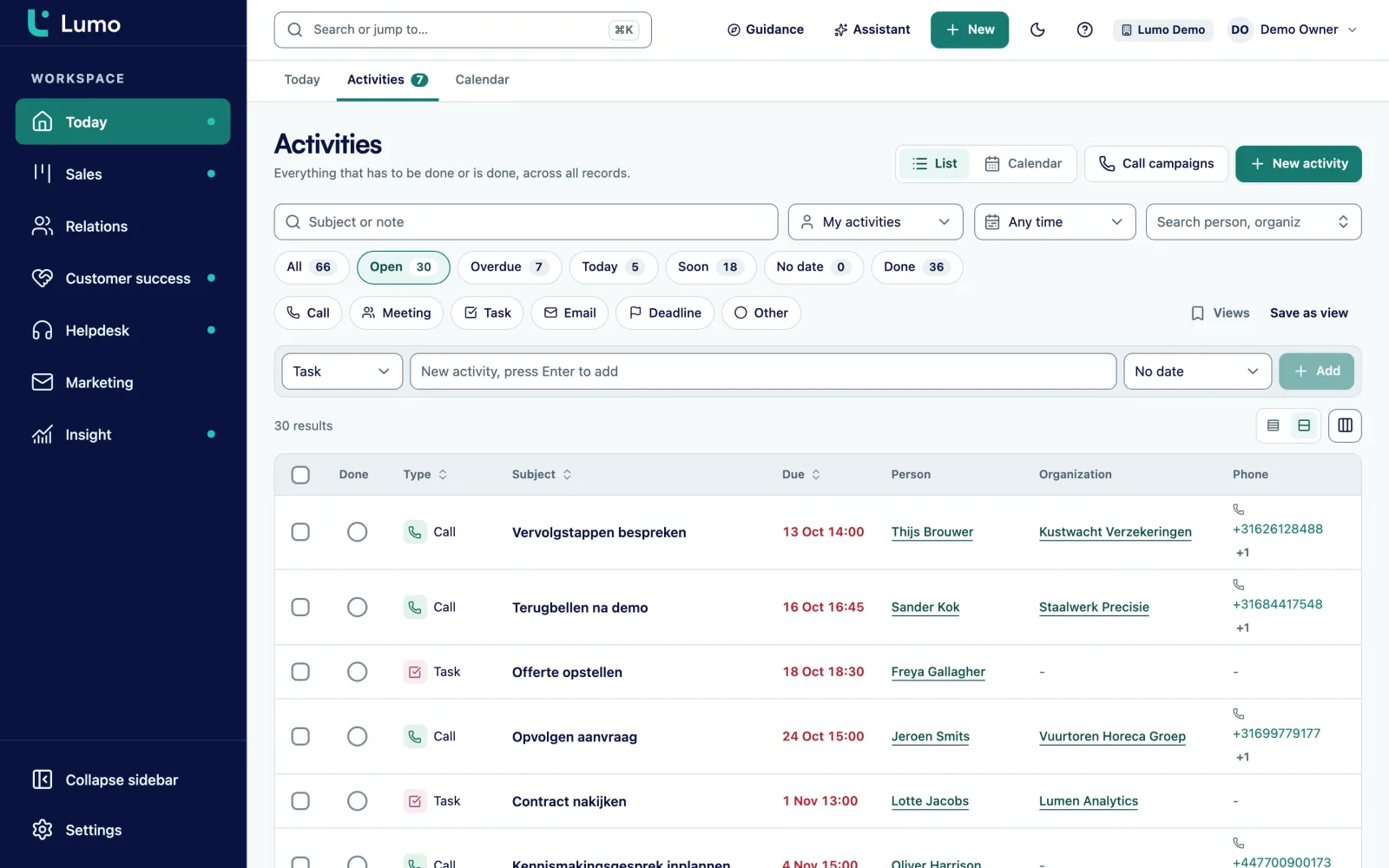
In a CRM, rules appear in many places. In lifecycle, in tickets, in guidance, in duplicates and in campaign follow-ups. After a year nobody knows what runs automatically any more. That is why Lumo has a Rules overview in Settings.
It lists everything that runs automatically, with whether each rule is on or off and when it was last changed. You filter by where the rule comes from. Switching on or off happens right there. Editing a rule happens in the place it belongs.
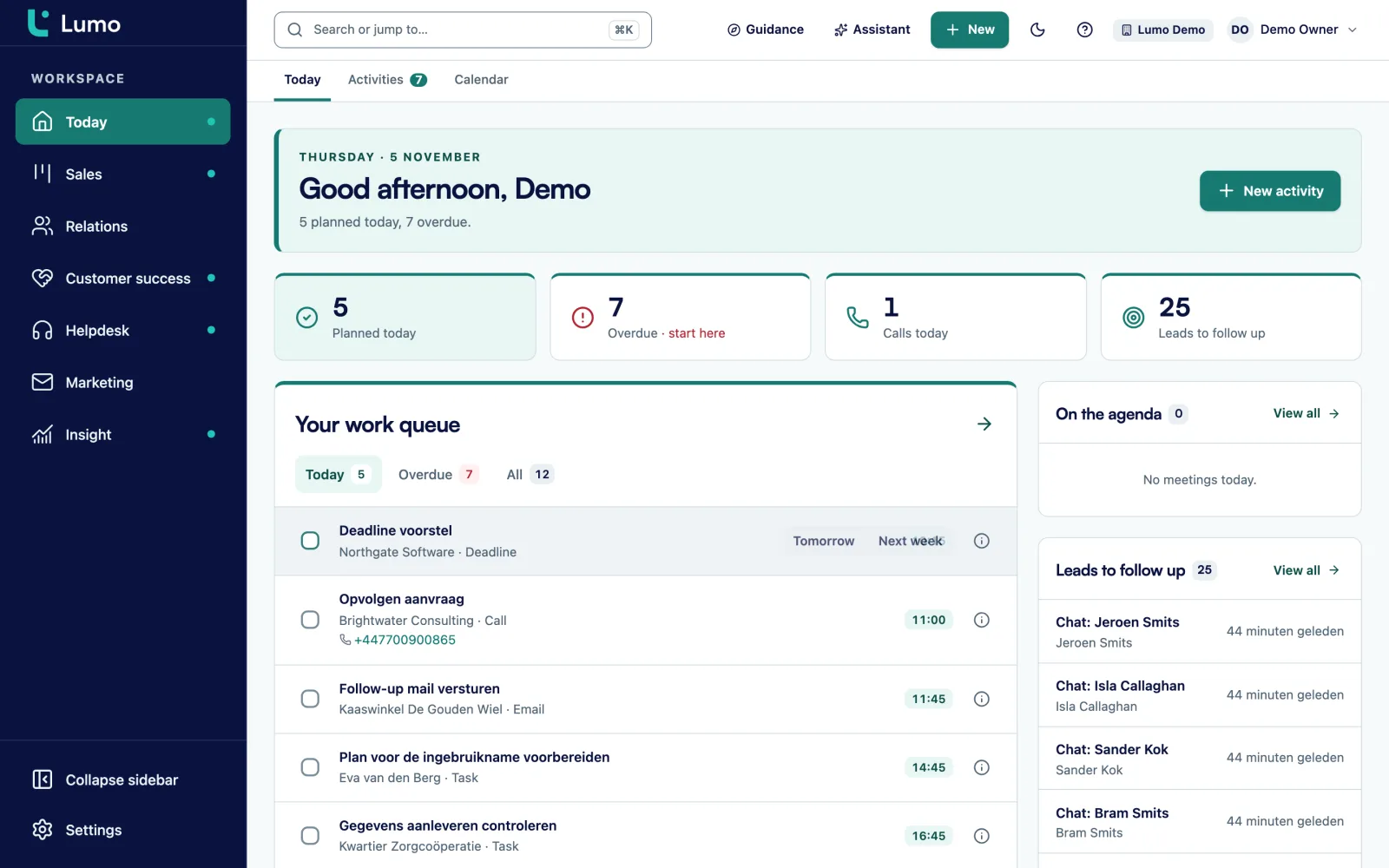
Workflows also have a run log per rule. It shows which record the rule fired on and what it did. If something is off you see it within a day, not after a month. The effects show up on the Today page, where the day's tasks are listed.
Deal created, stage changed, won, lost, lead, person and organization created, activity completed, deal stale and lead stale.
Deal triggers filter by pipeline and stage, so a rule only works in the right pipeline.
Deal stale and lead stale fire after the number of days you choose.
Equals, not equals, greater or less than, contains, is one of, is empty and is not empty.
A call, task or deadline for the owner, a set number of days after the trigger.
Update a field, including a custom field, or add a coloured label.
Give a new lead or deal an owner straight away.
Test on real data without saving, then see what the rule did each time.
Say an installer of solar panels and heat pumps for commercial buildings has six sales reps and an inside sales desk. Requests arrive through the website form and become leads. Here is an example of four rules such a team could use.
Rule 1, new lead. Trigger: lead created. Condition: source equals Website. Actions: assign the owner to inside sales and create a call activity for today. A request never sits a weekend without an owner.
Rule 2, quote sent. Trigger: deal stage changed, pipeline Projects, stage Proposal. Actions: a call for the owner in three days and a note that the quote went out. The rep no longer has to plan the follow-up call.
Rule 3, stalled deal. Trigger: deal stale, 14 days. Condition: deal value greater than 25,000. Actions: a task for the owner and the label Stale. In the weekly meeting the sales manager filters the deal list on that label.
Rule 4, won. Trigger: deal won. Actions: update a field to the status Handover and create a task for the project lead to call the customer. Delivery does not wait for the customer to call.
Every rule runs a dry run first. For rule 3 it might show nine deals that match today. That is the moment to check whether 14 days is the right limit, before the team gets nine tasks.
Start with the agreements the team already has and put those in rules. Not the other way round.
Rules work on the stages and fields from pipeline management and on leads from lead management. The activities they create show up in activities and calendar and on the Today page.
Rules that check whether data is complete, such as a required contact on an open deal, do not belong here. They are data quality rules in CRM adoption and guidance, and those can even refuse a save.
If you would rather not build a rule yourself, ask the AI assistant. It builds the rule, runs the dry run and only switches it on after your approval. And if something needs to happen in another system, a webhook sends a message when an event happens in Lumo.
Automations in Lumo do not send email. That is deliberate: mail to a customer comes from a person or from a campaign. For a follow-up after a campaign, use the campaign follow-up. For a personal mail, a rule prepares a task and the rep sends it from Gmail. The actions are the five listed above. Multi-step sequences with waits between steps are not included. If something needs to happen in another system, use a webhook or the API.
Deal created, deal stage changed, deal won, deal lost, lead created, person created, organization created, activity completed, and deal stale or lead stale after a number of days.
Create an activity, create a note, update a field, assign an owner and add a label. One rule can run several actions.
No, that is deliberately not built. A rule can prepare a task to send a mail. Campaigns have their own follow-up for people who did not open or click.
With a dry run. It shows which records the rule would fire on and what it would do, without saving anything.
In the run log of the rule, with the record and outcome for each run.
Yes. With lead created you assign an owner and create a call straight away. With lead stale the owner gets a task if nothing happened after a set number of days.
In Settings under Rules overview. It also lists rules from lifecycle, tickets, guidance, duplicates and campaigns, with on and off.
Yes. It builds the rule, runs a dry run and switches it on after you approve.
There is no ready-made app. Lumo does send signed webhooks and has a REST API, so you can connect any tool that supports webhooks and API calls. More on the API
In the demo we build the first three rules for your pipeline together and run a dry run on sample data.