
See your queue next to your customers
In the demo we put a few of your typical questions into the inbox and show how they land on the right customer.
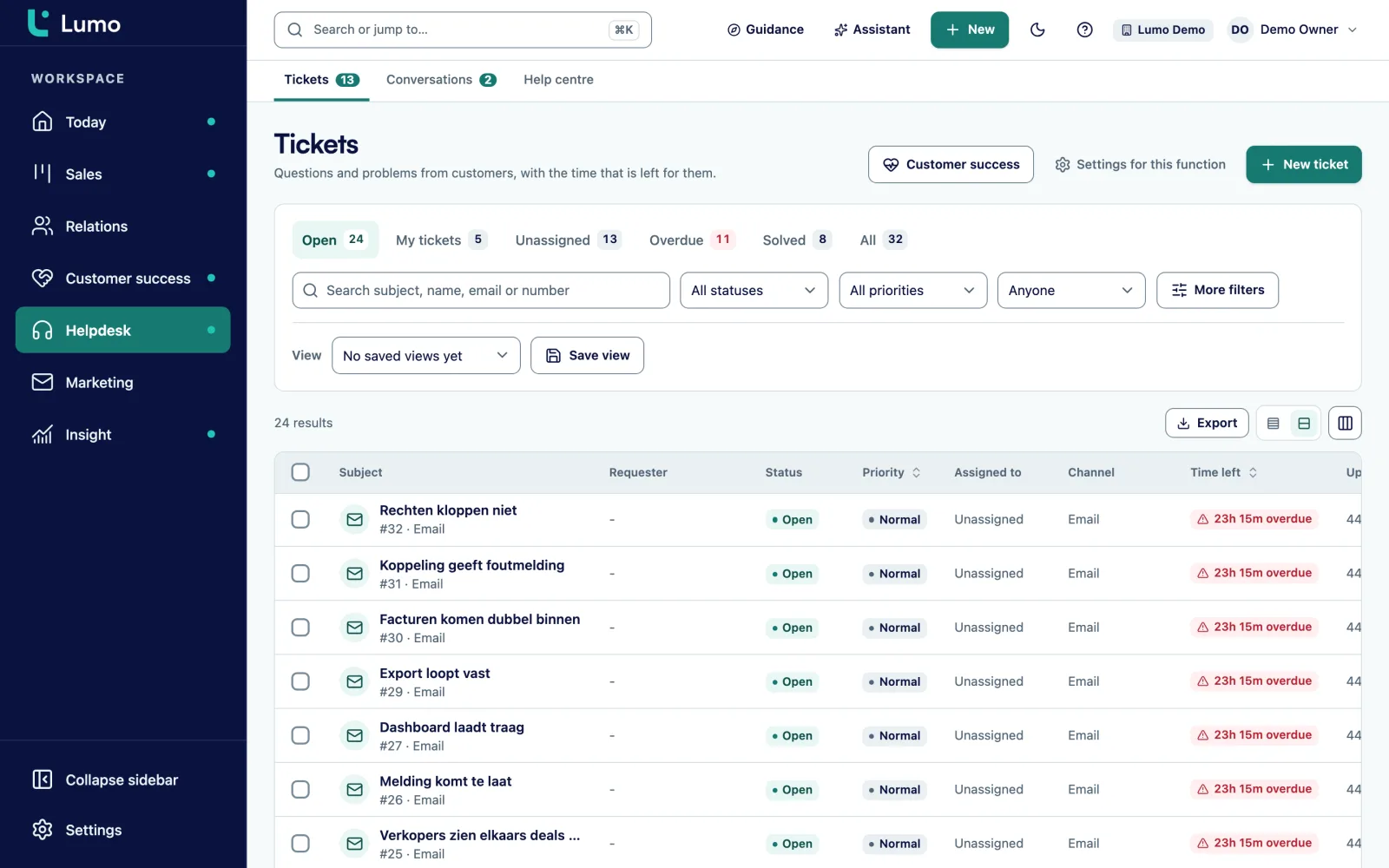
Tickets from your mailbox, the customer portal and chat land in one inbox, on the person and organization already in the CRM. Every ticket shows who the customer is, what they bought and who their account manager is.

At eight o'clock there are 34 new emails in the shared inbox. Some are questions, some are replies to yesterday, and two are a complaint from the same customer sent to two colleagues. Who picks up what? You agree it in a chat, or you hope it works out.
Then a customer calls. He wants to know why his question from last week has not been answered. You look him up in the helpdesk and find the ticket. But you cannot see that a new deal was signed with him last week, that his onboarding is running, or that the account manager is visiting him tomorrow. That lives in another system.
It goes wrong the other way too. The account manager sits down with the customer to discuss an expansion, and the customer brings up three open tickets the account manager knows nothing about. That meeting goes differently than planned.
The problem is not that support does a poor job. The problem is that the helpdesk and the CRM each have their own version of the customer. So someone copies data across, or nobody does and the gap grows.
In Lumo tickets are part of the CRM. A ticket hangs on the person and the organization, just like deals, email and activities. Whoever opens the customer sees everything. Sales sees open tickets on the organization record. Support sees the open deals and the onboarding project. And on the Today screen of everyone who looks after customers, there is Tickets close to SLA.
Read more about helpdesk and ticketing, or the guide on how to set up a helpdesk for a B2B customer base.
A Tuesday for a support agent in a team of four, with the screens open at each moment.
You open the inbox with your saved view of my open tickets, sorted by priority. New tickets are spread across whoever is in today. You start with Urgent and High.
The Today screen lists Tickets close to SLA. A ticket gets a warning at 75 percent of its target. The clock only runs within your business hours, so the weekend does not count.
A customer asks how to add a user. Cmd or Ctrl and / inserts a macro. It fills in the reply and can carry actions that run once you send. Ctrl or Cmd and Enter sends it.
You take the chat for an hour. Conversations arrive in Conversations with the visitor and their email address if they left it. A question that needs more time you escalate to a ticket.
A billing question goes to a colleague through an internal note. The customer never sees that note, not in the portal either. You assign the ticket to her and set it to On hold.
The same question came in four times today. You write a knowledge base article about it. Tomorrow a customer who opens a ticket in the portal gets that article as a suggestion.
Tickets come in through a mailbox, the customer portal, an escalated chat or by hand. Each ticket has a status: New, Open, Pending, On hold, Solved or Closed. And a priority: Low, Normal, High or Urgent.
You reply to the customer or add an internal note. Shortcuts help: r to reply, n for a note, Ctrl or Cmd and Enter to send. You assign a ticket to a colleague, or have new tickets spread automatically across whoever is available. Tags, bulk actions and saved views keep the inbox under control. Share a view with the team when everyone needs it.
Under ticket rules you set what happens by itself, for example an assignee or a priority. Every change shows in the ticket history, also when a macro or a rule made it.
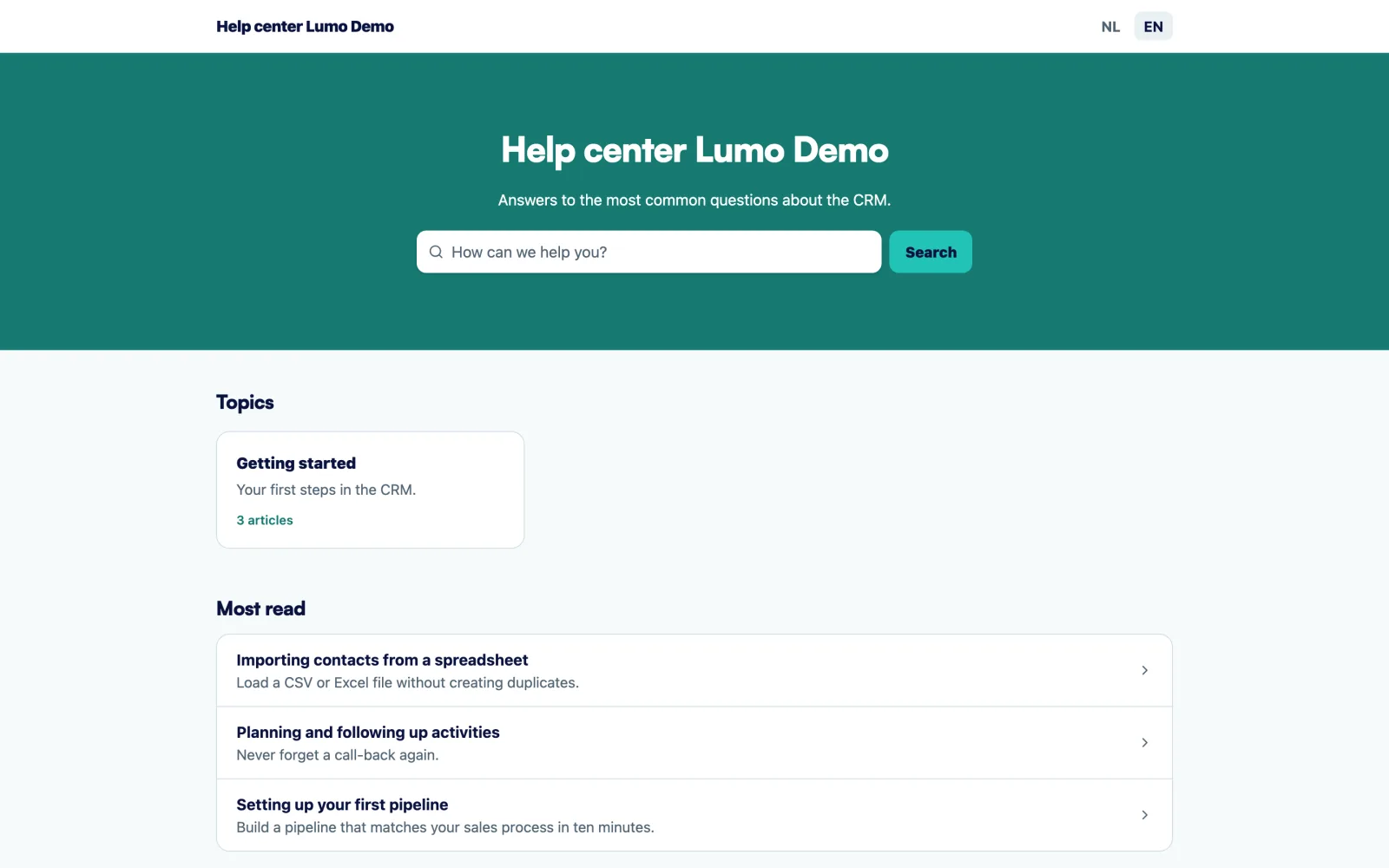
The knowledge base is a public help center on its own address. You write articles in Markdown, grouped into categories, with version history. Each article can have a Dutch and an English version. You write the translation yourself, nothing is machine translated.
Customers search the help center and say per article whether it helped. Under Insights you see what gets read and searched. If many people search for something you do not explain well yet, you know what to write next.
In the customer portal, a customer who opens a new ticket gets suggested articles about their question. Part of the questions get solved before a ticket exists. More on the customer portal and knowledge base page.
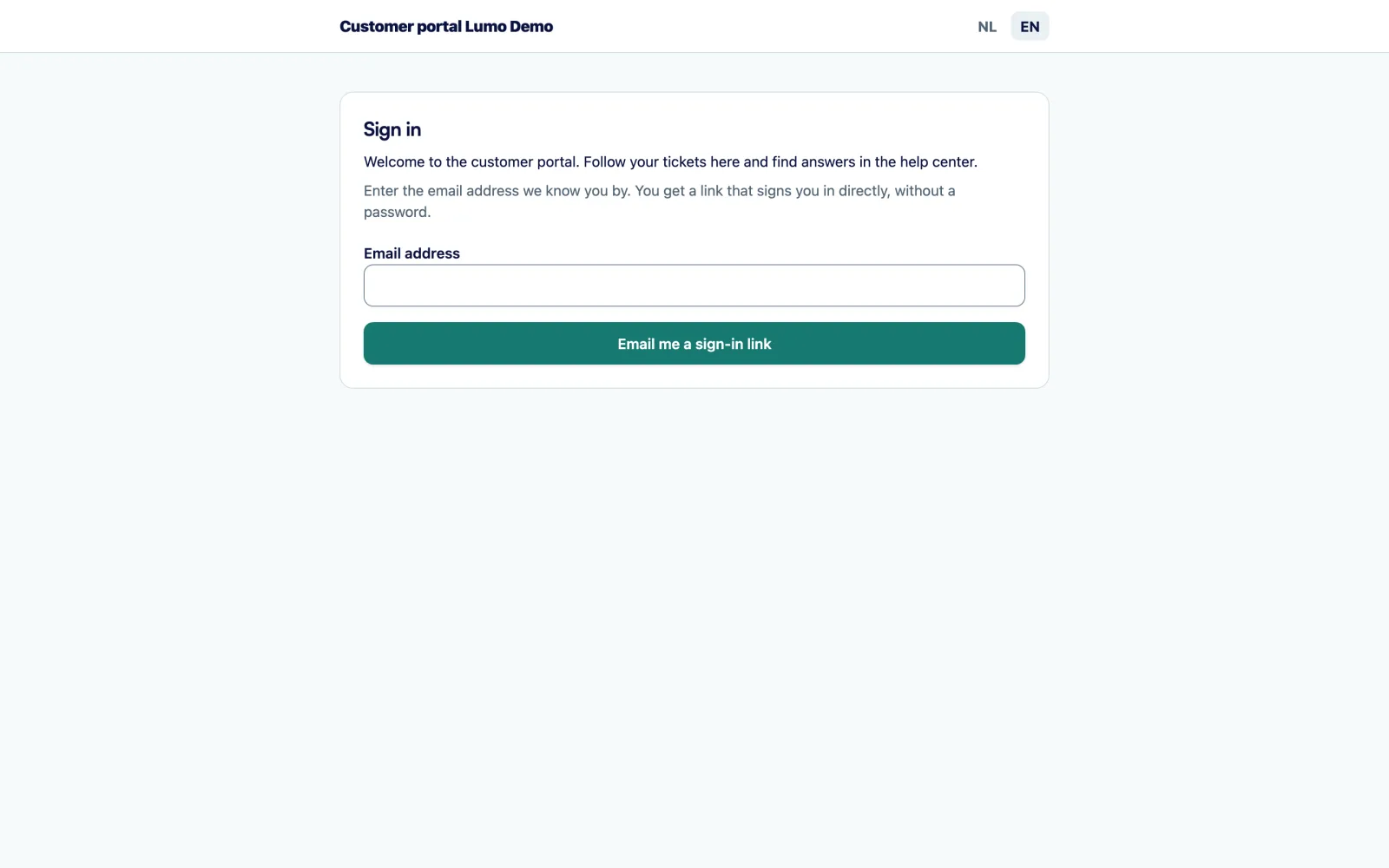
Each workspace can have a customer portal on its own address. A customer signs in with a link sent by email, no password. They see their own tickets, open a new one, reply to an open one and mark a ticket solved when they are done.
Customers never see internal notes. What you discuss with a colleague stays in the CRM. The customer only sees the public replies.
For a support team that removes the is there any news yet email. The customer checks for themselves. After solving they get a short satisfaction survey through a signed link. That score flows into customer health on the organization, which your colleagues in customer success use.
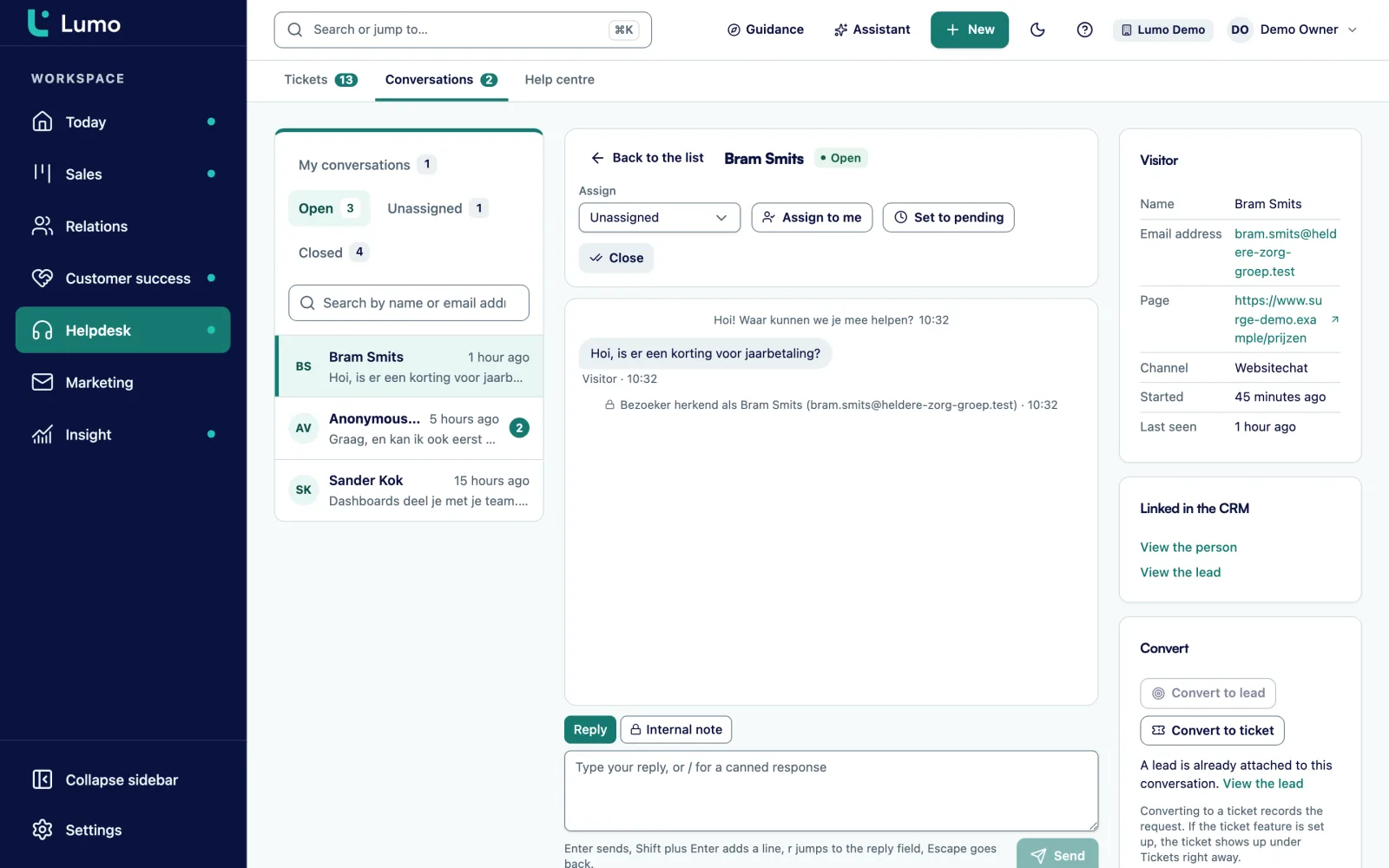
You add the chat widget to your site with one script. Per channel you set which websites it may run on, the welcome message, opening hours with a message for outside them, the colours and the language.
Conversations arrive in an inbox with assignment, status and canned responses you insert with /. You see when a visitor is typing and which colleagues are online. A visitor who leaves an email address becomes a person, a lead and an activity. A question that takes longer you escalate to a ticket.
The chat is staffed by people. The bots in Lumo are channels with fixed texts, not an AI that answers on its own. More on live chat.
A support team usually steers on five things. Time to first response. Time to resolution. The share of tickets that stay within target. Satisfaction after solving. And the backlog: how many tickets are open, and how old they are.
In Lumo you set a target per priority under Response targets, for first response and for resolution. The clock runs within your business hours and skips holidays. At 75 percent of the target the ticket gets a warning. Missed targets count towards customer health per organization, together with open tickets and satisfaction.
For daily steering you use saved views: everything pending for more than three days, everything without an owner, everything urgent. Which numbers matter in B2B support and how to pick targets per priority is in the guide on how to set up a helpdesk.
Reply to the customer or leave an internal note for a colleague. Customers never see internal notes, not in the portal either.
Cmd or Ctrl and / inserts a saved reply, with actions that run once you send.
Assign a ticket to a colleague, or spread new tickets automatically across whoever is available.
Save views such as my open high priority tickets and work with tags and bulk actions.
First response and resolution targets per priority, with business hours, holidays and a warning at 75 percent.
Once a ticket is solved the customer gets a short survey through a signed link.
Several mailboxes side by side, for example support and billing.
Every ticket shows the organization with deals, projects and earlier tickets. Contact management
Picture a distributor of technical parts with an inside team of four who also handle customer questions. This is an example, not a customer. Around sixty questions come in each day, half by email and the rest through chat and phone.
Before, everything went to a shared mailbox. Whoever read it first picked it up. Twice a week two colleagues replied to the same email, and a question that came in on Friday afternoon was sometimes only seen on Tuesday.
In Lumo the team gets two mailboxes: service and billing. New tickets are spread across whoever is in that day. Response targets are four business hours for a first reply on urgent and one business day on normal. Business hours run from eight to five, with public holidays filled in.
They write twelve macros for questions about delivery times, returns and invoices. The chat runs from nine to four, and outside those hours the widget shows a message with the expected reply time. After a month the team has written eight articles on the questions that come back most.
On Tuesday Tom from the inside team sees a ticket from a customer whose health is At risk. On the organization record he sees an open deal for a large order. He sets the ticket to high priority and leaves a note for the account manager, who calls the customer that afternoon.
What we go through with a support team before day one.
Tickets come from email, the portal, chat and by hand. There is no channel for WhatsApp, social media or phone. You log a phone call yourself as a ticket or note. The chat is staffed by people, there is no AI chatbot that answers on its own. We set up the mailbox for incoming tickets with you during onboarding. Reports on tickets in the report builder are on the roadmap. Until then you steer with saved views, response targets and customer health. If you work in Outlook that makes no difference for the helpdesk, because tickets arrive at the mailbox address.
A helpdesk manages questions, a CRM manages customers and deals. In Lumo the helpdesk is part of the CRM, so a ticket sits on the same person and organization as the deals.
Yes. Per priority you set a target for first response and for resolution. They count within business hours and skip holidays. At 75 percent there is a warning.
No, never. Not in the customer portal either. Only public replies are visible to the customer.
With a link they get by email. No password is needed.
Yes. New tickets can be spread across available agents. You can also add ticket rules that assign a ticket by themselves.
Yes. Each article can have a Dutch and an English version. You write the translation yourself.
No. The chat is staffed by people. The bots are channels with fixed texts, such as a welcome message and an out of hours message.
Yes. Tickets arrive at the mailbox address, independent of your own mail client. Personal email you log with your BCC address, and a connection with Outlook and Microsoft 365 is on the roadmap.
In the demo we put a few of your typical questions into the inbox and show how they land on the right customer.