
Plan your move from HubSpot
In the demo we show Lumo and go through what sits in your HubSpot. After that you know what moves, what gets rebuilt and what stays behind.
Lumo has no import wizard for HubSpot. Sales Surge moves your data by hand, with a mapping per object, a trial migration in a separate workspace and a fixed cutover moment. This page has the whole playbook, including what stays behind.
HubSpot is a broad platform with a lot in it. Sales Surge implements it too, so we know how it fits together. The wish to switch rarely comes from something HubSpot cannot do. It comes from a platform that grew, year after year, into something nobody fully understands any more.
A familiar picture: a contact has 340 properties, of which the team uses twelve. Workflows built by a former colleague are still running and nobody knows whether they do anything. Sales works in deals, support in tickets, and marketing in lists that no longer match the segments sales has in mind. And every time you expand a part, the bill changes.
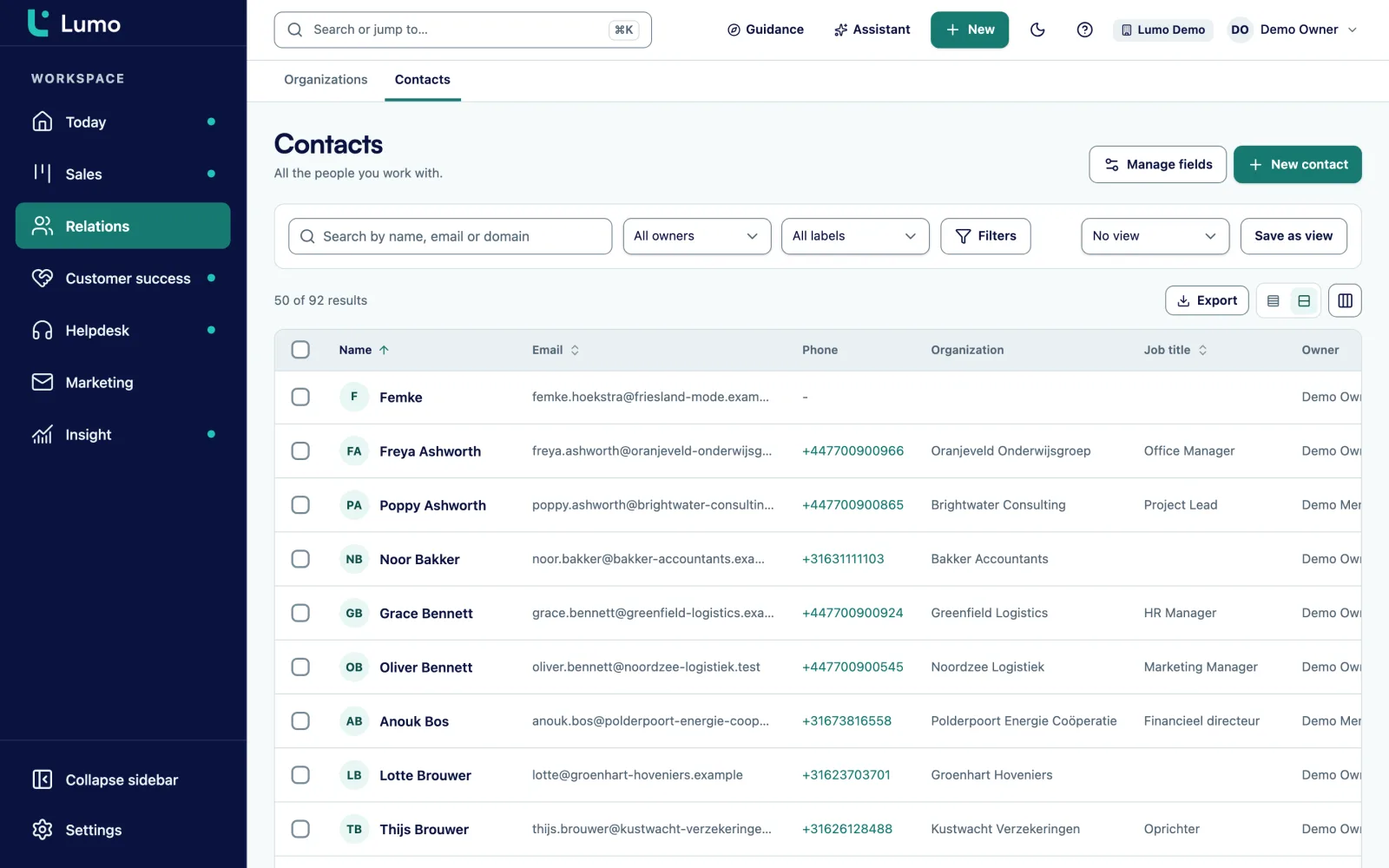
Lumo puts sales, campaigns, forms, helpdesk, quotes and reporting in one workspace, with one person and one organization under everything. It is smaller than HubSpot, and for some teams that is exactly the point. To see the two side by side, read Lumo vs HubSpot.
Migrations rarely fail on the data itself. They fail in three other places. First, the links between records: a contact at three companies, a deal with four contacts. Second, consent: someone who unsubscribed in HubSpot must not suddenly get your newsletter again. Third, everything that quietly depends on HubSpot, like the form on your website that still posts there. That is why we work from a fixed playbook.
There is no wizard, so Sales Surge runs the migration. You decide, we load.
We go through your HubSpot: which objects, pipelines, properties, workflows, forms, lists and integrations exist, and which are actually used.
For each object we write down where it lands in Lumo: companies to organizations, contacts to people, properties to custom fields with the right field type. You sign off on the mapping.
We drop what does not need to move: empty properties, old pipelines, test records. Duplicates are cleaned up after loading, with Lumo duplicate management.
We load a full export into a separate trial workspace. You check the counts, a sample of records and the links between them. If something is off, we adjust the mapping and load again.
On Friday the team stops editing in HubSpot. We take the final export, load it into your real workspace and check the counts. On Monday everyone works in Lumo.
Training on your own data, followed by a period in which we pick up questions and make small fixes.
Companies become organizations. A parent company becomes a parent organization, so the hierarchy stays. HubSpot lifecycle stages map to Lumo lifecycle stages, which you name yourself and which rules can update.
Contacts become people. In Lumo a person can have several email addresses and phone numbers and belong to several organizations, with one marked primary. That fits the way HubSpot associates contacts with more than one company.
Deals stay deals, in a pipeline with the same stages. We carry over the win probability per stage, and per stage you set after how many days a deal counts as stalled. Line items become deal products with quantity, price, discount and billing frequency. Expected close date, currency and participants come across. Lost deals keep their reason, as long as it is in your list of lost reasons.
Custom properties become custom fields. Lumo supports text, long text, number, monetary, date, yes or no, select, multi select, URL, email, phone and user. A property that fits none of those we discuss in the mapping.
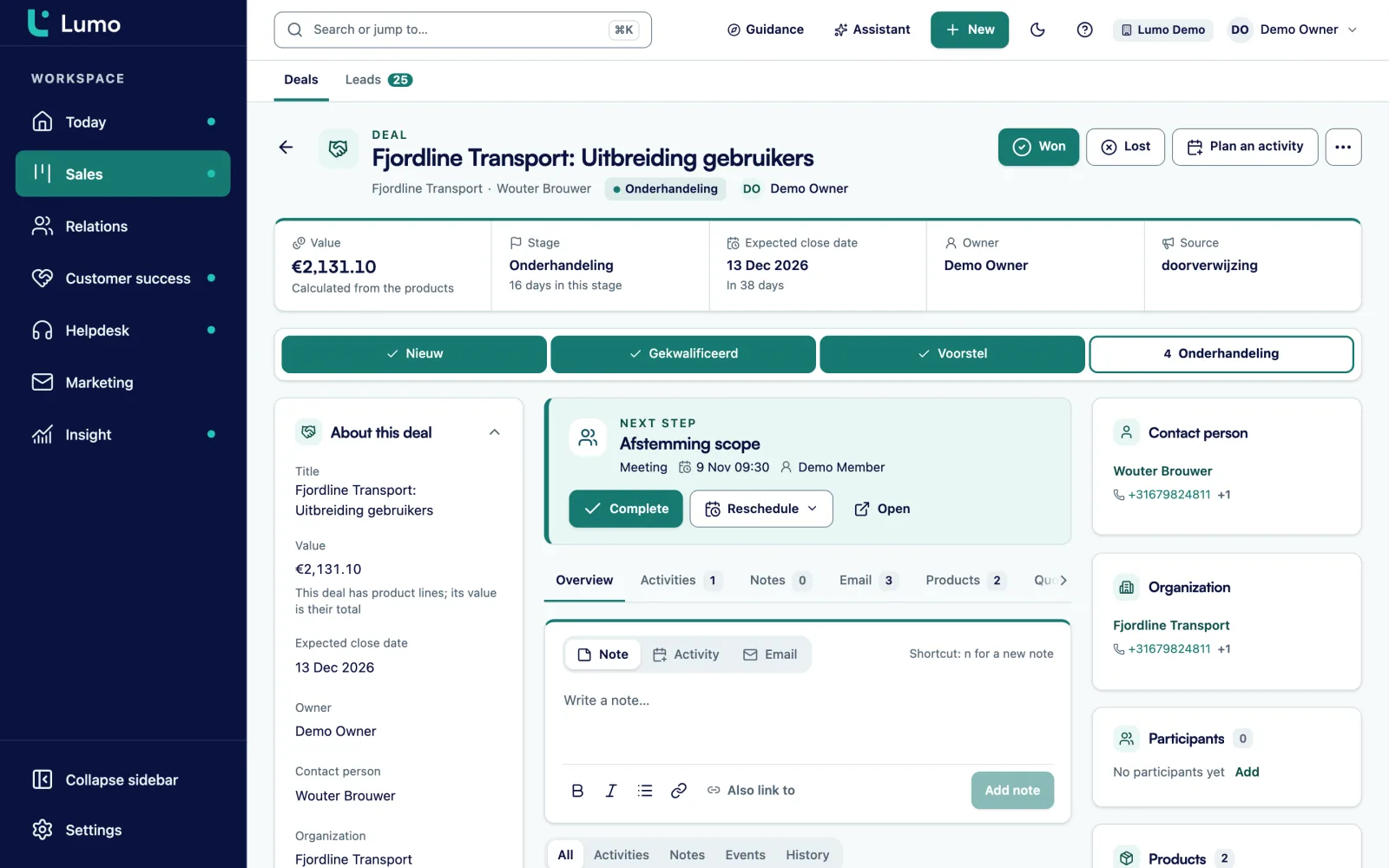
Lists become saved filters. A Lumo campaign picks recipients from a saved or new filter on your contacts and shows live who drops out and why. Static lists become a label, so you can still filter on them.
Consent is the most important point in a move from HubSpot. In Lumo the marketing consent flag sits on the person, and Require explicit consent is on by default. Anyone without consent in HubSpot, or who unsubscribed, arrives in Lumo without consent. An unsubscribe in Lumo applies to the whole workspace, and the rule is checked again at the moment of sending.
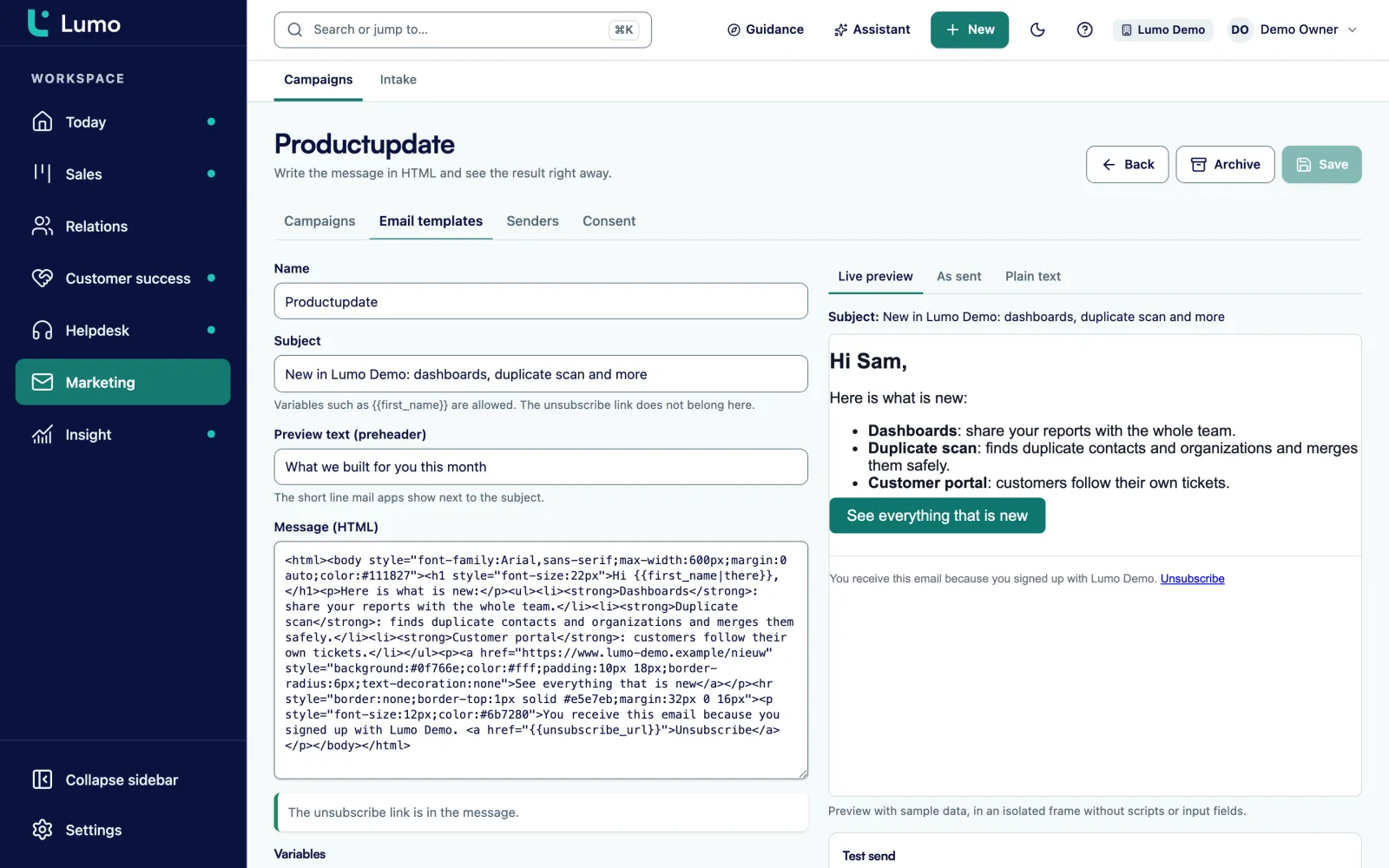
Email templates move as HTML templates. Lumo has no drag and drop editor, so a template built from blocks in HubSpot gets an HTML version with variables and a preheader. The mandatory unsubscribe link is part of every template. Statistics of old campaigns do not move, so keep an export.
You verify your sender domain again with a DNS record. After that you can send from it.
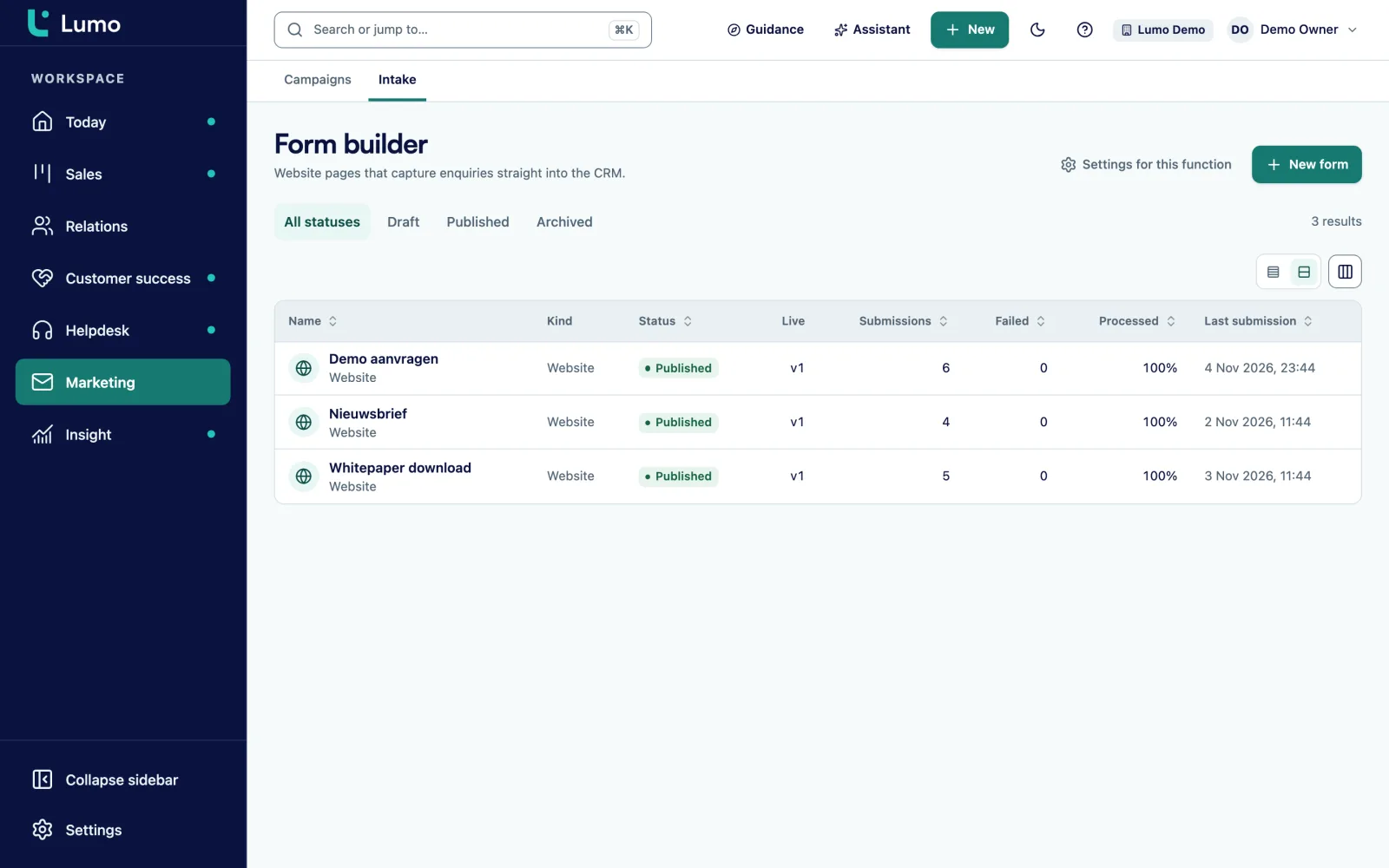
Forms, the chat widget and the knowledge base are tied to your website in HubSpot. They do not move as data. You rebuild them in Lumo and then replace the code on your site.
A Lumo form has the tabs Fields, Link to CRM fields, Conditions, Thank you, Publish, Submissions and Connections. A submission finds or creates a person by email, creates a lead and records consent and source. Hidden fields fill from a URL parameter such as utm_source, so your campaign sources stay correct. Publish the form as a standalone link or embed it on your site.
Only switch off the old HubSpot form once the new one is live. Do not forget thank you pages and pop ups, which often run through a different script.
Tickets and knowledge base articles we discuss case by case. Articles move as Markdown into the Lumo knowledge base. Open tickets can come along, while closed history is often better kept as an export. Read more on web forms and the helpdesk.
The HubSpot parts we see most often, and what you use for them in Lumo.
Triggers like deal created, stage changed or lead stale, with actions like create activity, update field or assign owner. Automations deliberately do not send email.
A follow up campaign to people who did not open or click after N days, plus tasks through automations. Multi step drip sequences do not exist.
KPI, ranked bars, donut, funnel, waterfall, line, area and table, with goal lines and drill down to the records.
Quotes from deal products with a PDF and e-signing with an email code. Quotes and the signing page are in Dutch.
Gmail and Google Calendar sync today. The Outlook and Microsoft 365 connection is on the roadmap, and the BCC address works with any mail client.
Owner, admin, member and viewer. Two factor authentication can be made mandatory for admins.
A REST API with 49 routes, outgoing webhooks and an MCP server. Tools that called HubSpot get reconnected here.
Take this as an example: a consultancy with 6 consultants who also sell, a marketer and an office manager. HubSpot holds 8,000 contacts, 2,100 companies, one deal pipeline and a handful of workflows. They send a monthly newsletter and have two forms on the site.
The inventory shows that of 140 custom properties, 19 are actually filled in. Those 19 move as custom fields. Of five workflows, two still matter: a task for the owner when a deal has been idle for a week, and assigning new leads. Both become automations in Lumo. A third workflow sent a welcome email. That does not become an automation, because automations do not send email. Instead the newsletter form gets double opt-in, and the welcome text goes into the confirmation email.
During the trial migration the consultancy checks the counts and looks at twenty records. Two contacts turn out to hang under the wrong company, because the primary company was empty in HubSpot. The mapping is adjusted and the second trial migration is right.
Consent gets extra attention. 3,400 contacts have a recorded subscription. They get the marketing consent flag. The rest arrive without consent and receive no newsletter until they sign up again.
The cutover weekend falls in a quiet week. On Monday everyone works in Lumo and the new forms are live. This is an illustration, not a customer case. Your numbers and choices will be different.
After the move the newsletter runs in email campaigns, the old workflows in automations and the forms in web forms. If you want the whole migration done for you, including setup and training, see CRM migration service and implementation and onboarding. The choice itself is covered in how to choose a CRM.
There is no wizard and no CSV import, so Sales Surge migrates from HubSpot by hand. There is no delta sync like with Pipedrive, so you work with a fixed cutover moment at which the team stops editing in HubSpot. Lumo has no multi step sequences, no SMS and no drag and drop editor. For sequences you use follow up campaigns and tasks through automations. If your team works in Outlook, that is fine: the Outlook and Microsoft 365 connection is on the roadmap, and until then you log email with the personal BCC address. Data is stored in London, in the United Kingdom.
For B2B teams that want sales, campaigns, helpdesk and quotes in one workspace without a large platform, it can be. If you rely on the heavier HubSpot marketing parts, such as multi step sequences, you will miss those. See Lumo vs HubSpot.
No. There is only a wizard for Pipedrive. Sales Surge migrates from HubSpot by hand, with a mapping per object and a trial migration.
Not as workflows. We write down what each one does and rebuild the ones you need as automations. Automations that send email deliberately do not exist.
Anyone without consent in HubSpot, or who unsubscribed, arrives without consent. Require explicit consent is on by default and is checked again on every send.
Email is best taken from your own mailbox. With Gmail, Lumo looks back 90 days by default, adjustable up to 3650 days. With Outlook you log new email through the BCC address.
With HubSpot we do not recommend it, because there is no sync. You work with a fixed cutover moment. A trial migration in a separate workspace gives you certainty up front.
Not by themselves. We discuss files you really need during the inventory. In Lumo you can add files to records and link them to several records.
That depends on the amount of data, the number of objects and what needs rebuilding. You get a proposal after the inventory.
In the demo we show Lumo and go through what sits in your HubSpot. After that you know what moves, what gets rebuilt and what stays behind.