
See your own contacts in Lumo
In the demo we set up one of your trickiest customers, with branches, people and fields, and show what lands on the record.
In Lumo every person and every organization exists once. Email, activities, deals, tickets, conversations, forms, campaigns and files hang off that one record, with a timeline that shows what happened.
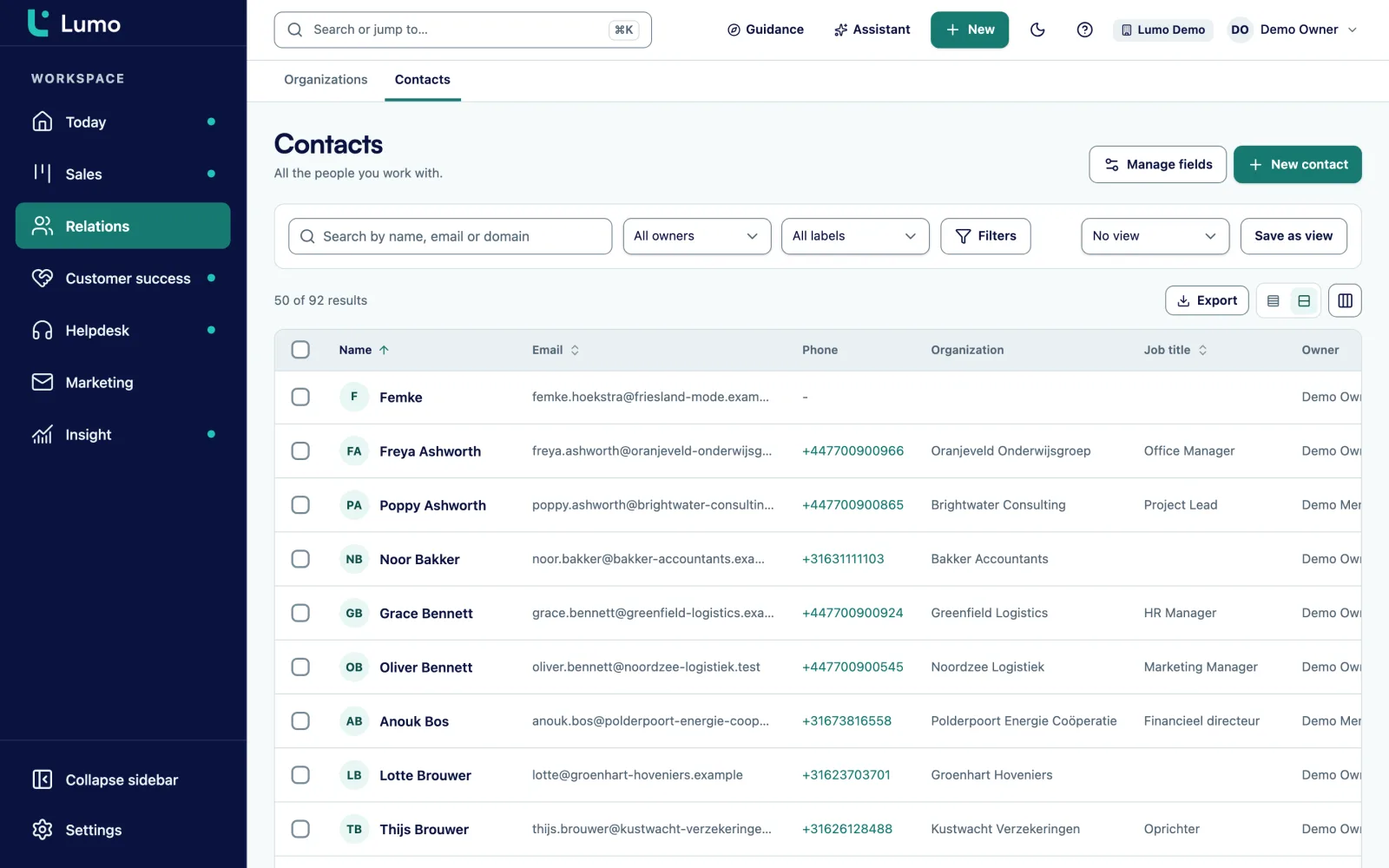
Anyone who has worked with a CRM for a while knows this. You look up a contact and find three. One with an old email address, one a colleague created after a trade show, and one that came in from a form. The notes are on one, the deals on another. Or you look up a company and do not see that the Antwerp branch belongs to the same group as the head office in Utrecht.
Contact management usually goes wrong on details that look small. A person who changes jobs and becomes a customer again at the new employer. A buyer who buys for two companies at once. An organization with a parent that signs the contracts. An "industry" field in free text, spelled twenty different ways. So your segments are off, people get mailed twice and nobody knows who owns the relationship.
Good contact management starts with a data model that can handle reality. In Lumo a person can have several email addresses and phone numbers. They can belong to several organizations, with one marked primary. An organization can have a parent. Fields you add have a type, such as a select list or a monetary amount, so everyone picks the same value. And the lifecycle stage of a relationship is separate from a deal's pipeline, so you know whether someone is a prospect, a customer or a former customer.
The second part is having it all in one place. A Lumo record has tabs for Overview, Activities, Notes, Email, Deals, Tickets, Conversations, Forms, Campaigns, Files and History. Gmail messages, last week's chat and yesterday's ticket sit side by side. Whoever takes over a customer from a colleague reads what is going on in five minutes. How to keep that data clean is in the guide CRM data quality.
The screens and buttons as they are named in Lumo.
Choose New contact or New organization, or search with Cmd or Ctrl plus K and create one from there. A name or an email address is enough to start.
On a person, choose Link to attach them to an organization. If they belong to several, mark one as primary.
Add job title, owner, labels, lifecycle and your custom fields under Details. Add extra emails and phone numbers with Add email and Add phone.
From the record choose Plan an activity, New deal or Mail. Write notes on Overview and pin the important ones.
In the list, filter on label, owner and custom fields, pick columns and save the combination as a view.
A person in Lumo has a first name, last name, job title, owner, labels, a source and a lifecycle stage. They can have several email addresses and phone numbers, so a mobile number next to the switchboard is no problem. A phone number is a link, so you call straight from your computer or phone.
If someone belongs to more organizations, for example an advisor who works for two clients, link them to both and mark one as primary. Unlinking only removes the link, both records stay. Consent for marketing email sits on the person, so an unsubscribe applies to every campaign at once.
The record has its tabs. Under Email you find Gmail messages and whatever came in through the BCC address. Under Deals, Tickets and Conversations you see what sales, support and chat do with this person. Lumo also tells you when another record may be the same person, and then you choose Merge.
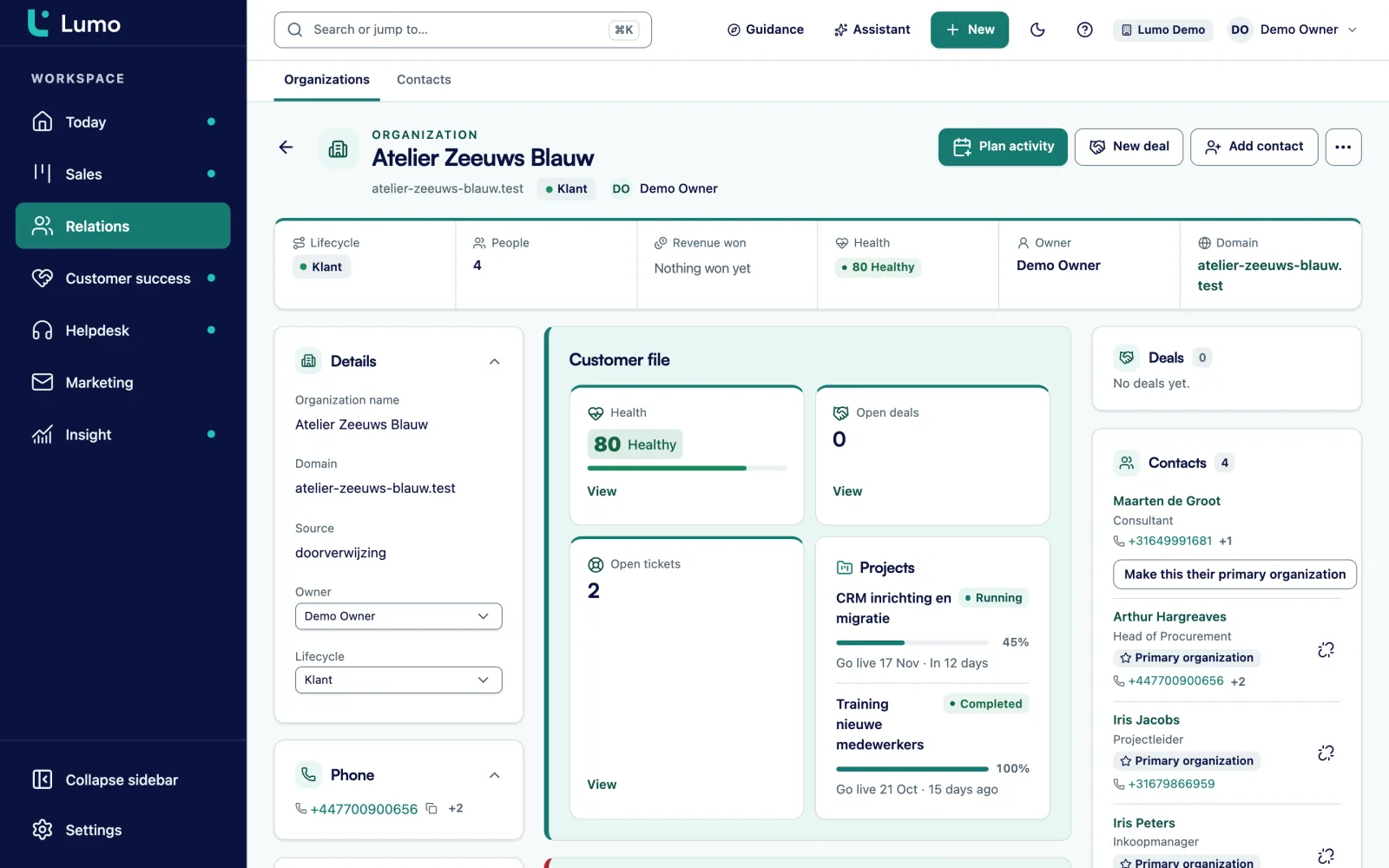
An organization has a name, a domain, an owner, labels and a lifecycle stage. Give it a parent organization, and you record a group with subsidiaries or a chain with branches as it really is. The organization's logo goes on the quotes you send it.
On the organization you see its contacts, with their primary organization. Next to that are deals, tickets, conversations and campaigns. If you use the helpdesk, there is a customer health score from 0 to 100, based on the tickets of the last 90 days and stored every day. So an account manager knows how the customer is doing before calling.
The timeline on Overview shows in order what happened with the customer, with notes, activities and email. A note everyone must read, such as an agreement on payment terms, you pin. It stays at the top, whatever comes in after it.
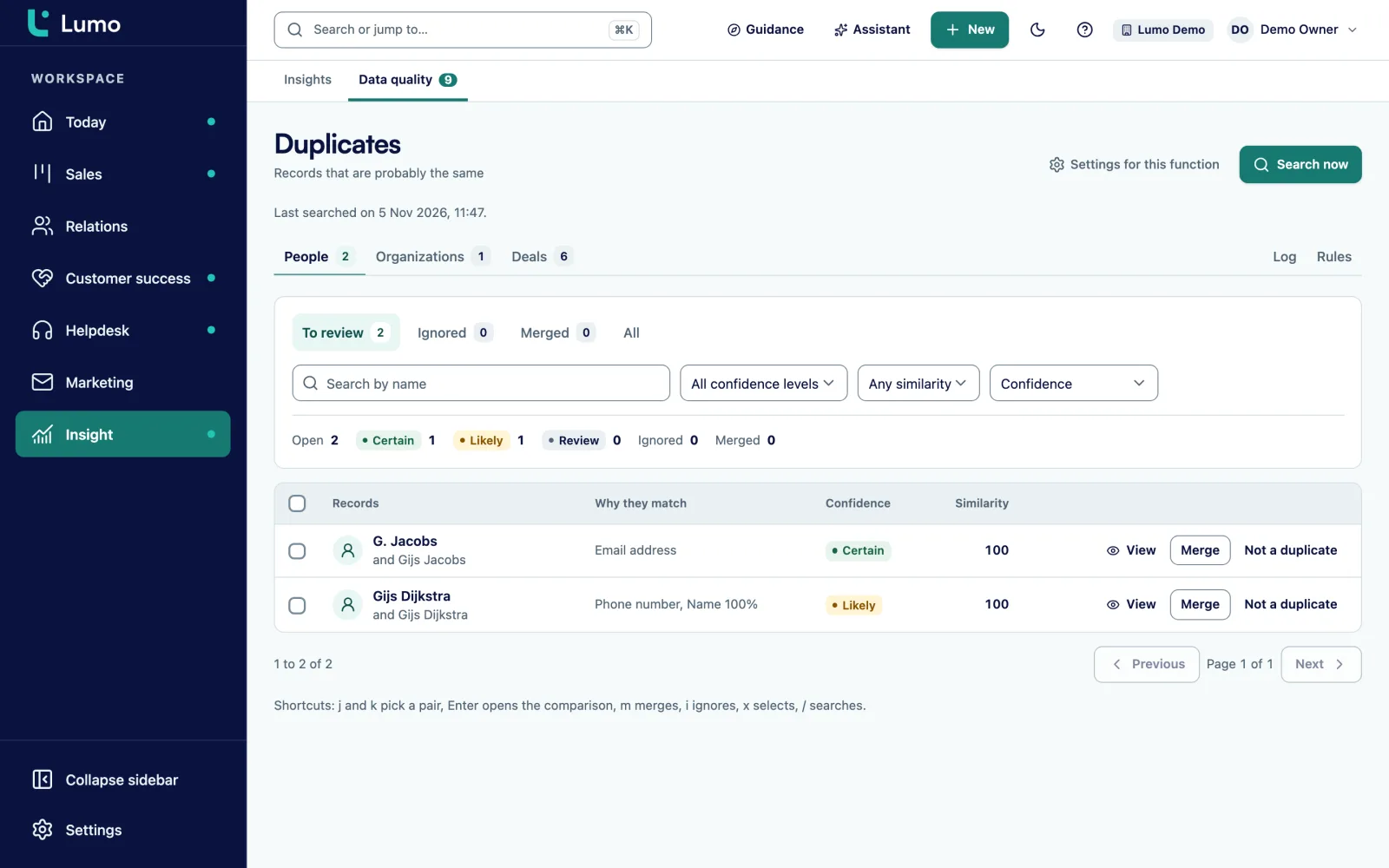
Duplicate people and organizations always happen: a form with a different email, an import, a colleague who did not search first. Lumo keeps a queue of pairs that may be the same, each with a score. You compare them field by field, pick which value survives and merge.
When you merge, every reference moves to the record that stays: deals, activities, email, tickets and notes. The other record is soft-deleted. Every merge is logged and can be undone. You set the rules yourself, such as fuzzy name matching, same domain and a score threshold.
In the list you can also merge in bulk, next to assigning an owner or label and deleting. Automatic merging per rule exists, but is off by default and needs an explicit acknowledgement. After five failed merges it stops by itself. More on duplicate management.
Text, long text, number, monetary, date, yes or no, select, multiselect, URL, email, phone and user. Any field can be required.
Save filters, columns and sorting as a view, so one click takes you back to "my customers in the north region".
Add a label to one record or to a whole selection at once.
Stages such as subscriber, lead, customer or churned, with rules that move a relationship forward and a funnel per stage.
Upload a file and link it to several records at once. Downloads use a temporary link.
Export any list to CSV, with the columns and filters you chose.
Cmd or Ctrl plus K searches contacts, organizations, deals and leads at once and creates a new record if nothing matches.
Export everything about a person or erase them with double confirmation. A blocked address does not come back through a form or import.
An example, not a customer story. Say an installation company works for a property manager with a head office and five regional offices. Each regional office has its own facilities manager. The head office signs contracts, the jobs come from the regions.
In Lumo they create one organization for the head office and five for the regional offices, each with the head office as parent. The facilities managers are people at their own regional office. The buyer at head office works for every region, so they link her to all six, with the head office as primary.
They add three custom fields. "Building type" as a select, with office, healthcare, education and retail. "Number of installations" as a number. "Contract end" as a date. Because they are choices, nobody types "offices" or "Office building", and a segment on building type is right straight away.
A regional manager saves a view: organizations with the label "Service contract", contract end in the next six months, sorted by number of installations. Every Monday he opens that view and plans a call from each record.
Six months later a facilities manager moves to another employer that also becomes a customer. They add his new email, link him to the new organization and make it primary. His history at the old employer simply stays on his record.
Every deal on the deal board hangs off a person and an organization from contact management. Email reaches the record through Gmail, and Google Calendar meetings become activities on the person. Segments for email campaigns use the same filters as your lists. And how Lumo handles personal data is on security and privacy.
CSV import is not in the product yet. Coming from Pipedrive, you use the import wizard. From a spreadsheet or another CRM, we move the contacts for you. There is a visibility field per record, but it is not enforced yet: everyone in the workspace sees all contacts. Gmail mail is private to whoever connected it by default.
Yes. Link them to each organization and mark one as primary.
Yes. An organization can have a parent, so you record groups, chains and branches as they are.
Text, long text, number, monetary, date, yes or no, select, multiselect, URL, email, phone and user. Any field can be required.
CSV import is not available yet. From Pipedrive you import with the wizard. From a spreadsheet, we move the data for you. From spreadsheets to CRM
Yes. Export any list to CSV with the columns and filters you chose.
Lumo keeps a queue of possible duplicates with a score. Compare them field by field and merge, with a log and undo. Duplicate management
Not per record yet. Everyone in the workspace sees all contacts. The viewer role gives someone read-only access.
Export everything about a person or erase them with double confirmation. A check afterwards reports any leftover data. Security and privacy
In the demo we set up one of your trickiest customers, with branches, people and fields, and show what lands on the record.