
Stop losing leads
In the demo we show how a submission from your own form lands in the inbox, and how it then becomes a deal.
In Lumo leads arrive in one inbox, from your forms, your chat, Facebook lead ads or by hand. You see the status and source of every lead, you assess it and you convert it to a deal in one step.
A visitor fills in the contact form on your site on Tuesday evening. The mail lands in a shared inbox. On Wednesday one colleague thinks another one has it. On Thursday someone forwards it to a rep with "is this one for you?". On Friday the rep calls, and by then the prospect has spoken to a competitor. Nobody did anything wrong. There was just no place where the lead lived, with an owner and a status.
That is how most B2B teams lose leads. Not because too few come in, but because they come in at five places. The form mails info@. The chat sits in a separate tool. Trade show leads are in a spreadsheet on someone's laptop. A referral is a text message. So nobody knows how many leads came in this month, let alone which source brings the best customers.
A second problem is that leads and deals get mixed up. Every enquiry becomes a deal straight away, and the pipeline fills up with things that never had a chance. Or leads are not recorded at all, and a rep only puts something in the CRM once it gets serious. Either way your pipeline is wrong and you do not know what marketing produces.
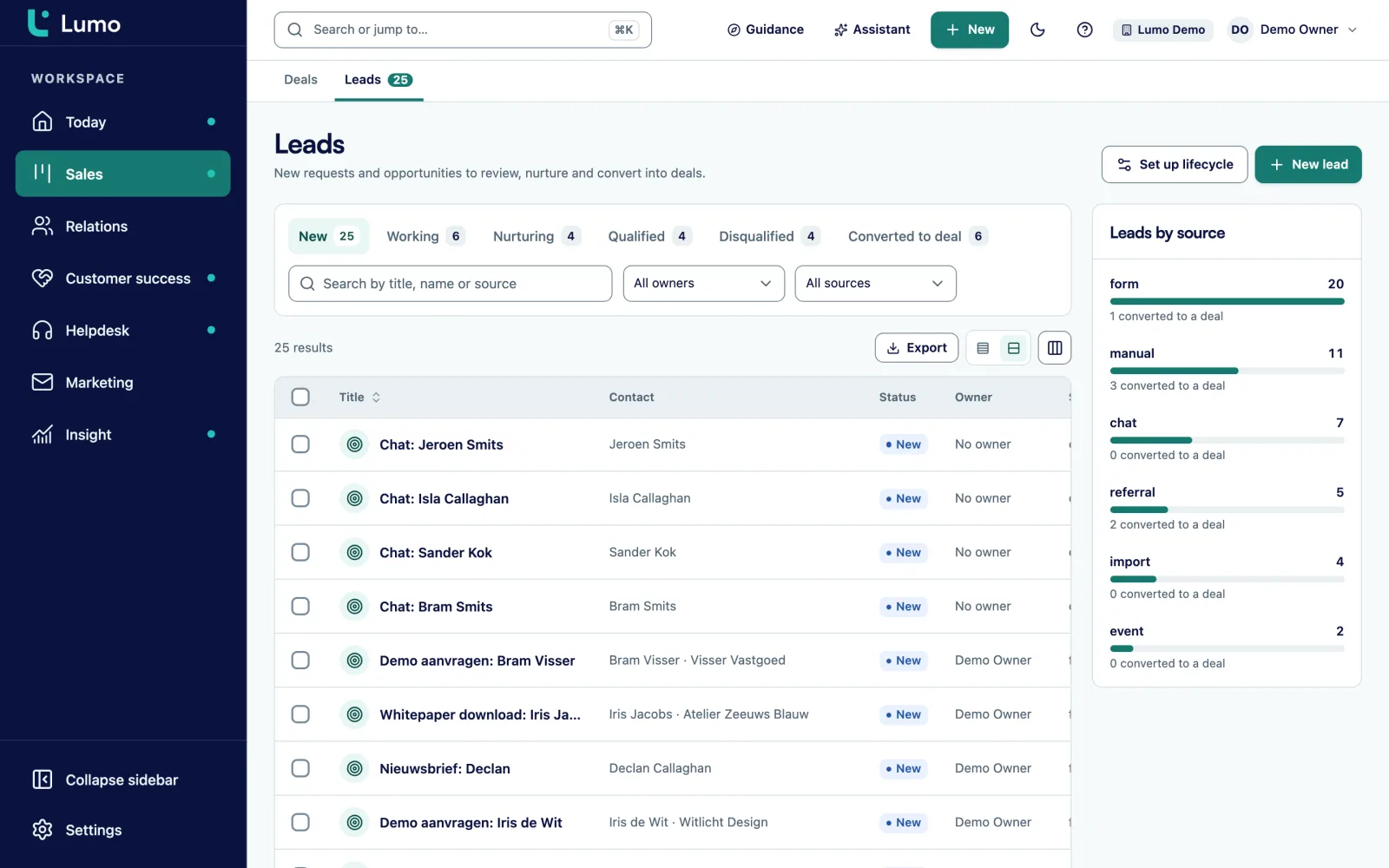
Lumo keeps leads and deals apart. A lead is an opportunity that still needs assessing. It sits in the Inbox with an owner, a status and a source. Forms and chat put their leads there by themselves, with the person attached. You work the lead until it is qualified, or you disqualify it with a reason. Only then does it become a deal, exactly once. That keeps the pipeline clean and lets you see per source how many leads came in and how many became deals. How to follow up leads fast and consistently is in the guide lead follow-up.
The statuses and buttons as they are named in Lumo.
A lead lands in the Inbox with status New. It comes from a form, a chat, a Facebook lead ad or the API, or you choose New lead yourself.
The owner sets the lead to Working. If the prospect is not ready yet, choose Nurturing. Plan an activity sets the next step right away.
If the lead fits, choose Qualify and it moves to Qualified. If not, choose Disqualify and give a reason.
Convert to deal asks for pipeline, stage, title and value. If the lead has no person yet, Lumo creates one from the name and email address.
The lead is now Converted to deal and no longer changes status. A lead you no longer need can be archived. Its history stays.
The Inbox shows your leads with a tab per status: New, Working, Nurturing, Qualified, Disqualified and Converted to deal. Search by title, name or source, and filter on owner or source. A rep sees their own work, and a manager sees what nobody has picked up yet.
Select several leads to change the status or assign an owner in one go. Lumo only offers statuses that are allowed for every selected lead, and tells you when a few were refused. An archived lead leaves the inbox but keeps its history.
Every lead has a title, a person or organization, an owner, a source, a source detail, an expected value, labels and a score. The score is a number you fill in yourself. With custom fields you capture whatever else you want per lead, such as headcount or budget.
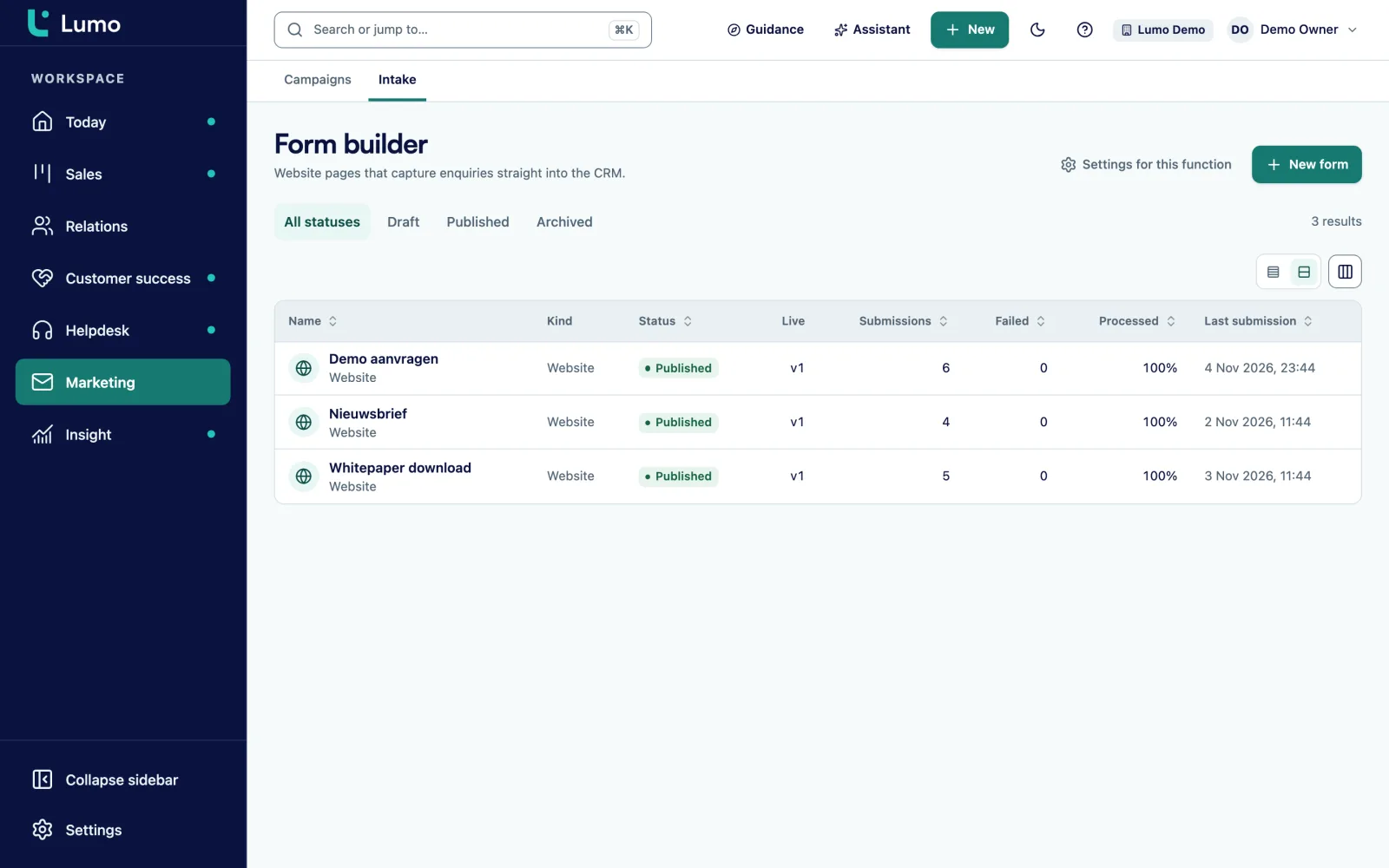
A Lumo form on your site finds the person by email on every submission, or creates them, and then creates a lead with source and consent. Hidden fields fill themselves from a URL parameter such as utm_source, so you see which campaign the lead came from. A form only publishes once every required CRM field is mapped.
The chat widget does the same for conversations. When a visitor leaves an email address, they become a person, a lead and an activity. On the lead you see the latest conversation. A chat that turns out to be a support question becomes a ticket.
There is also a connection with Facebook and Meta lead ads, and through the API and the MCP server you can create leads from other systems. A trade show list or a referral you record by hand, with the source Event or Referral. More on web forms and live chat.
Convert to deal is a deliberate step. You pick the pipeline and stage, give the deal a title and a value, and click Convert. If the lead already has a person or organization, it comes along. If it only has a name and an email address, Lumo can create a person from them.
A lead converts only once. After that it is Converted to deal and no longer changes, and Open deal takes you from the lead to the deal. A disqualified or archived lead cannot be converted, so no deals appear from leads you wrote off earlier.
You see the result in Leads by source. It shows per source how many leads came in and how many became a deal. Sources such as Website, Form, Referral or LinkedIn compare without a spreadsheet. For more depth, build a report on leads and deals in reports.
From every status you see which statuses you can move to. A disqualified lead comes back with Back to work.
A number per lead that you fill in yourself and can filter and report on.
Sources such as Manual, Form, Website, Referral, Event, LinkedIn and Facebook lead ad, with a free-text source detail.
Stages for people and organizations, separate from the pipeline, with rules that only move forward and a funnel per stage.
Triggers for lead created and lead stale after a number of days, with actions such as creating an activity or assigning an owner.
Leads that need follow-up show on the owner's Today screen, next to their tasks and deals.
Twelve field types, from select to monetary, and any field can be required.
A form records consent and source. An anonymous submission never switches consent on by itself, it sends a confirmation link.
An example, not a customer story. Say a consultancy has four consultants and one marketer. Leads come from three sources: the "Request a call" form on the site, the chat on the pricing page and referrals from existing clients.
On Monday at 9.14 pm a finance director fills in the form. Lumo finds no person with that email, creates one and puts a lead with status New in the Inbox, source Form, source detail "request a call" and utm_source linkedin from the hidden field. An automation on "lead created" assigns it to a fixed consultant and creates a task "call within 4 hours".
On Tuesday at 8.45 am the lead is on that consultant's Today screen. She sets it to Working and calls. The conversation goes well, but the budget only opens after the summer. She chooses Nurturing and plans a call in eight weeks.
On Wednesday a visitor leaves an email address in the chat with a question about an audit. They become a person, a lead and an activity. After a short call the consultant chooses Qualify and then Convert to deal, in the Engagements pipeline, stage Proposal, with a value of 6,000 euro.
At the end of the quarter the marketer opens Leads by source. She sees how many leads each source brought and how many became deals. Under Disqualified she sees which reasons come up most. Based on that she rewrites the form copy so fewer enquiries come in that do not fit.
A converted lead becomes a deal on the deal board, with the person and organization from contact management. Activities you plan on the lead also show in your activities list and on Today. With automations you assign leads and create follow-up tasks without anyone having to remember.
Lumo does not calculate a lead score. The score is a number you fill in, and you filter and report on it. If you want a fixed method, record the criteria in a custom field and let an automation set it for a given source. We switch on the Facebook and Meta lead ads connection together with you and test it on your own ad account first.
A lead is an opportunity you are still assessing. A deal is one you are actively selling, in a pipeline with stages. A lead converts to a deal once.
New, Working, Nurturing, Qualified, Disqualified and Converted to deal.
From Lumo forms, the chat widget, Facebook and Meta lead ads, the API and the MCP server, or you create them yourself. Web forms
No. The score is a number you fill in yourself. Automations can set fields based on, for example, the source.
Yes. Choose Back to work. A disqualified lead just cannot be converted to a deal directly.
Yes. Select several leads in the inbox and choose to assign an owner or change the status.
Leads by source shows per source how many leads came in and how many converted to a deal. For more depth, build a report. Reports
Yes. The import wizard brings leads along with pipelines, contacts, deals, activities and notes. Switch from Pipedrive
In the demo we show how a submission from your own form lands in the inbox, and how it then becomes a deal.