
See your own sales day in Lumo
In the demo we walk through your day: what you open first, where things slip today and how that works in Lumo.
Open Lumo and one screen tells you what needs doing today: your tasks, the leads waiting on you and the deals going quiet. Email, calendar and quotes happen from the deal, so you stop jumping between four tabs all day.

Most reps start in their inbox. Three prospect replies, a question from an existing customer, a meeting invite to confirm. Then the CRM, to check which deals are open. Then the calendar. And somewhere on a notepad there is a reminder to call back last week's lead.
That is four places for one day, so things slip. Not because you are careless, but because none of those places has the full picture. Last week's lead is in the CRM, but nobody put a task on it. The prospect's email sits in your inbox, but the colleague covering your accounts while you are away cannot see it. And the quote lives in your downloads folder as version 3 and version 3 final.
You only see the cost later. A deal that has sat in the proposal stage for three weeks without a follow-up call. A lead who filled in the form and got a reply five days later. A sales manager asking on Monday where a deal stands, and you digging through your sent folder for the answer. A CRM you have to update next to your real work turns into admin. And admin you fill in after the fact is never quite right.
Lumo flips the order. You start on the Today screen. It shows Your work queue with what is overdue, what is planned for today and what comes later. Next to it are Leads to follow up, the Stuck deals that have been in a stage longer than your team agreed and, if you also look after customers, the Tickets close to SLA. You work down the list.
Email with known contacts lands from your Gmail on the person, the organization and the deal by itself. Google Calendar meetings with a known contact become activities on that deal. If you use Outlook, you put your personal BCC address in the Bcc line and the email lands on the right deal too. So when you open a deal, last week's call, yesterday's email and tomorrow's meeting are all in one place.
Read more about pipeline management, activities and the calendar or how to follow up leads consistently.
An ordinary Tuesday for an account manager, with the screens open at each moment.
At the top is Today in numbers: what is planned, what is overdue and how many calls you have. You start with Overdue. A task that no longer belongs to today moves to Tomorrow or Next week in one click.
The Leads to follow up block lists new enquiries. You open a lead, see the source and source detail, call through the phone link and set the status to Working. If it fits, it becomes Qualified and you convert it to a deal.
After a customer call you add a note to the deal and plan the next step straight away. The deal card no longer says No next step but shows the date of your follow-up. That meeting is in your Google Calendar too.
You open the deal, check the products and create the quote. It gets a number like OFF-2026-0001, a valid-until date and your terms. You send it from your Gmail with a link to sign.
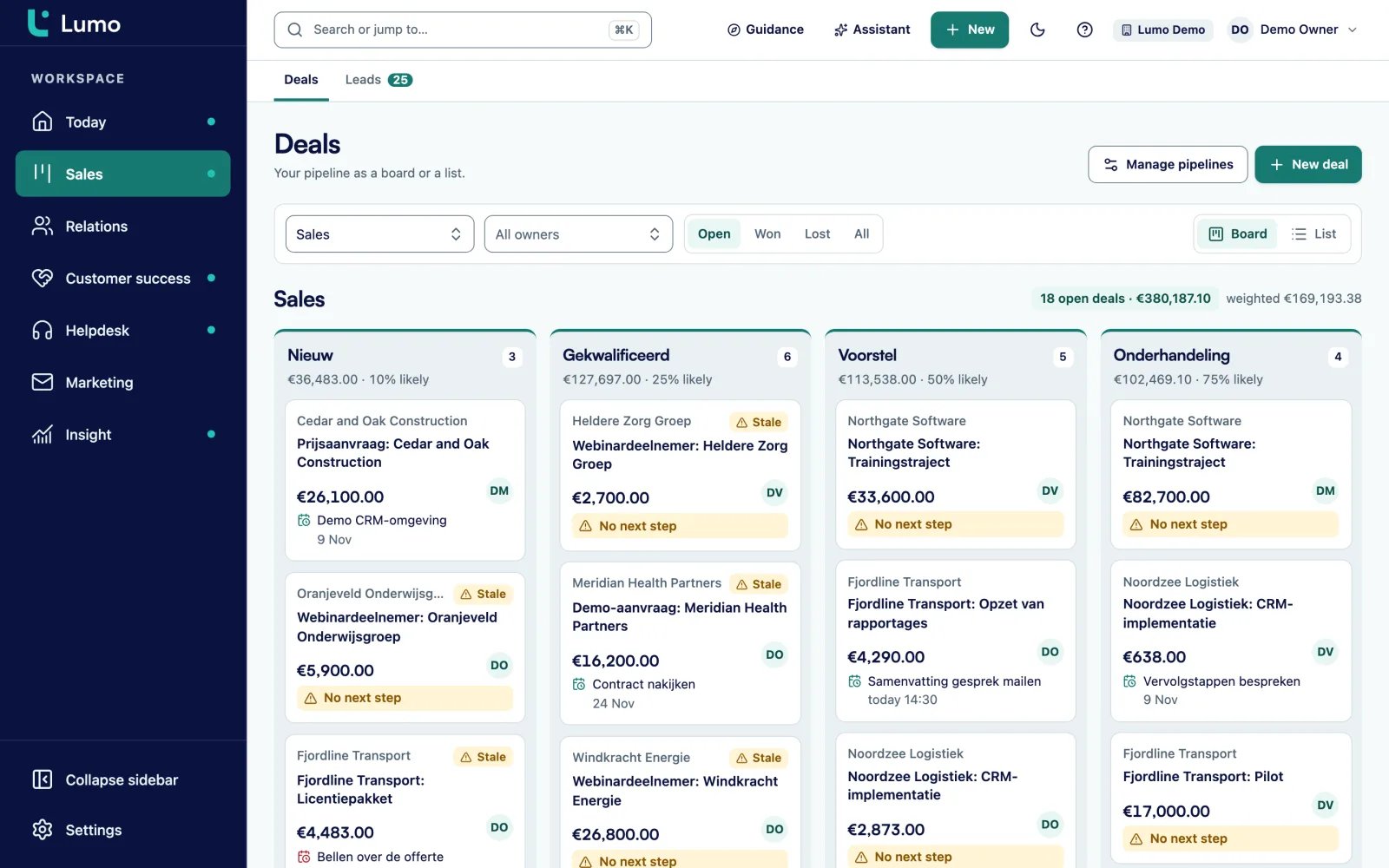
The deal board shows which deals are past their limit, with a line like 12 days in this stage, 5 days too long. You call, move the deal on or mark it lost with a reason.
You check that Your work queue is empty and plan whatever is left. Tomorrow at 8:30 there is a correct list waiting. Also when a colleague covers your accounts.
The deal board shows the number of deals, the total value and the Weighted value for each stage. Below the board sits the Totals per stage table, useful when you want to know how much is in negotiation. Every stage has a win probability and a Rots after (days) setting. Once a deal passes it, the board flags it and it shows up on your Today screen.
Drag a deal to the next stage or use Move to. Every stage change is stored with how long the deal sat in the previous stage. That is not only for your manager. You can see for yourself which deals have been in proposal too long and which customer simply needs a bit more time.
Lose a deal and you pick a lost reason. If the customer comes back, you reopen it. If you run more than one kind of sale, for example new business and expansion with existing customers, you set up several pipelines side by side.
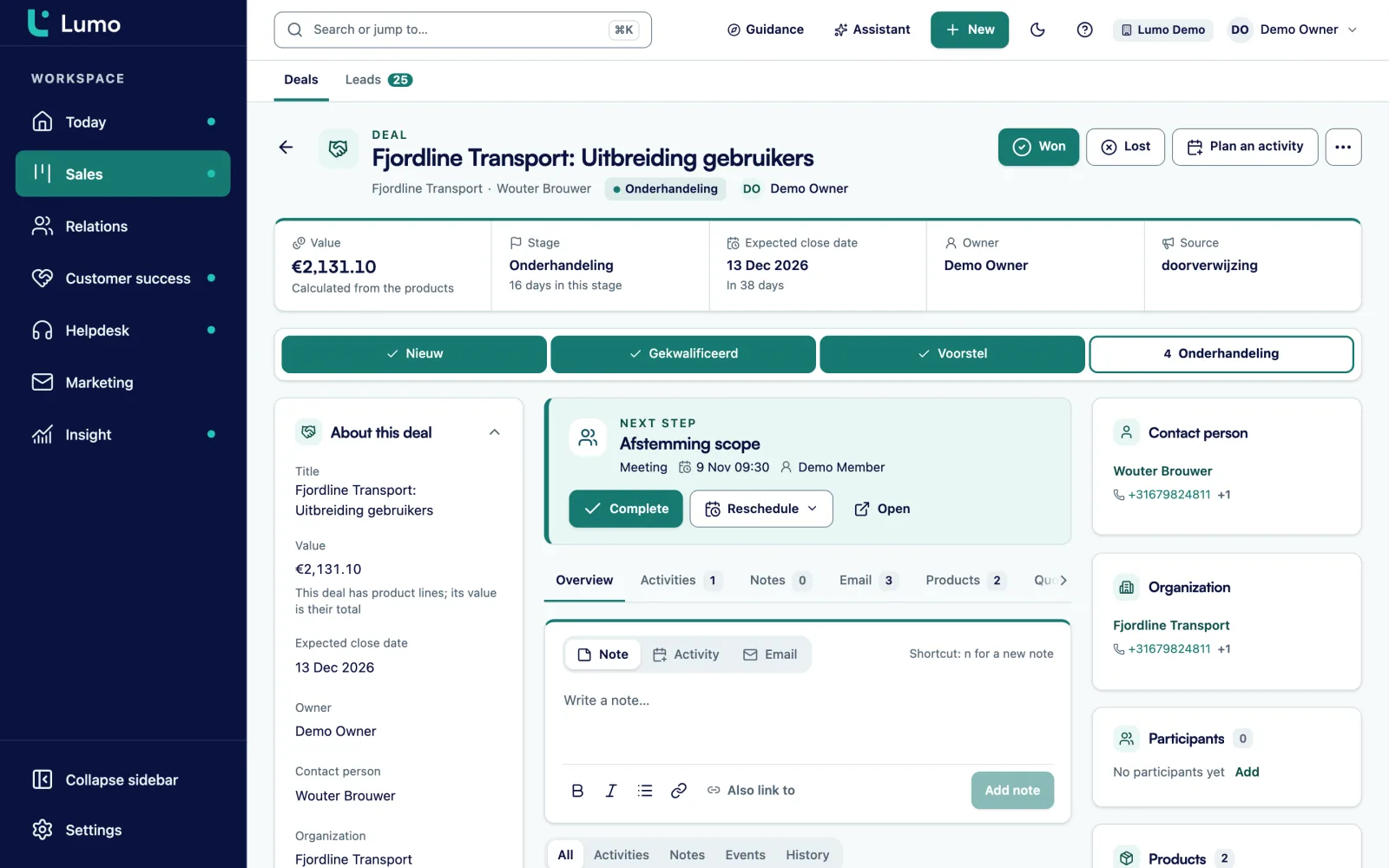
Open a deal and the next step sits at the top. Below it is the timeline with notes, activities, email, files and the history of who changed which field and when. You can limit the timeline to this deal only, or widen it to include the organization and its people. That way you also see the email a colleague had with the same customer last month.
Pin an important note, such as what you agreed about delivery times, and it stays at the top even when twenty emails come in after it. Files like a drawing or a specification attach to the deal and the organization at the same time.
The deal also holds products with quantity, price, discount and billing frequency. A monthly contract and a one-time installation in the same deal is fine. The deal value is the sum of the lines. A recurring line without a set number of cycles counts as one year.
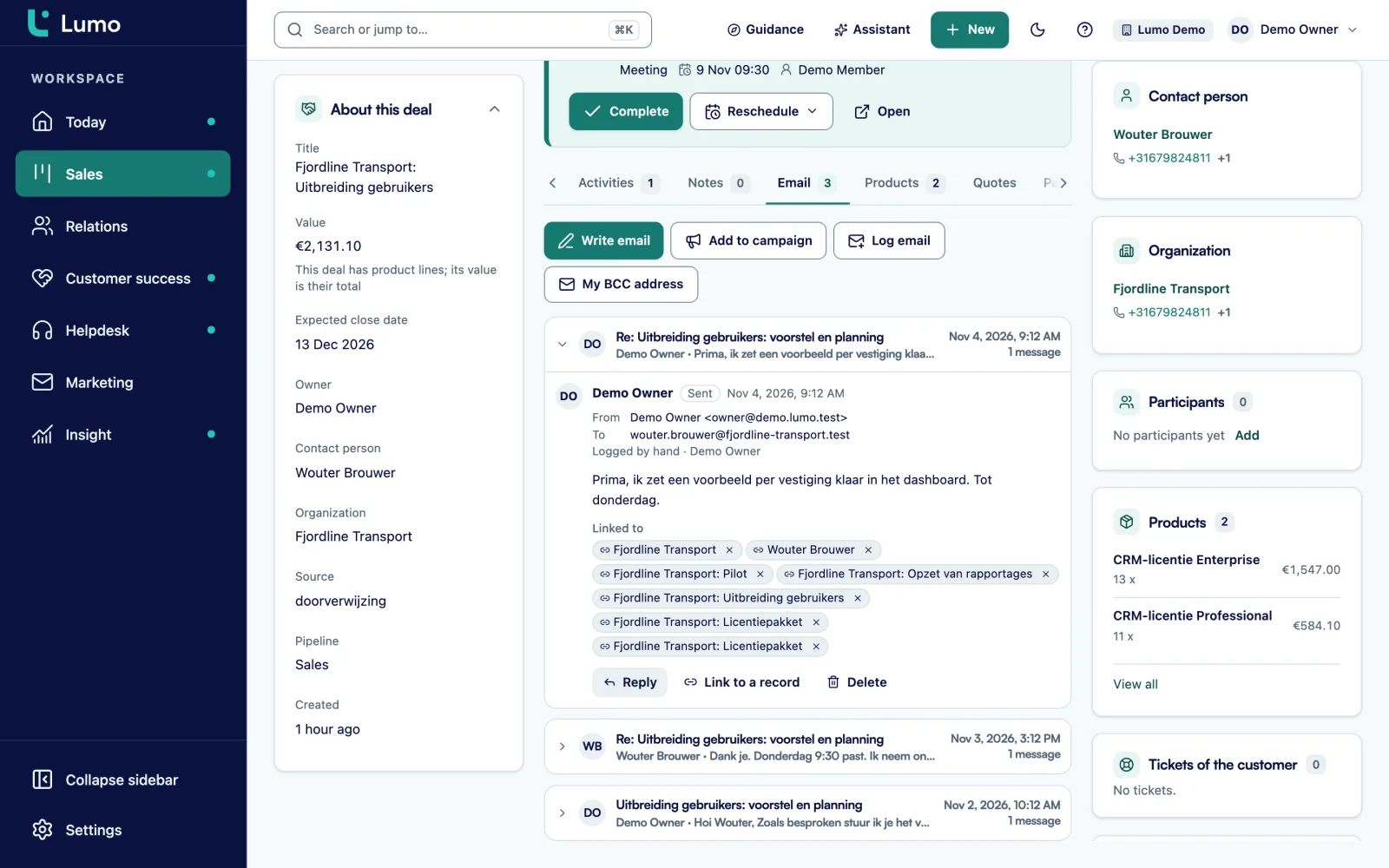
Connect your own Gmail. From the deal you write a new email or a reply, with the contact already filled in and fields like first name and organization filling themselves. A campaign template can be reused as the start of a personal email. The message then sits in your sent folder and on the deal.
Your connection is private by default. If you want the team to see your customer email, switch it to team. Email with people who are not in the CRM is never fetched. The first sync looks back 90 days, and you can change that.
If you work in Outlook or Microsoft 365, the personal BCC address works today. Put it in Bcc or forward a message to it, and it lands on the right person, organization and deal. A direct connection with Outlook and Microsoft 365 for email and calendar is on the roadmap. More on the email and Gmail page.
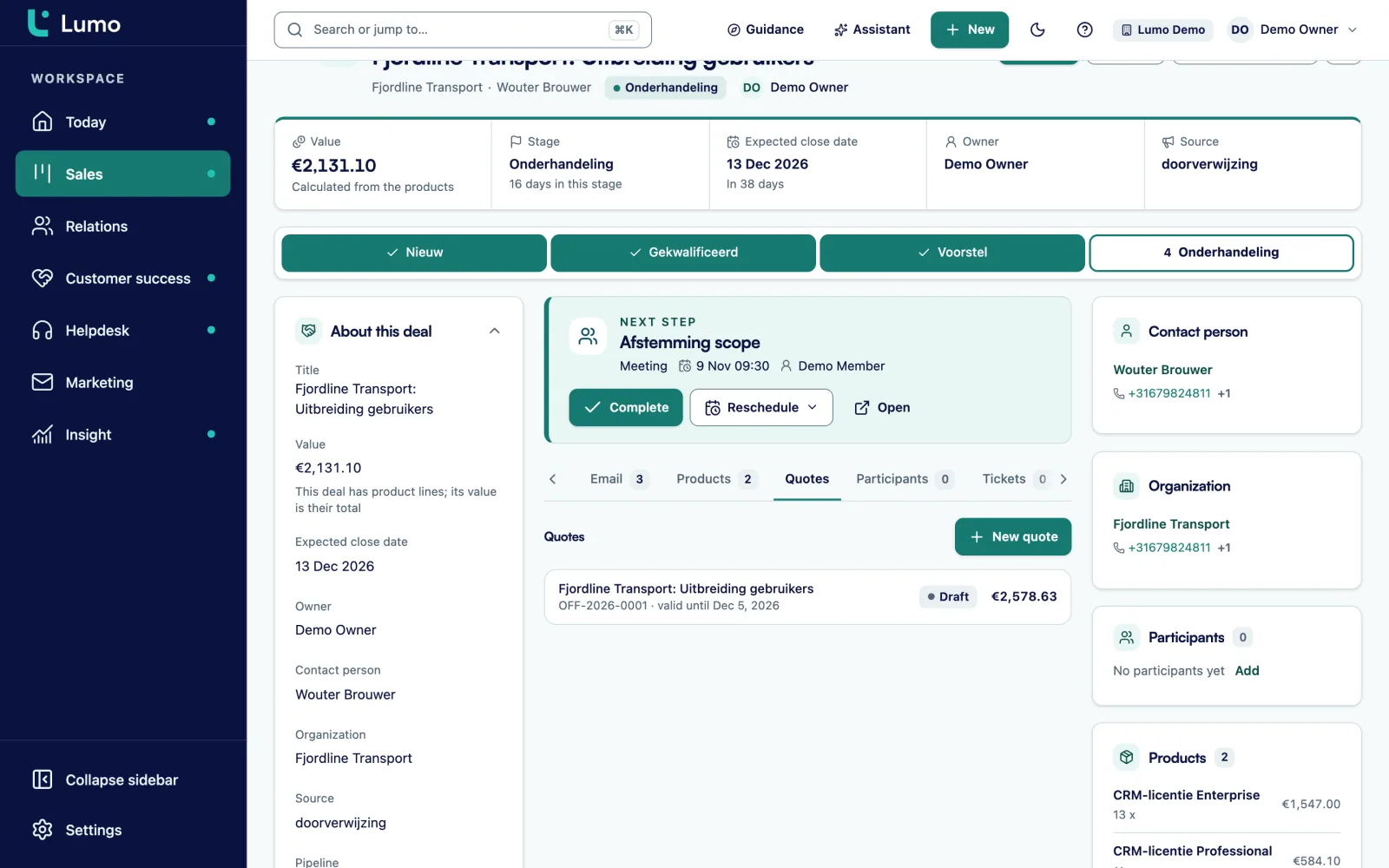
The quote takes a fixed snapshot of the deal's products. You add an intro, your terms and a valid-until date. The PDF carries your logo and the customer's logo. You send it from your Gmail with the PDF attached and a link to sign.
The customer opens the signing page, gets a 6 digit code by email, types their name and ticks to agree. They can also decline. The signed PDF gets an evidence page with time, IP address, device and a SHA-256 hash, and is sent to the customer. A note lands on the deal. Every step goes into an audit log with a chain check.
Two things to know. The quote, the customer email and the signing page are in Dutch. And a signed quote does not move the deal to won by itself, you do that. Read more about quotes and e-signatures or the guide from quote to signed deal.
Most account managers are measured on a handful of numbers. Calls and meetings per week. New deals created. Conversion from stage to stage. Average deal size. How long a deal takes from first conversation to signature. And won revenue against target.
All of these come out of the work you already do. A meeting in your calendar becomes an activity. A stage change is stored with its duration. A won deal has a value that comes from its product lines. So there is no more Friday spreadsheet for your manager.
In Insights you build your own view. You pick a source such as deals, activities or stages, a measure and a breakdown, for example won value per month or calls per week. Add a goal line and drill down to the deals behind a bar. Save it to a private dashboard and you have your own weekly overview. Which numbers actually tell you something is covered in the guide on sales KPIs.
Press Cmd or Ctrl+K to jump to a deal, a person or a screen without digging through menus.
Drag an activity to another day, or move it a day or a week with Alt and the arrow keys.
A task that did not happen moves to Tomorrow or Next week in one click and leaves the Overdue list.
Ask what is open for a customer or have it plan an activity. Anything outward facing waits for your approval. An admin switches it on per workspace. The AI assistant
Save filters and columns, so your list of my deals in negotiation is still there tomorrow.
A buyer who works for two companies is linked to both, with one marked as primary.
First name, last name, full name, organization and your own name fill themselves in.
Every stage change is kept with its duration, so you can see where your deals get stuck.
Picture a distributor of installation supplies with eight account managers, each covering a region. This is an example, not a customer. Each account manager has about sixty open deals: large projects for contractors and smaller repeat orders.
Before, the pipeline lived in a spreadsheet that was updated every Friday. Quotes went out as Word files. When a contractor called on Tuesday about a quote, the inside sales team did not know which version he had.
In Lumo the team gets two pipelines: projects and repeat orders. The quote sent stage gets a limit of 10 days. After that, a deal shows up on its owner's Today screen by itself. An automation creates a task to call within two days for every new deal in the project pipeline.
Sam, who covers the north, starts his day on Today. Three deals are past their limit. On the first, the timeline shows that the contractor replied last week. The email was in his inbox, but he had missed it. He calls, updates the quantities on the deal and creates a new quote. He voids the old one. By three o'clock the customer has signed and the note is on the deal.
When Sam goes on holiday, a colleague takes over his deals by changing the owner in a bulk action. Because Sam's email connection is set to team, that colleague sees the full history.
The points we go through with a sales team at the start.
The screens a rep uses most, and where to read more.
Lumo is a web app. There is no mobile app, so on the road you work in the browser on your phone or laptop. Calls go through phone links and are not logged or recorded automatically, so you add a note after the call. Email and calendar sync with Gmail and Google Calendar today. The connection with Outlook and Microsoft 365 is on the roadmap, and until then you use the BCC address. Opens and clicks are tracked for campaigns, not for one-to-one email. Quotes are in Dutch, so for an English quote you attach your own PDF.
One that your day starts in and that you do not have to keep up next to your inbox. Check above all that email and calendar land on the deal by themselves. See also how to choose a CRM.
No. Only email with people already in the CRM is stored. The body of other email is never fetched. Your connection is private by default and you can exclude a thread.
Yes, with a connected Gmail account. You send from the deal and the message then sits in your sent folder and on the deal.
A connection with Outlook and Microsoft 365 is on the roadmap. Today you put your personal BCC address in Bcc or forward an email to it, and it lands on the right person, organization and deal. The rest of Lumo does not depend on your mail client.
Yes, with a typed name and a 6 digit code sent by email. It is not a qualified electronic signature. That is enough for most B2B quotes, but check if your contracts require more.
Every stage has a limit. When a deal passes it, the deal board flags it and it appears on your Today screen under Stuck deals.
Not automatically. A phone number is a link that opens your phone or calling software. You log the call yourself as an activity or note.
CSV import is not available yet. If you come from Pipedrive there is an import wizard. Other lists we move over by hand at the start. Read from spreadsheets to CRM.
In the demo we walk through your day: what you open first, where things slip today and how that works in Lumo.