
See how many duplicates sit in your data
In the demo we show the Duplicates screen on sample data and talk about which rules suit your contacts.
Lumo finds persons, organizations and deals that are probably the same and queues them for review. You compare field by field, decide what stays and merge. Everything linked moves along, and you can undo it.
Nobody creates a duplicate organization on purpose. It just happens. A rep searches for "Hartley Engineering", finds nothing and creates it. A colleague had already added it a year ago as "Hartley Engineering Ltd". A lead comes in through the form with a personal email address, while the same person is already in the CRM with their work address. And after an import from an old system, some organizations appear twice, once with and once without the town in the name.
It looks like a small problem. Until an account manager calls a customer who was called by a colleague last week, because the activity sat on the other record. Or until the sales manager pulls revenue per customer and sees the biggest account split in two. Or until someone unsubscribes from mailings and still gets a campaign through the second record.
Duplicates make your timeline incomplete, your reports unreliable and your consent uncertain. So you do not just want to clean them up once. You want to keep finding them. That does not work by hand. You cannot compare thousands of persons with each other, and when you merge you have to decide which phone numbers, which owner and which consent survive.
In Lumo the Duplicates screen does the searching. Rules decide what counts as a duplicate and each pair gets a confidence level. You decide on the doubtful ones. Our guide on CRM data quality explains why clean data is the base for everything else in a CRM.
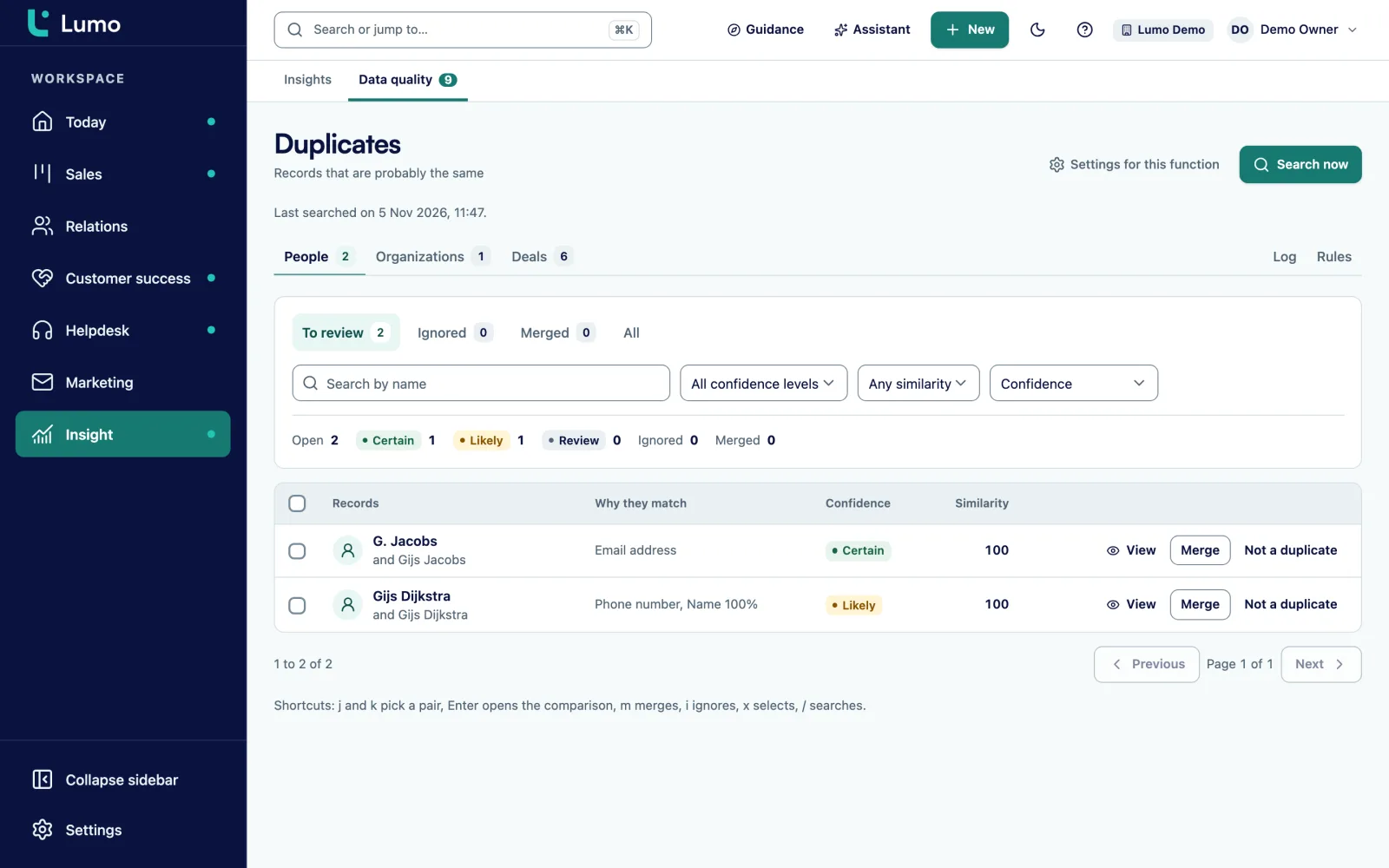
Open Duplicates. At the top you pick Persons, Organizations or Deals.
The To review tab lists pairs with their match score and a confidence: Certain, Likely or Review. Search now starts a new detection run.
Open a pair to see the comparison field by field. Fields that differ are marked. Linked items shows what hangs off each record.
Lumo picks which record stays and which is absorbed by the winner. If that is wrong, click Choose the other as winner.
Click Merge, or Not a duplicate if they are two different contacts. An ignored pair does not come back unless you reopen it.
Every merge is in the Log. If one was wrong after all, click Undo.
Not every pair is equally clear. Two persons with the same email address are almost always the same person. Two organizations with a similar name in the same town often are, but not always. So every pair gets a confidence level.
Certain means safe to merge. Likely means usually the same, take a quick look. Review means a person needs to judge it. Merge all certain clears the obvious cases in one go and leaves you time for the doubtful ones.
Once you finish with a pair it moves to Merged or Ignored, so you can see what has been reviewed. The queue stays in place, so new duplicates that appear later show up here on their own.
When you merge you see both records side by side: first name, last name, job title, owner, lifecycle stage, marketing consent, email addresses, phone numbers and organizations. For organizations also domain, address and parent organization. For deals amount, expected close date, person and organization.
Per field you decide what happens: the winner's value, the newest value, the first filled value, merge, or the most restrictive value. Pick merge for email addresses and phone numbers and you lose no number. That last one matters for consent. If one of the two records has no marketing consent, that stays. For deals the furthest stage can be kept.
Everything linked to the losing record moves to the winner: deals, activities, notes, emails and files. The losing record is not hard deleted but marked as deleted. That is why undo works.
Every workspace is different. At a distributor, many persons share the same general reception number. At a recruitment agency, many persons sit at the same organization with similar job titles. So you set what counts in the Rules tab.
A rule has conditions such as same email address, same phone number, same domain, similar name, similar first and last name or similar organization name. You choose whether all conditions must match or any of them, and what confidence a match gets. The minimum similarity setting decides how strict name matching is.
In the settings you add terms that never count, such as Ltd or Group, so they do not create false matches. An address or number that appears very often stops linking anyone above a limit you set. And you choose who stays: the record with mail history, the oldest, the newest, the one with most activities or the most complete.
Persons, organizations and deals, each with its own queue.
Every pair has a match score and a confidence: Certain, Likely or Review.
Compare the records side by side and pick the other winner when needed.
Deals, activities, notes, mails and files move to the winner. Nothing is left dangling.
Every merge is in the log and can be reversed. Anything changed since then is reported separately.
Conditions, minimum similarity, terms that never count and a limit for shared numbers.
Per rule, off by default and only after an explicit acknowledgement. Not possible for Review confidence.
After 5 failed merges in a row, merging pauses until someone allows it again.
Say a technical distributor with 15 account managers moves to Lumo. In the old system some organizations appeared two or three times, because each account manager created their own customers. Here is an example of how a clean-up round could go.
After the import the admin runs Search now for organizations. Pairs come out with different confidence levels. Before merging anything, he looks at the rules. Many organizations have "Supplies" or "Ltd" in the name, so he adds those to terms that never count. A large customer's main number appears on forty persons, and the shared number limit stops those persons from being matched with each other.
Then he searches again. The Certain pairs, often the same domain and a nearly identical name, he merges with Merge all certain. The Likely pairs he goes through with the account managers in an hour, because they know whether "Baker Installations North" and "Baker Installations" are the same customer. For Review pairs he often picks Not a duplicate, because they are separate branches he would rather record as parent and child organizations.
Next he turns to the persons queue. A week later he checks the Log. One merge turned out wrong, so he undoes it. The rest stays, and new duplicates created in the weeks after appear in To review on their own.
Start with organizations. Once those are right, many duplicate persons fall into place.
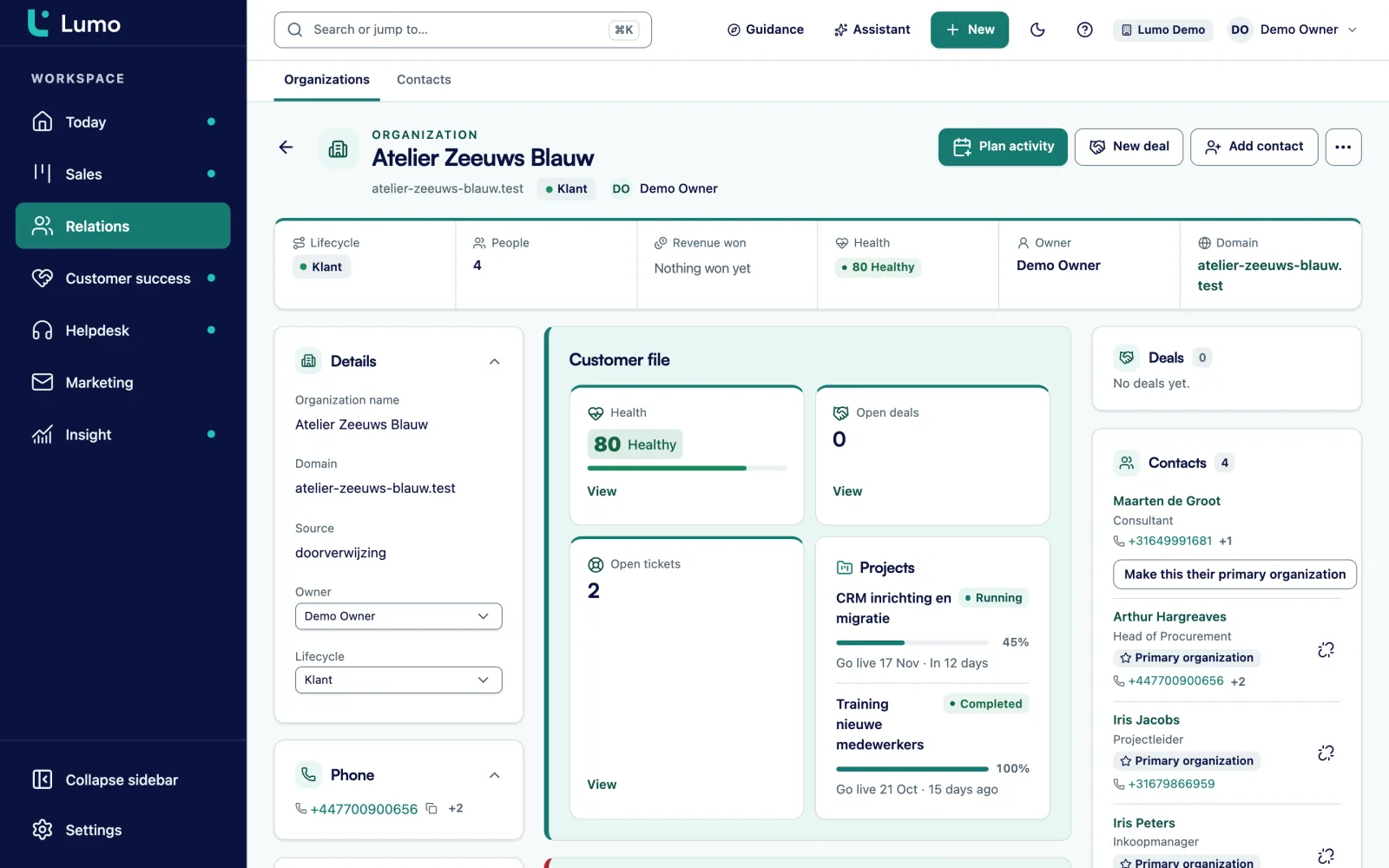
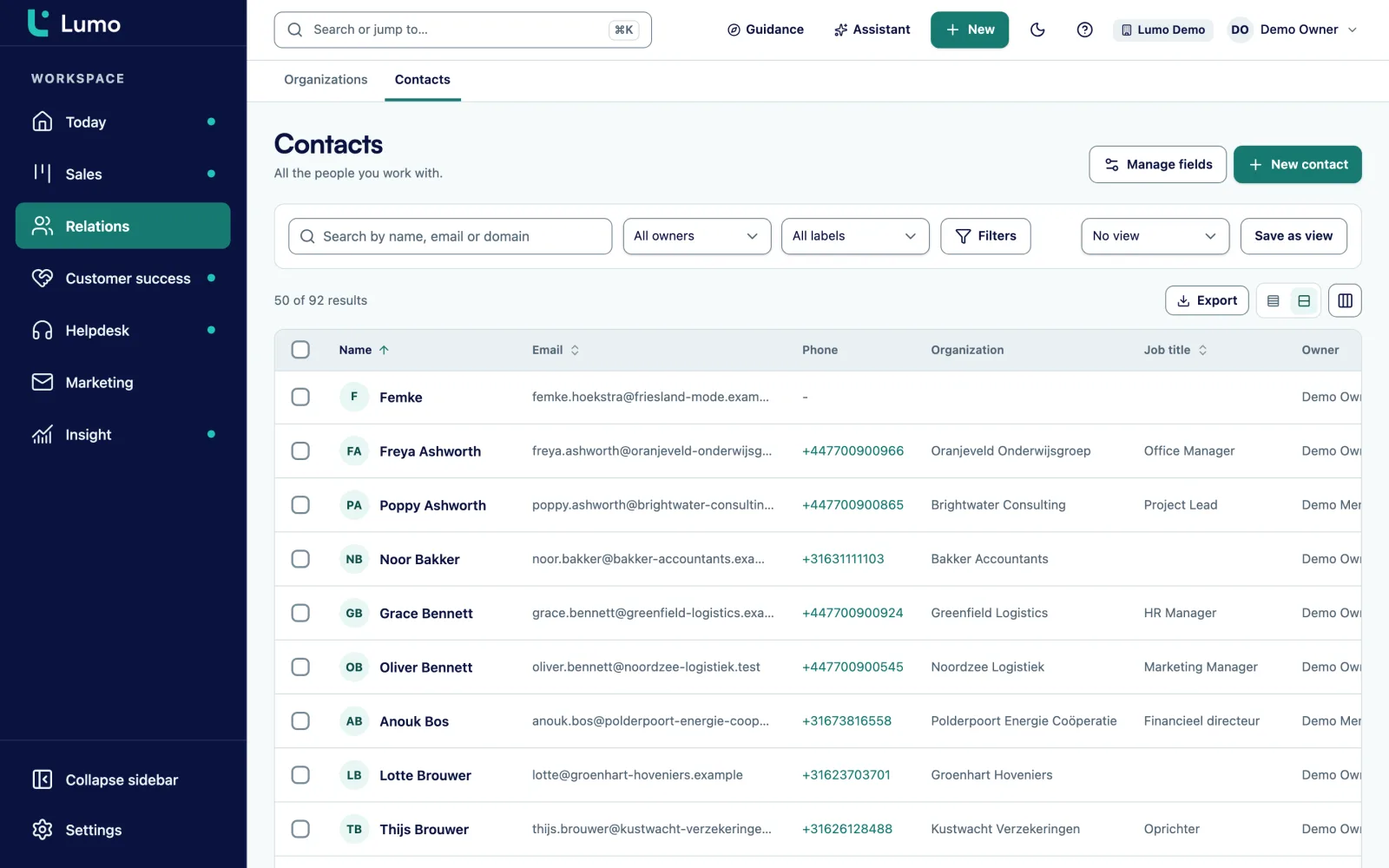
Duplicates mostly appear at the point of entry. You manage persons and organizations in contact management, where you can also select several records in a list and merge them. If you come from Pipedrive, the import is idempotent: a second import run does not create new duplicates of what is already there. See switching from Pipedrive.
To stop the team creating incomplete records, use the data quality rules in CRM adoption and guidance. After a clean-up, totals per customer in reports and dashboards are right as well.
A merge is not the same as erasing a person on request. If someone has to leave your CRM completely, use the GDPR tools in security and privacy. Blocked addresses there make sure an erased person does not come back through a form or an import.
Detection speed across a very large workspace has not been measured yet. If you work with tens of thousands of contacts, start with organizations and see how long a run takes before doing everything at once. Automatic merging is off by default, and we suggest you keep it that way until your rules have proven themselves. After 5 failed merges in a row Lumo pauses merging, so an error does not keep running. Fix the cause and click Allow merging again.
Persons, organizations and deals. Each has its own queue on the Duplicates screen.
Everything linked moves to the winner: deals, activities, notes, emails and files. The losing record is marked as deleted.
Yes, from the Log with Undo. Items that changed since the merge are not reverted, and Lumo reports them separately.
With rules such as same email address, same domain or similar name. You set the rules, the minimum similarity and the terms that never count.
You set it: the record with mail history, the oldest, the newest, the one with most activities or the most complete. Per pair you can pick the other winner.
Yes, per rule. It is off by default and needs an explicit acknowledgement. A rule with Review confidence can never merge automatically.
After 5 failed merges in a row, merging pauses. You fix the cause and click Allow merging again.
Not if you pick the most restrictive value for consent. If one of the two has no consent, that stays after the merge.
In the demo we show the Duplicates screen on sample data and talk about which rules suit your contacts.