
See LinkedIn in a Cadence
In a demo we set up a Cadence with a call task, a LinkedIn step and an after-call email, and show how to set limits and read the overview. Lumo is made by Sales Surge, with more than 150 CRM implementations behind it.
You call, you email, and LinkedIn belongs in the mix. In Lumo, LinkedIn is a step in the same Cadence as your call tasks. From your team's own accounts, within limits and working hours you set, with an automatic stop and a clear view of what happened. So the LinkedIn step is ready before your team starts, and it stays personal.
Almost every B2B sales team uses LinkedIn. You look someone up before a call, you send a request after a trade show, you answer a message. But in most teams LinkedIn lives next to the CRM. An account manager sends a request, and the colleague calling the same person has no idea. Someone replies on LinkedIn, and the next day that same person gets a standard follow-up email as if nothing happened. To the recipient that does not feel like attention. It feels like a list.
The opposite happens too. Someone is busy, the LinkedIn step slips, and a good call is never followed by a connection. Or an eager colleague sends forty requests with the same text in one afternoon. That stands out, to the people receiving them and to LinkedIn itself.
What helps is treating LinkedIn as a channel in your follow-up, next to calls and email. With the same rules: who do we approach, when, with what text, and when do we stop. That is what a Cadence in Lumo does. A LinkedIn step hangs on the call task or on the outcome of the call. It knows what happened with that person before. And it stops when someone has already replied.
The idea is the same as in the Lumo launch film. Do you still have to pick it up, or was it already done? For LinkedIn that means the step is ready, with the text and the profile, before your team starts. What does not change is that your people make the connection, from their own account, with a message they would write themselves.
This page covers how LinkedIn fits into your Cadence, which limits you set per account, how you see what is happening, and what you should know up front.
The names below are the names you see on screen.
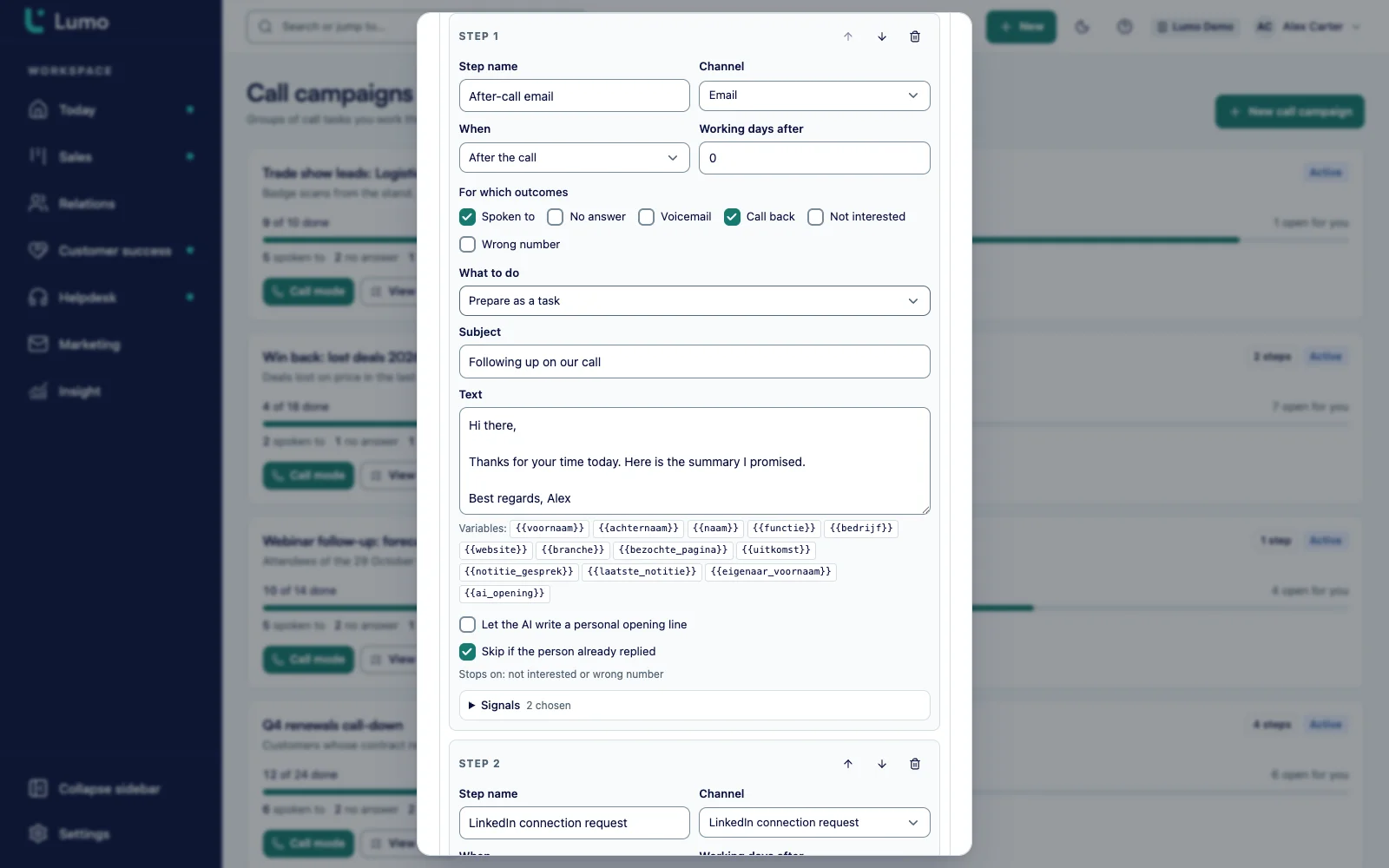
Open the call campaign and under Channels and steps click Add step. Pick LinkedIn connection request or LinkedIn message as the channel, and when the step runs: From the start or After the call, with the number of working days after. Under what to do, pick Prepare as a task or Through the LinkedIn engine.
Use variables such as first name, company and the call note. Under For which outcomes choose when the step may run, for example only on Voicemail and No answer.
An owner opens Settings, LinkedIn page, and accepts the risk in the risk section. LinkedIn does not allow automated use, and the page says so plainly. Without that step nothing can go Live and sourcing is not available.
Each colleague downloads the Lumo Chrome extension, loads it in their own Chrome and creates a pairing code, which they enter in the extension. Then they use Add account with Requests per day, Messages per day, From hour and Until hour. Each user has at most one account.
The switch is set to Off by default. Set it to Test first and check Latest actions to see what would happen. Only an owner can set it to Live, after a confirmation, and every change is logged.
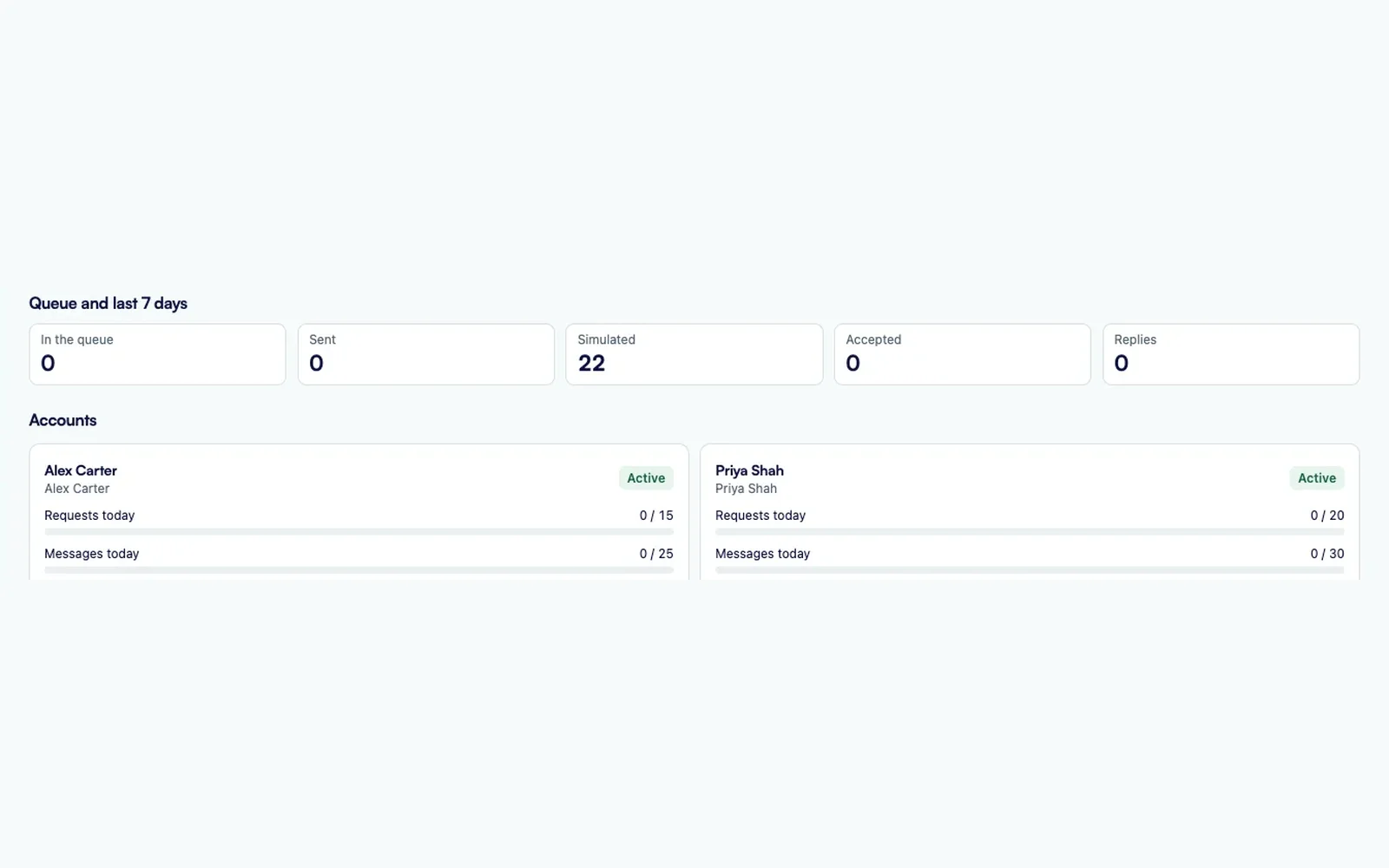
Under Queue and last 7 days you see In the queue, Sent, Accepted, Replies and a count of simulated actions. Each account shows its status: Active, Paused or restricted by LinkedIn. Pause and Resume let you step in.
A LinkedIn step sits in the same list as your after-call email and your tasks. So you see at a glance how a person is approached: first a call task, then on no answer a connection request two working days later, and a message a few days after that. There is no second tool to keep up to date.
By default a LinkedIn step is prepared as a task, with the text filled in and the person's profile link. In call mode you click Copy, send the request or message from your own LinkedIn, and click Done. That is personal work, and it is recorded on the person.
If you set the step to Through the LinkedIn engine, Lumo puts the action in a queue. The Chrome extension in the owner's own Chrome picks up one action a minute, opens the profile and sends the request or message. The Steps panel shows that the step is queued for the LinkedIn engine, and then that the engine sent it. A message only goes to someone the owner is already connected with.
You can make a message step wait until a request has been accepted. You do that with the Request accepted signal under Only on. So nobody gets a message from someone they have not connected with yet. And every step stops on a reply, whether the person emails back, calls back or answers on LinkedIn.
LinkedIn outreach in Lumo always runs from your team's own accounts. Each colleague has at most one account, with their own name and profile. There is no shared account speaking for the company. Sending happens in the colleague's own Chrome, where they are already logged in. Lumo does not store a LinkedIn password, session or cookie.
You set the limits per account. How many requests a day, how many messages a day, and between which hours. By default that is 15 requests and 25 messages, from 9 to 17. Outside those hours and at weekends nothing happens. The ceiling is 20 requests and 40 messages a day per account, and you cannot raise it. We advise starting low. What makes sense per day depends on the account, the audience and how your team uses LinkedIn otherwise.
Per account you also choose how it executes. In Assisted, the default, the extension prepares the request and you click Send in LinkedIn yourself. In Automatic the extension clicks, only after the risk has been accepted, with a random pause of 20 to 90 seconds before every send.
When something goes wrong, it stops. If the colleague logs out or LinkedIn asks for a security check, the account is marked as restricted by LinkedIn and nothing else happens until someone clicks Resume. If an ordinary action fails three times in a row, the extension waits half an hour and then carries on by itself. And right before a step is due, Lumo checks once more whether the person has replied in the meantime.
What you cannot see, you cannot steer. So the LinkedIn page shows the queue and the last seven days: how many steps are waiting, how many were sent, how many requests were accepted and how many people replied. Below that is a table of the latest actions, with the person, the kind, the account and the status.
In Test, a built in simulator picks up the actions and the overview counts them as simulated, without anything going to LinkedIn. To try one real request, use the test with one profile: enter a profile address, an optional note of up to 300 characters, and send the test request. That request really goes out.
Each account shows today's usage against the limit you set, and which version of the extension that colleague runs. If it is out of date, a notice asks them to download the new version. Lumo follows sent requests for 14 days to see if they are accepted, and sent messages for 30 days to see if someone answers. The checklist "What has to be true before anything moves" explains why nothing is happening, when that is the case: the switch is off, there is no active account, or no Cadence has a LinkedIn step.
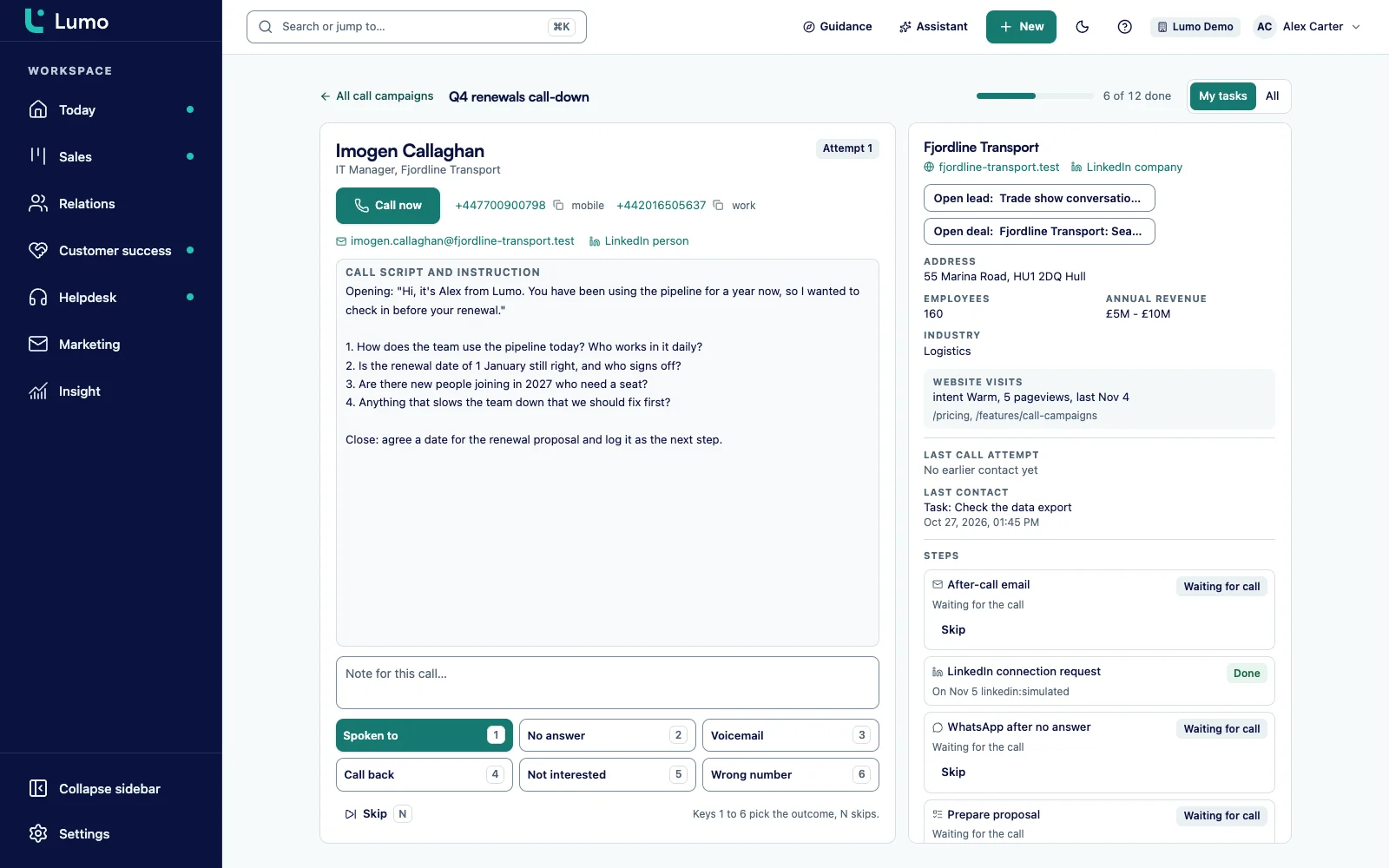
In call mode you see the LinkedIn steps of the person you are calling in the Steps panel, with their status. If a colleague calls someone who received a request yesterday, it is right there, and you see who that person is connected with, such as Sander or you. So nobody asks the same thing twice.
Each point below is how it works in the app.
LinkedIn connection request and LinkedIn message, as steps in a Cadence next to calls, email, WhatsApp and tasks.
Each colleague connects at most one account of their own, through the Chrome extension in their own Chrome and a pairing code that is valid for ten minutes. Lumo does not store a LinkedIn password or session.
Requests per day and Messages per day per account, with a ceiling of 20 requests and 40 messages. From hour and Until hour, working days only.
In Assisted you click Send yourself. In Automatic the extension clicks, with a 20 to 90 second pause before every send.
Off, Test or Live. Off by default. Only an owner turns on Live, after accepting the risk, and every change is in the audit log.
A reply stops the steps. A logout or a security check stops the account until someone clicks Resume.
Request accepted and Reply are built-in signals. Lumo follows requests for 14 days and messages for 30 days. You use the signals in Only on and Stop on.
On a LinkedIn people search the extension adds the results to Lumo as leads, up to 300 new leads per user per day.
Say a consultancy with four consultants collected 120 business cards at a trade show. This is a made up example to show how it works, not a customer case.
The names go into Lumo with a label "Trade show November". On that label the sales lead starts a call campaign with the four consultants as owners, 15 a day, from Monday. Under Channels and steps she adds three steps. A LinkedIn connection request on Voicemail and No answer, one working day after the call, with the text "Good to meet you at the show, {{voornaam}}". A LinkedIn message three working days later, only on the Request accepted signal. And an after-call email on Spoken to.
Each consultant connects the Chrome extension with a pairing code and gets an account on the LinkedIn page, in Assisted mode, with low limits and working hours from 9 to 17. The switch stays on Test for the first week. In Latest actions the sales lead checks what is being prepared and whether the texts read well. She rewrites two of them.
On Monday Sam calls his first five. Two do not pick up. On Tuesday the connection requests for those two are ready, in his name and from his own account. One of them accepts. On Friday the message goes out, referring to the conversation at the show. The other replies to the request by email: he will call back himself. Lumo sees the reply and stops the remaining steps for him.
At the end of the week the sales lead sees under Queue and last 7 days how many requests were accepted and how many people replied. Nobody kept a second tool up to date. And nobody from the show got a message after they had already replied.
We go through this with you before anything goes live.
LinkedIn is not a separate product in Lumo. It is a channel in a call campaign with Cadence, next to call mode, the after-call email, WhatsApp and tasks. What happens on LinkedIn is recorded on the person and the company, just like an email or a call.
The people you reach come from your contacts or from lead management. Tasks prepared by a LinkedIn step show up in activities and calendar and on the owner's Today screen.
People can also come from LinkedIn itself. On a people search you click the button in the extension to send this page, or the first five pages, to Lumo. Lumo creates a person, a company and a lead for each new person, and removes duplicates by LinkedIn address. A run stops after 10 pages or 20 minutes, and each user adds at most 300 new leads per rolling day. A search page shows no email address or phone number. You add those afterwards with Apollo enrichment, which can also find a person by their LinkedIn address.
An accepted request or a reply on LinkedIn can earn points in lead scoring, with a rule on the signal. So you see which leads are warming up. Who may do what on the LinkedIn page follows from roles and permissions: a viewer manages no account, a member manages their own, an admin or owner manages all of them, and only an owner turns on Live.
If you want to go further than a Cadence, for example creating a lead as soon as someone replies on LinkedIn, you do that with automations. If you work with your own AI agents, they run the LinkedIn engine through the MCP server, with tools such as get_linkedin_overview, list_linkedin_actions and source_linkedin_people. Pairing a new browser can only be done in the app. More on that in headless CRM and AI agents.
LinkedIn does not allow automated use, and an account can be restricted or blocked. Lumo says so on the LinkedIn page, and an owner accepts that risk before anything goes Live. Lumo does not get around security checks or captchas. That is why we switch on LinkedIn automation together with you, and every account starts in Assisted.
The Chrome extension is not in the Chrome Web Store yet. For now you load it as an unpacked extension through chrome://extensions in developer mode, and we walk you through that. The extension does not read Sales Navigator. Sourcing works on the regular LinkedIn people search.
Start with a small group and low numbers, and look at the overview every week. That keeps LinkedIn personal, and you always know what happens on behalf of your team.
You add a step with the channel LinkedIn connection request or LinkedIn message. By default that step prepares a task with the text and the profile link. Your colleague copies the text, sends it from their own LinkedIn and clicks Done.
From the own account of the colleague who owns the task, in their own Chrome through the Lumo Chrome extension. You pair it with a pairing code. Each user has at most one account in Lumo, and Lumo does not store a LinkedIn password, session or cookie.
Yes. Per account you set Requests per day and Messages per day, and the hours in which anything may happen. Outside those hours and at weekends nothing happens. The ceiling is 20 requests and 40 messages a day per account.
That depends on the account, the audience and how your team uses LinkedIn otherwise. By default an account is set to 15 requests and 25 messages. We advise starting low and raising it only once you know how it goes. Lumo does not promise any volume.
A reply is a signal. Every step that stops on a reply, which is the default, is cancelled. Right before a step is due, Lumo checks again.
If the colleague logs out or LinkedIn asks for a security check, the extension stops and the account is marked as restricted by LinkedIn. After that nothing happens until someone clicks Resume. If an ordinary action fails three times in a row, the extension waits half an hour and carries on by itself.
Yes. The switch has three positions: Off, Test and Live. In Test, Latest actions shows what would happen without anything going to LinkedIn. Only an owner turns on Live.
Yes. Set the step to Through the LinkedIn engine. In Assisted the extension prepares the request and you click Send yourself. In Automatic the extension clicks, with a 20 to 90 second pause before every send, within the limits and working hours. That is only possible after an owner has accepted the risk.
No. The extension does not read Sales Navigator, nor company or employee pages. Sourcing works on the regular LinkedIn people search, up to 300 new leads per user per day.
Not yet. For now you load it as an unpacked extension through chrome://extensions with developer mode on. Lumo shows per account which version runs and tells you when there is a new one.
In a demo we set up a Cadence with a call task, a LinkedIn step and an after-call email, and show how to set limits and read the overview. Lumo is made by Sales Surge, with more than 150 CRM implementations behind it.