
See roles and permissions in a demo
In a demo we set up a few roles for your teams together, add an exception and an API key, and show what an agent can and cannot do with it.
Lumo is a RevOps CRM with Marketing, Sales and Customer Success and Support under one roof. That means many different people work in it, and more and more AI agents too. Roles decide per area who may view or edit, and an agent never gets more than the person behind its key.
Most companies start their CRM with a handful of sales reps, and everyone is an admin because that is easy. A year later marketing works in it, support answers tickets in it, an intern works through a call list and a contractor writes help center articles. Nobody knows exactly who can do what any more. Ask around and the answer is usually "everything".
That works for a while. Then someone changes a pipeline by accident, exports every contact in the database, or removes a connection that three automations depended on. Or finance asks why an intern can see the hours of the whole team.
The usual response is a second system. Support gets its own helpdesk, marketing gets its own tool, and the data drifts apart. That is exactly what one RevOps CRM was supposed to prevent.
And now there is a new kind of user. Agents. An AI agent that enriches leads overnight, a routine that checks timesheets every Friday, an assistant that builds an automation on request. They all work with a key. So the question is not only what your colleague may do, but also what their agent may do.
In Lumo that is one and the same question. A role is a named list of rights. A member has one role and, if needed, a few exceptions. Those rights apply in the app, in the API, for every API key and MCP connection, and for the AI assistant. Take a right away from someone and their key loses it too, on the very next request.
This page covers how you create roles, which areas exist, how per person exceptions work and what all of that means for your agents. For the wider picture on sign in, the audit log and GDPR, see security and privacy. For how agents work with Lumo in general, read headless CRM and AI agents.
The names below are the labels you see on screen.
Go to Settings, Roles and rights. Under Roles you see the four standard roles, each with a badge: Standard, Edited, Custom role or Fixed.
Click New role, fill in the Name of the role and under Start from pick An empty role without rights or A copy of an existing role, such as Member. Click Create role.
The matrix lists every Area with a View box and an Edit box. All on and All off give you a quick starting point. Below it you choose the Management and special rights, then click Save.
Under Settings, Team you pick the role for each person. When you invite a new colleague you choose the Role right away.
If one person needs a little more or less than their role, click Adjust rights. Anything that differs is marked "Differs from the role". Save rights stores it and Back to the role removes all exceptions.
Every workspace comes with four standard roles. Owner can do everything and that role is fixed. Admin can also do everything. Member can view and edit every area but has no management rights and cannot export. Viewer can only look.
For many teams that is enough to start. But Member, Admin and Viewer are not set in stone. You can change their rights, and the role then shows the badge Edited. Changed your mind? Back to standard restores the default list. As long as you leave a standard role untouched, new rights are added to it automatically when Lumo adds an area.
On top of that you create as many custom roles as you need. A "Support" role that edits tickets and the help center and only views deals, for example. Or a "Marketing" role that edits mailings, forms and website tracking but never sees a quote. A custom role only gets what you tick.
Lumo also derives an access level from every role. A role with any management right gets the Admin level. A role that can change data gets Member. A role that can only read gets Viewer. That level is the ceiling in the database: a role without a management right never writes to a management table, even if the app itself had a bug.
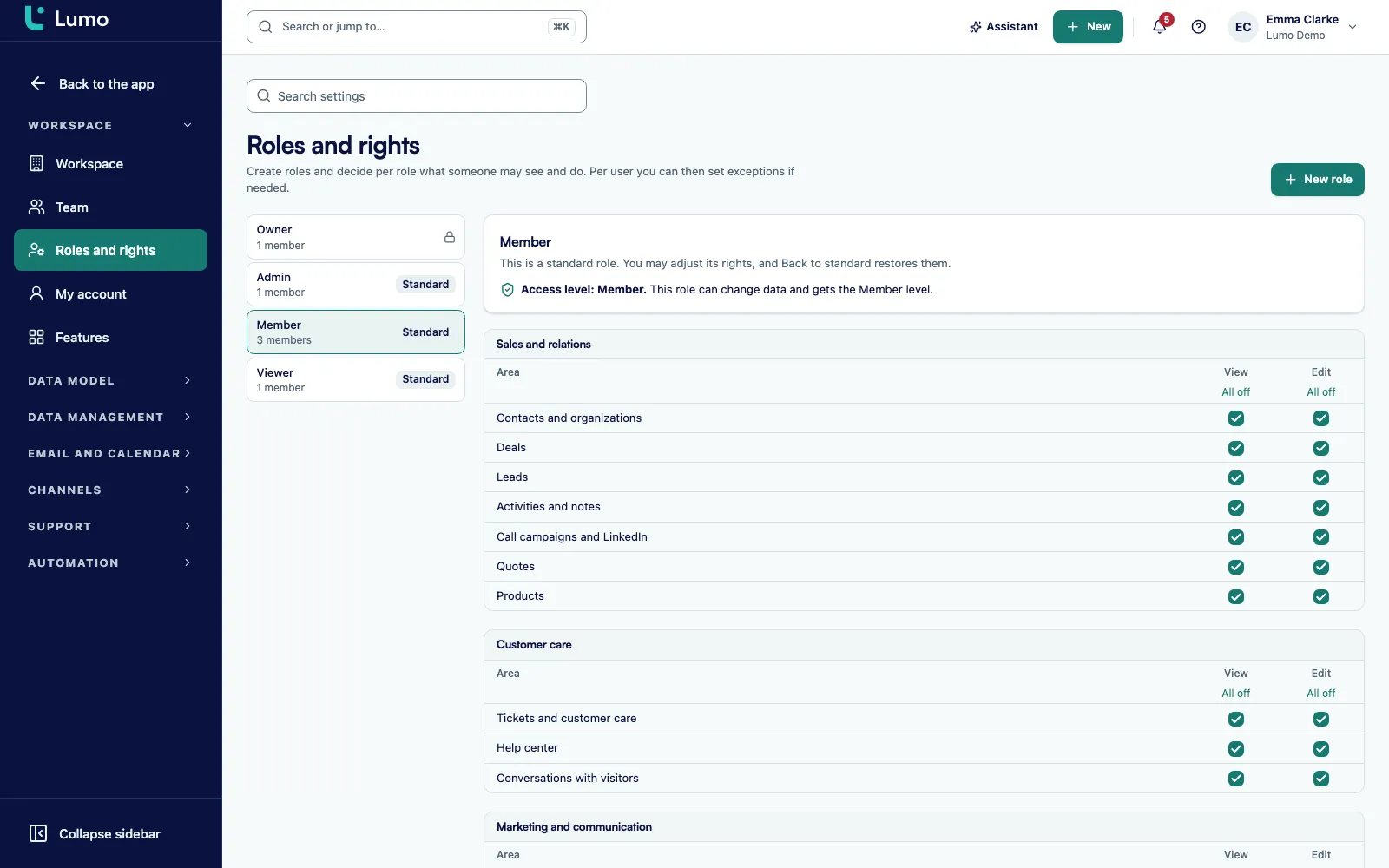
The matrix is the core of a role. Every area has two boxes. View means someone sees that part of Lumo and can read its data. Edit means they can change it as well. Edit always includes View, and if you switch View off, Edit goes with it.
The areas follow the parts of Lumo. For sales that includes Contacts and organizations, Deals, Leads, Activities and notes, Call campaigns and LinkedIn, Quotes and Products. For customer care there is Tickets and customer care, Help center and Conversations with visitors. For marketing there is Mailings, Marketing and website tracking and Form builder. And then Email, Files, Calendar and bookings, Projects, Vault with project secrets, Dashboards and analytics, Merging duplicates and Automations.
Whatever someone may not view disappears from their menu. They never see a button they are not allowed to use. A Viewer who opens the booking page sees a note that they can look but not change it, and in Files they can view and download but not edit.
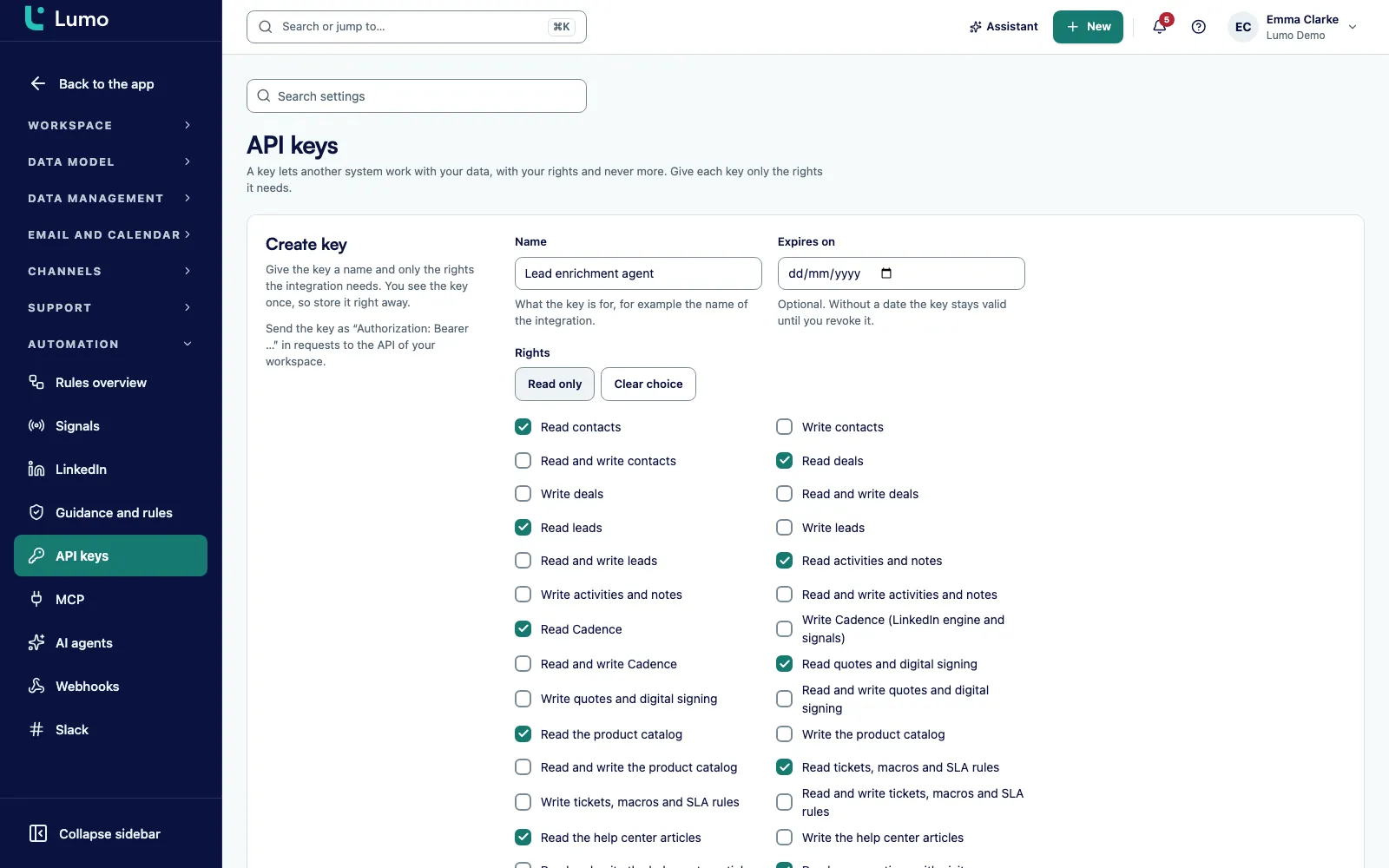
Below the areas sit the management rights: Manage the team, Manage roles and rights, Workspace and functions, Data model and import, Privacy and consent, Connections and keys, Automation and guidance, and Customer care settings. So your RevOps lead can manage fields and pipelines without also being able to revoke other people's API keys.
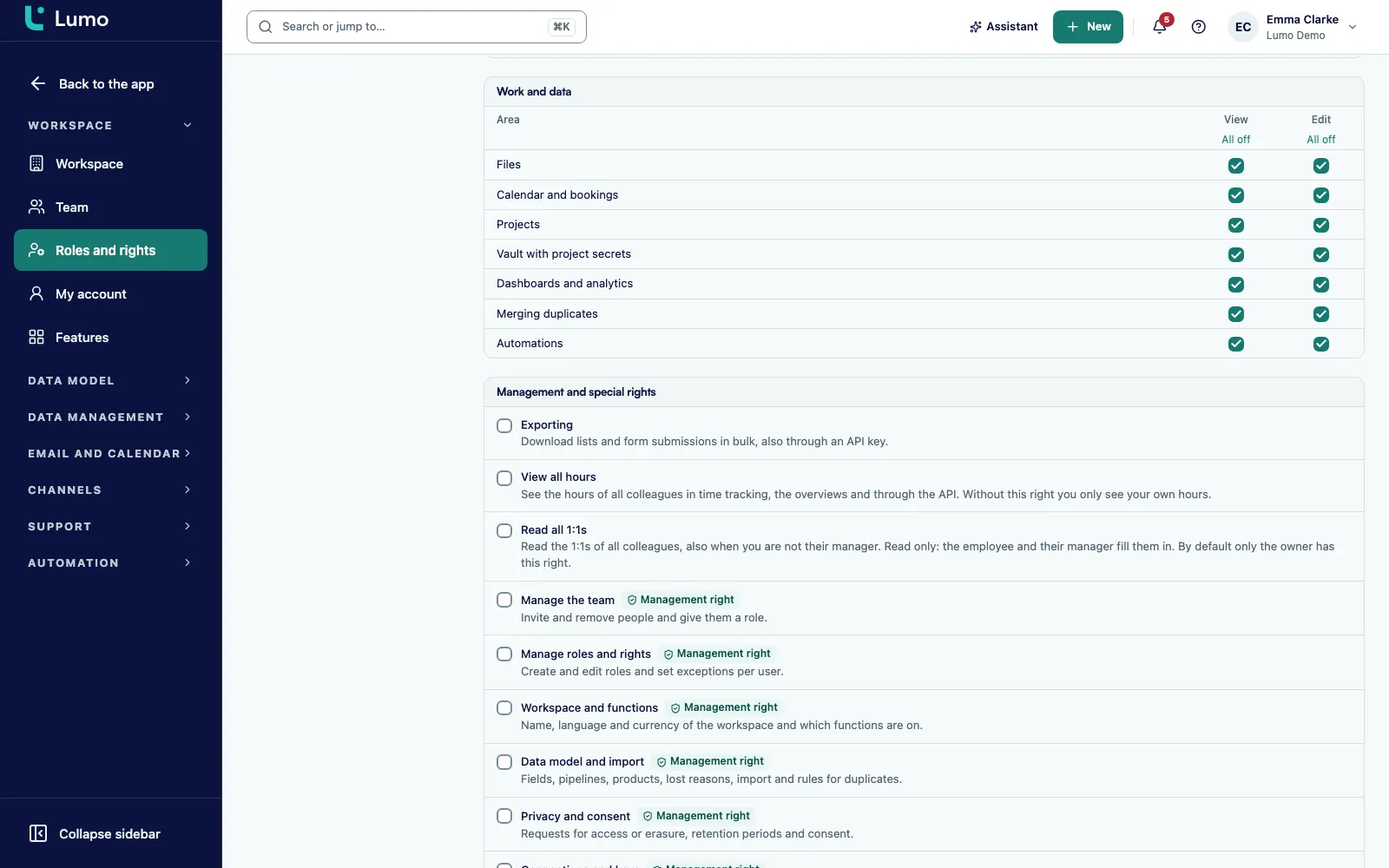
Sometimes a person almost fits a role. An account manager who also needs to export the quotes of the team. A support colleague who should temporarily lose access to the vault. You do not build a separate role for that. You set an exception.
Under Settings, Team you click Adjust rights next to that person. You get the same matrix as for a role, titled with their name. Tick on or off what this person may do differently. The role itself stays the same. The team list then shows "1 exception" or the count, and "Follows the role" for everyone without one.
If a role switches something on and an exception switches it off, off wins. An exception can never open up more than you meant it to.
A few rules keep this safe. You can only hand out rights you hold yourself. A right you do not have shows "You do not have this right yourself, so you cannot hand it out." You cannot lock yourself out. And the last owner always stays owner.
Changes apply within seconds, without anyone signing in again. That is why the screen warns you before you save, for example "Saving affects 4 users: their rights change at once." Every change to a role or an exception lands in the audit log.
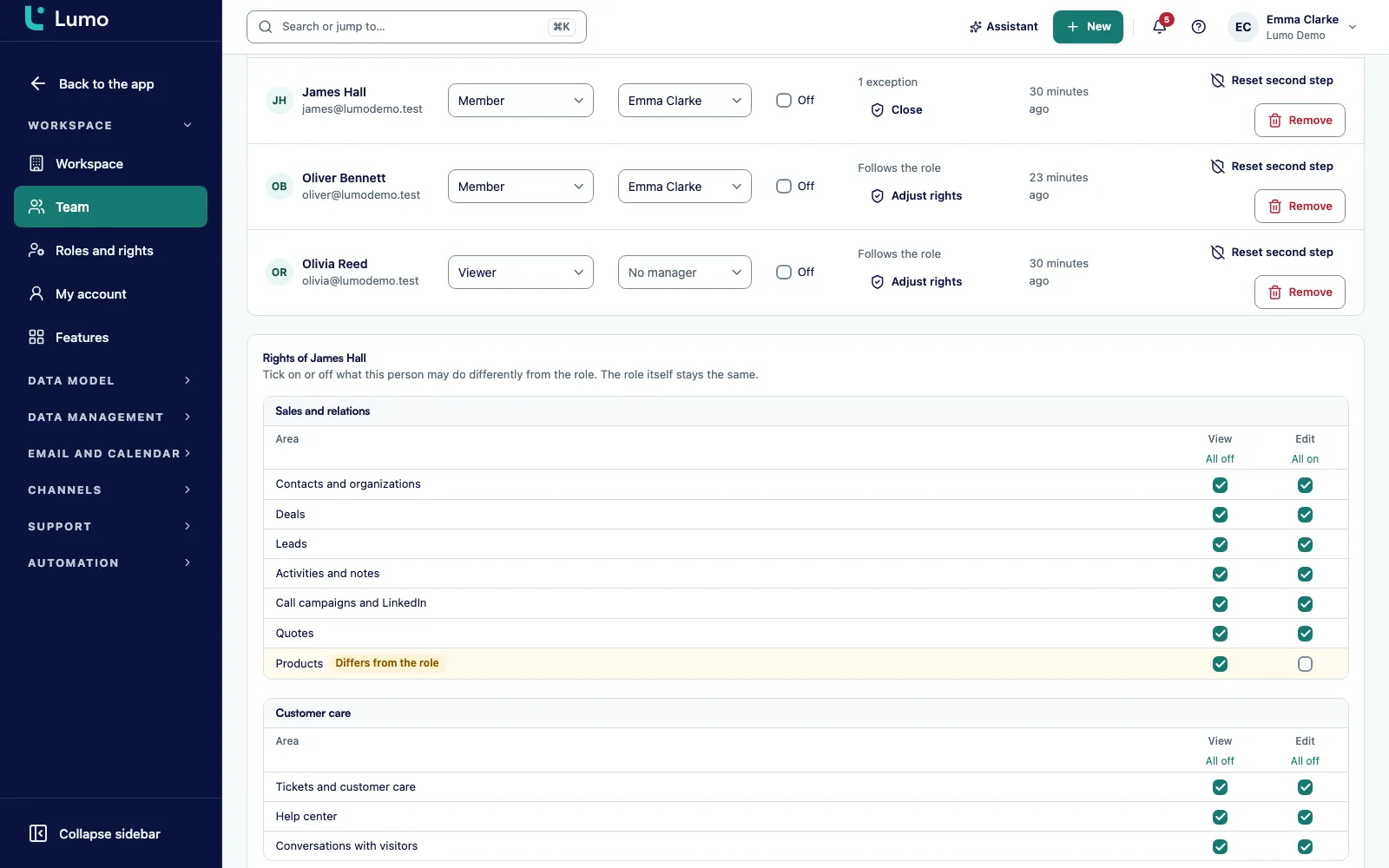
Lumo is built to be used by people and AI agents together. An agent works through the MCP server or the REST API with an API key. The rule is short: a key never gets more than the person who created it.
Every user, including a Member or Viewer, creates and revokes their own keys. When a key is created, Lumo refuses scopes outside your role. And on every request Lumo caps the key again to whatever you are allowed at that moment. Remove someone's Edit right on Deals and their agent can no longer change deals on the next call. A key without write scopes runs as a Viewer.
Connect Lumo as a connector in Claude.ai or ChatGPT and you get a key that is valid for 90 days and never reaches the vault or the workspace settings. An owner or admin with the Connections and keys right sees every key in the team and can revoke any of them. Only an owner can create a key with admin scope.
The AI assistant inside the app works with the role of the signed in user. Tools for an area you cannot view are simply missing. A tool that changes something also needs the edit right. Sending and deleting wait for "Approve and run".
Every item below exists in the app as described.
Owner, Admin, Member and Viewer. Member, Admin and Viewer are adjustable, Owner is fixed. Back to standard resets an edited role.
Start from An empty role without rights or A copy of an existing role. A custom role only gets what you tick.
Two boxes per area across 21 areas. Edit includes View. All on and All off give you a fast baseline.
Download lists and form submissions in bulk, also through an API key. Member does not have it by default.
Without it you only see your own hours in time tracking. Owner and Admin have it by default, Member and Viewer do not.
By default only the owner has this right, not even the admin. Otherwise a one on one is read only by the employee and their manager.
From Manage the team to Customer care settings. Any management right gives the role the Admin access level.
Adjust rights under Team. The list shows Follows the role or the number of exceptions. Off wins over on.
This is how teams often set it up. These are examples, not a fixed scheme.
Edit on Deals, Leads, Contacts and organizations, Activities and notes, Quotes and Email. Mailings view only. No export.
Same as sales, plus edit on Dashboards and analytics and the Exporting right. Add View all hours if the team logs time.
Edit on Projects, Contacts and organizations and Activities. The Vault with project secrets only for people who actually set up the client.
Edit on Tickets and customer care, Help center and Conversations with visitors. Deals and Quotes view only.
Edit on Mailings, Marketing and website tracking and Form builder. Leads view and edit, Quotes off.
The management rights Data model and import and Automation and guidance, without Manage the team. More for RevOps and leadership.
Often a Viewer with Exporting and View all hours as exceptions. They can look at everything without changing anything by accident.
Say a consultancy of 35 people runs sales, marketing, delivery and support in Lumo. This is an invented example to show how it works, not a customer story.
At the start everyone was an Admin. The operations lead wants to fix that. She opens Roles and rights and creates four custom roles. "Sales" is a copy of Member with Mailings set to view only. "Delivery" edits Projects and Activities and views Deals. "Support" starts empty and gets edit on Tickets and customer care, Help center and Conversations with visitors, plus view on Contacts and organizations. "Marketing" edits Mailings, Form builder and Marketing and website tracking, and gets Leads as well.
She clicks Save. The screen says the change affects twelve users. Within seconds they see a different menu. Support no longer sees quotes. Nobody has to sign in again.
Then the exceptions. One partner pulls a monthly export for finance. He keeps the Sales role but gets the Exporting right through Adjust rights, and the team list shows "1 exception" next to his name. The two founders stay Owner. The finance controller becomes a Viewer with View all hours as an exception, so she sees everyone's time without being able to change anything.
Now the agents. The sales team runs an agent that reviews new leads every morning. It uses a key created by a sales rep, so it has the Sales role. It can create deals but cannot send a mailing, because Sales only views Mailings. Finance runs a routine that checks timesheets every Friday on a read only key from the controller. Because she has View all hours, the routine sees the whole team. A key from an ordinary Member would only see that member's own hours.
Three months later a support colleague moves to marketing and gets the Marketing role. From the next request on, his agent can no longer edit tickets, because he no longer has that right himself. A key always follows the rights of the person who made it.
An agent working through the MCP server or the REST API only sees the tools its key may use in tools/list. If the creator of the key cannot view Quotes, the quote tools are not in the list. A module that is switched off has no tools either. Tools that contact a customer, send mail or delete something for good also require confirm: true.
An agent can read who is on the team with list_members. For time tracking, list_time_entries, time_summary and time_report follow the View all hours right, and the scope in time_report tells you whether the report is limited to the caller's own hours.
What an agent deliberately cannot do: create roles, change rights or invite team members. There is no MCP tool for that. You do it in the app, or through the app endpoints with a signed in session. That way an agent can never give itself or anyone else more rights. Sign in, two factor authentication and key management are outside the MCP as well.
You can read more about keys, scopes and limits under API and integrations. What the AI assistant does inside the app, and how it asks for approval, has its own page.
This is what we go through with a new workspace.
Roles touch every part of the product. In time tracking and projects, View all hours decides whether someone sees only their own hours or the whole team. The hour budget of a project always counts everyone. In the customer portal a client only sees their own project, separate from the roles of your team.
The meeting scheduler and Files let a Viewer look without changing anything. And a notification in the bell is only visible to the person it was meant for.
For the wider view on sign in, the audit log and GDPR, go to security and privacy. If you are the person who sets all of this up, have a look at the page for RevOps and leadership too.
Rights apply per area, not per record. Anyone who can view Deals sees every deal in the workspace, not just their own. The only exception is time: without View all hours you only see your own hours. There are no rights per pipeline, per team or per field either. If a group should not see something, switch that whole area off in their role. Project secrets live separately in the vault, with their own area and a PIN per employee.
Search and the timeline follow the access level of the role, not the view right per area. Keep that in mind when you switch off an area for sensitive data.
Single sign on (SSO) is not available. Everyone signs in with their own account, and you can make two factor authentication mandatory for admins. Roles cannot be changed through MCP. You change them in the app.
Four: Owner (everything, fixed), Admin (everything), Member (view and edit every area, no management and no export) and Viewer (view only). Member, Admin and Viewer can be adjusted.
Yes. Click New role in Roles and rights and start from an empty role or a copy of an existing one. Then tick View and Edit per area and choose any management rights.
No. Rights apply per area. Anyone who can view Deals sees every deal in the workspace. The difference between own and all only exists for time, through the View all hours right.
A right that is set differently for one person than in their role. You set it with Adjust rights under Team. The role stays the same. If the role has it on and the exception has it off, off wins.
No. A change takes effect within seconds. Before you save, the screen tells you how many users it affects.
Exactly what the person behind its key may do, and no more. Lumo caps the key on every request. Take a right away from that person and the agent loses it too.
No. There is no MCP tool to create roles or change rights. An agent can read who is on the team with list_members. You manage roles in the app.
Yes. The assistant works with the role of the signed in user. Tools for areas without view rights are missing, and sending and deleting wait for your approval.
No, single sign on is not available. Everyone has their own account and you can make two factor authentication mandatory for admins. See security and privacy for the details.
Yes. Every change to a role or an exception is written to the audit log.
In a demo we set up a few roles for your teams together, add an exception and an API key, and show what an agent can and cannot do with it.