
See an hour of calling in Lumo
In a demo we build a call campaign with an after-call email together and call a few demo contacts in call mode. Lumo is made by Sales Surge, with more than 150 CRM implementations behind it.
Monday, 08:00. Who is calling that customer back? Relax. It was planned on Friday. In Lumo the call list is ready, the next step after every outcome is set, and the after-call email and the LinkedIn step wait for you to check them. Your people make the calls. The rest was already there.
Most sales teams know this one. A list of 200 prospects comes out of a trade show or an export. It goes into a spreadsheet with a "called" column and a "notes" column. Two reps split the list in the hallway. Three days later nobody knows who is calling back, which voicemail was already left, or whether that one director was interested or not.
Then comes the follow-up. Someone has a good conversation and promises an email with a price indication. That email gets written on Friday afternoon, or it does not. A LinkedIn request lives on a sticky note. A WhatsApp message goes out from a personal phone and never shows up in the CRM. The call went well. The follow-up was luck.
That is rarely about the people. It is about the lack of one place where the calling and what comes after it sit together. So in Lumo they do. A call campaign is a named group of call tasks that you work through person by person in call mode. A Cadence is the set of steps around those calls: an after-call email, a LinkedIn step, a WhatsApp message or a task, tied to the outcome of the call or running from the start. On screen they live together under Cadence campaigns. A campaign without extra steps is simply a call campaign: calls only.
The idea is the same as in the Lumo launch film. Do you still have to pick it up, or was it already done? With a Cadence the answer is usually that the work around the call was already done. Lumo spreads the call tasks over the days and over your people. After an outcome, Lumo prepares the next step with the text filled in. What does not happen automatically is the conversation itself. A person has it. And most messages are sent by a person too, after one look at the text.
This page walks through setting up a call campaign, how call mode works, what the steps in a Cadence do, and what is deliberately left out. To see how LinkedIn fits in as a channel, read LinkedIn in your outreach. If you care most about bringing in and qualifying new names, start with lead management.
The names below are the names you see on screen.
On Cadence campaigns, click New campaign. A three step wizard first asks what you want to do and offers five starting points: Calls only, Call, then email, LinkedIn first, then call, LinkedIn, email and calls, or Build your own. You can also start from the People list: select people and choose Start call campaign.
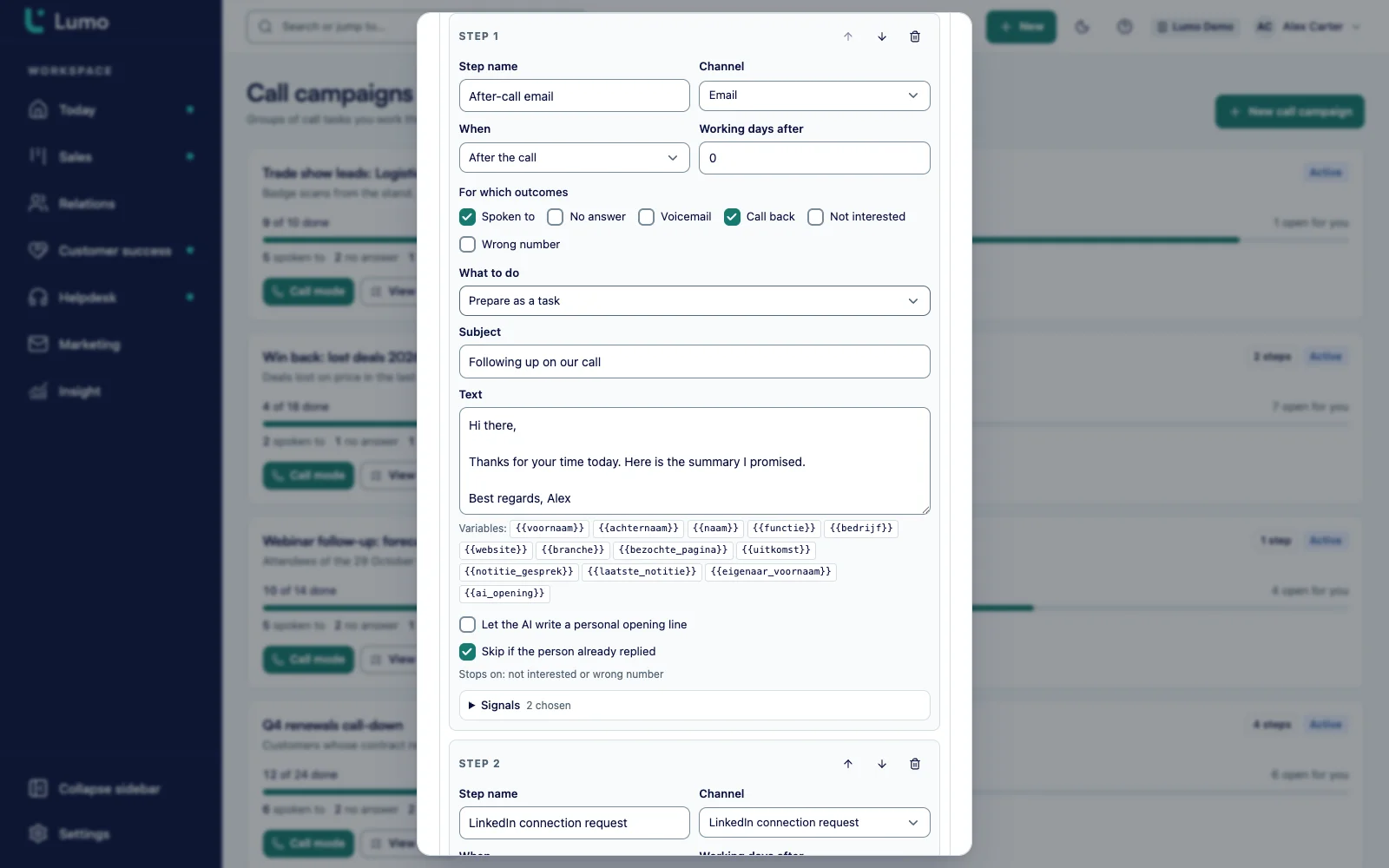
The steps of your starting point are already in the sequence. For each step you pick the channel (Email, LinkedIn connection request, LinkedIn message, WhatsApp or Task), when it runs (From the start or After the call, plus working days after), for which outcomes, and what it does: Prepare as a task, for email Send automatically, or for LinkedIn Through the LinkedIn engine.
Under "Who do you call?" pick the selected people, a saved filter or a label. Then the Owners (handed out in turn), a start date, a start time, how many call tasks arrive Per day, and your call script under "Instruction on every call task". Starting the campaign gives every person a call task.
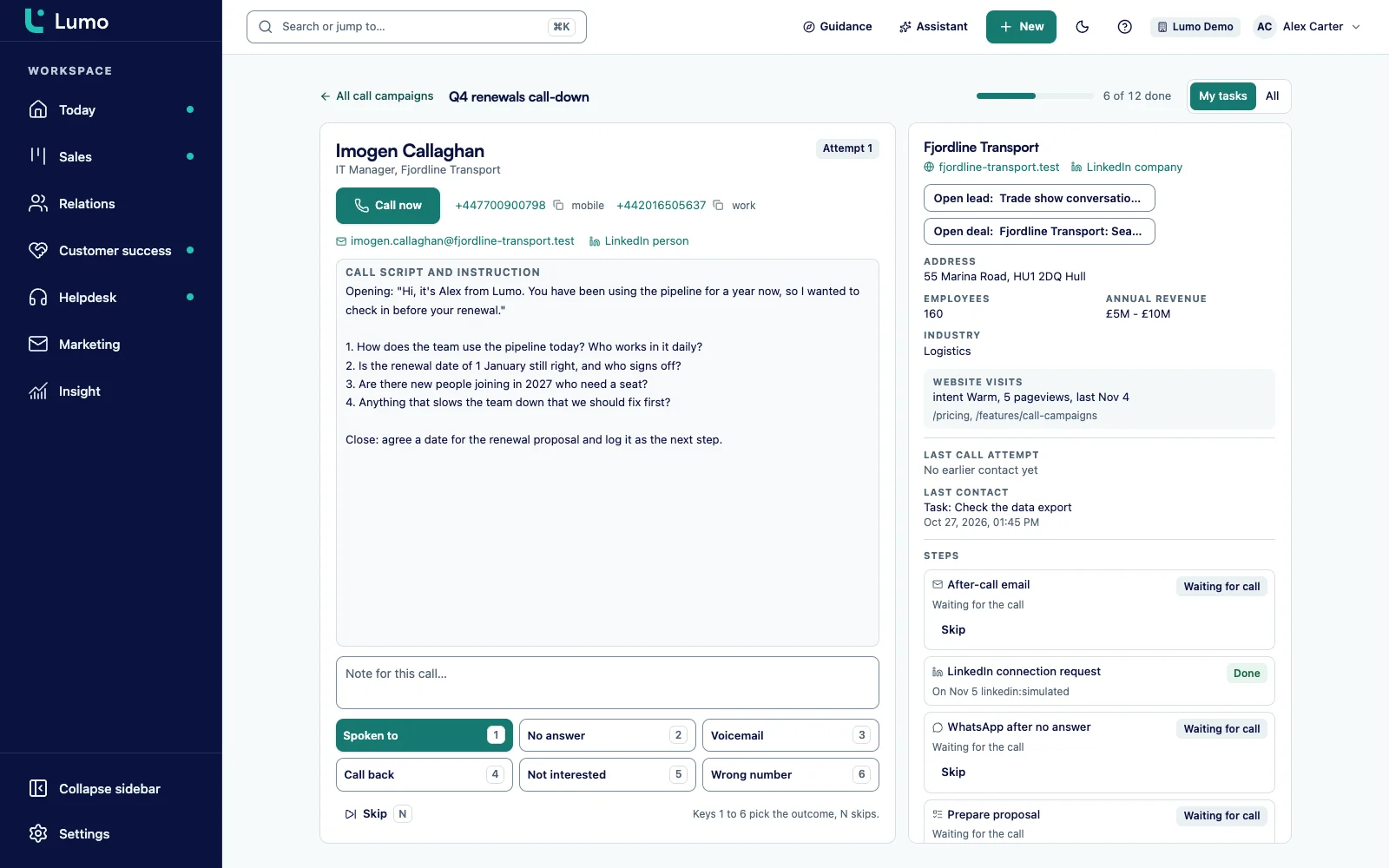
Open the campaign with Call mode. You see one person at a time, with numbers, the previous note, the script and what is known about the company. Pick one of six outcomes with the mouse or keys 1 to 6. N skips, V goes back and M plans a meeting.
The Steps panel shows what is ready for each person, with its status: Waiting for call, Open, Done, Skipped, Cancelled or Failed. You send an email with Review and send. For LinkedIn and WhatsApp you use Copy and then Done.
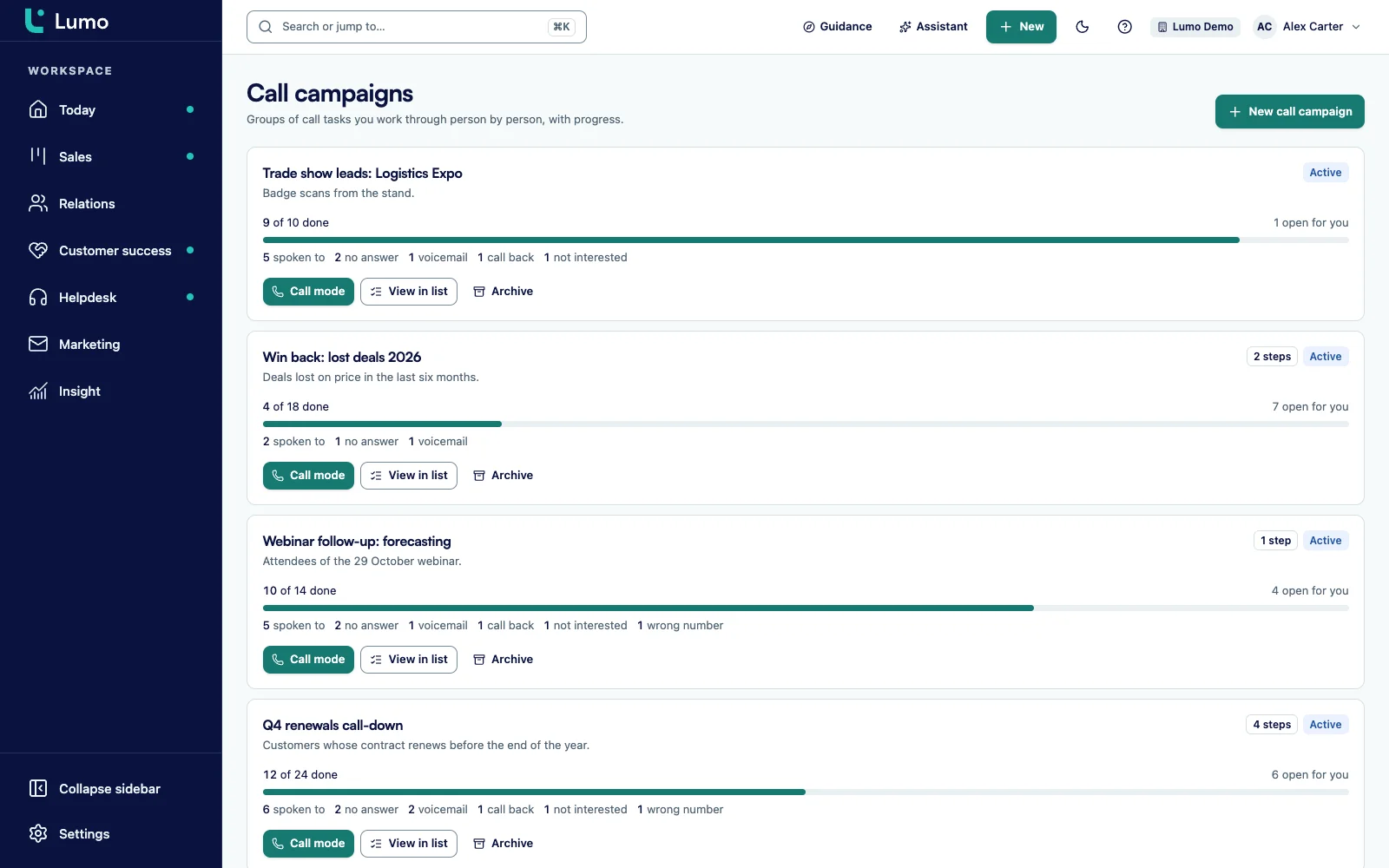
The Cadence campaigns list shows how many are done per campaign, the count per outcome and how many are open for you. When no call task is left open, the status moves from Active to Done.
Call mode is built for an hour of calling, not for a single phone call. The script and outcome buttons sit on the left, the prospect on the right. You do not have to look anything up. Name, company and job title are at the top. Numbers are clickable and have a copy button. The Call now button opens the first number in the calling app or phone you already use. If you call with CloudTalk, the call comes in by itself afterwards and the CloudTalk outcome carries over to the campaign. How that works is on calling with CloudTalk.
Under About the prospect you see what Lumo knows about the company: website, LinkedIn for the person and the company, address, employees, industry, annual revenue, and website visits with the pages viewed. Under Earlier contact you see the last call attempt and the last contact, so you do not ask again what a colleague heard last week. If there is an open lead or deal, you open it in a side panel without leaving call mode.
If someone wants to talk further, press M or click Plan a meeting. You pick the host, a length and a time. Lumo puts the meeting in the host's Google Calendar with a Meet link, and Google sends the invite. More on booking pages and team scheduling is on the meeting scheduler.
After the call you type a note and pick an outcome. Lumo saves it and puts the next person in front of you. Up next shows who that is. When the queue is empty you see "All called", with the number of open tasks your colleagues still have.
You create a call campaign once. Lumo does the splitting after that. You pick the owners and the call tasks go to them in turn. You pick how many arrive per day, 40 by default, and from which date and hour. So on Monday morning there is a list that fits a day, instead of 300 names that all seem to be due today. Want a LinkedIn request or an email to go first? Set the working days until the first call task to 3, for example. If things run differently than planned, the campaign settings let you reschedule the open call tasks.
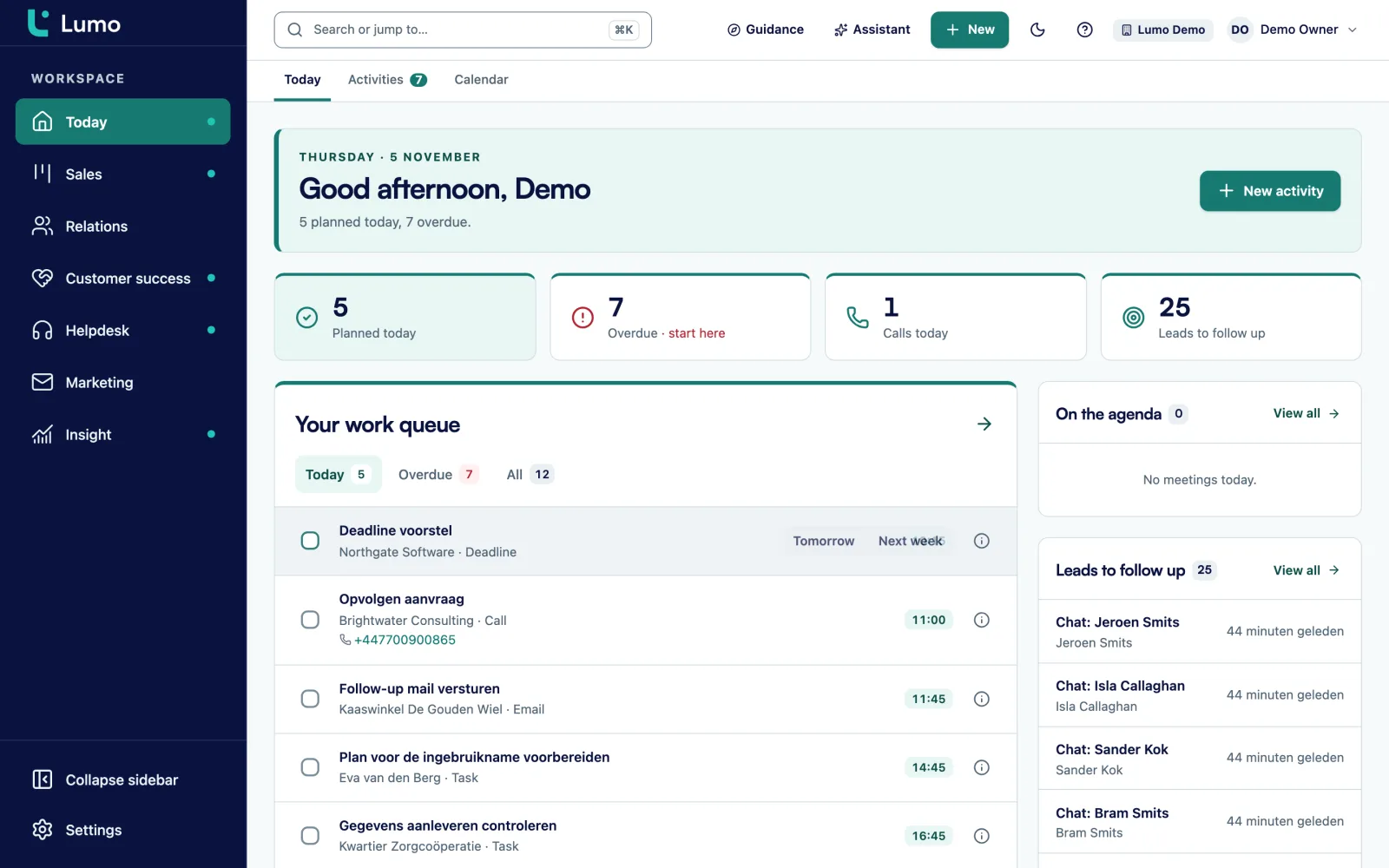
Every call task is a normal activity of the call type. It shows up in activities and calendar, on the owner's Today screen, and in the activity table with columns for the campaign and the outcome. View in list filters that table to one campaign.
When you create a campaign you see right away what happened: how many call tasks were created and who was skipped, with the reason. No phone number, not found, or already in this campaign. You do not have to work out later why the list is shorter than you expected.
This is where it differs from a spreadsheet. A step in a Cadence hangs on the outcome. Pick Spoken to and the after-call email can be ready with the call note in it. Pick Voicemail or No answer and a LinkedIn step can follow three working days later. Pick Not interested or Wrong number and the steps for that person stop. Not every step has to wait for the call. A step set to From the start runs a number of working days after that person's start, even before anyone has called.
Signals steer the sequence too. When a reply or an unsubscribe comes in, the open steps stop. For each step you choose Stop on, Only on or Skip on, so a step can for example run only once the LinkedIn request has been accepted.
Lumo fills in the text with variables such as first name, company, job title, the page visited, the outcome and the call note. An empty variable drops out, or takes the default value you set. Every 5 minutes Lumo checks which steps are due and prepares them. Until then the step shows that its text is still on the way. A task appears under the owner's name, linked to the person and the company.
By default every step is a task a person completes. An email step can send automatically, only on working days between 07:00 and 19:00. Per campaign you choose the route: the caller's Gmail with the marketing sender address as fallback, Gmail only, or the marketing sender address only. If you choose Gmail only and the caller has no Gmail connected, the step becomes a task.
Each point below is how it works in the app.
Spoken to, No answer, Voicemail, Call back, Not interested and Wrong number. Every outcome counts as an attempt. Call back keeps the task open for the moment you choose.
Add after-call email puts in an email step that runs after the call. You check the text in Review and send and it goes out from your own Gmail.
A LinkedIn connection request or message is prepared as a task with the text and the profile link. How to use LinkedIn further is on LinkedIn in your outreach.
A WhatsApp step prepares the text as a task. You copy it and send it yourself. Lumo does not send WhatsApp messages.
Each step has Stop on, Only on and Skip on. Built in are Reply, Unsubscribed, Mail opened, Mail click, Request accepted and Website visit, among others. You can create your own signals from phrases in notes, such as "do not call", up to 50 per workspace.
Key M or the Plan a meeting button puts a meeting of 15, 30, 45 or 60 minutes in the host's Google Calendar, with a Meet link. See also the meeting scheduler.
With the connection every call lands on the timeline, with the recording, transcript and summary from CloudTalk. The CloudTalk outcome carries over to the call campaign. Read more on calling with CloudTalk.
The instruction you add to the campaign shows in call mode under Call script and instruction. Everyone calls with the same story.
Several owners per campaign. Call tasks are handed out in turn. Every caller sees their own tasks first in call mode.
Creating and working call campaigns needs the member role or higher. Only an admin can change signals. How roles work is on roles and permissions.
Say a software reseller with eight account managers wants to call 180 customers whose licence renewal is coming up in the next quarter. This is a made up example to show how it works, not a customer case.
The sales lead builds a saved filter in People called "Renewal next quarter". On Cadence campaigns she clicks New campaign and picks the starting point Call, then email. Owners: all eight. Per day: 20. Start: Monday at 09:00. In the instruction she writes three questions every caller asks about usage and seats. Lumo creates 177 call tasks and reports that 3 people were skipped because no phone number is known. Those three get an email later.
The after-call email is already in the sequence. She sets it to Spoken to, zero working days after the call, with the call note in it and a link to the renewal terms. Then she adds two steps. A LinkedIn connection request on Voicemail and No answer, two working days later, as a task. And a task "Call again" five working days from the start, which is skipped on the Reply signal.
Monday at 08:00 Priya opens call mode. Three call tasks are waiting for her. The first person picks up, wants to add seats and asks for a quote. He also wants a short call with the solutions consultant. Priya presses M and puts a 30 minute meeting in the consultant's calendar, with a Meet link. Then she types the note and presses 1, Spoken to. A few minutes later the after-call email sits in the Steps panel with "Thanks for the call just now about the extra seats" in it. Priya reads it, changes one line and sends it.
The second does not pick up. Key 2. On Wednesday a LinkedIn task is on her Today screen with the text and the profile link. The third has left the company. Key 6, Wrong number, and every step for that person stops. On Friday the sales lead sees in the Call campaigns list how many were reached and how many need a call back. No spreadsheet, no sticky notes.
These are the steps we walk through with a first call campaign.
A call task is an activity. So it sits in activities and calendar and on the Today screen. What you note in call mode lands on the timeline of the person and the company.
The people you call often come from lead management or a form on your website. In call mode you open the lead or deal in a side panel. If the call looks like an opportunity, you convert the lead or move the deal from there.
If you call with CloudTalk, every call sits on the same timeline with recording, transcript and summary, and the CloudTalk outcome carries over to the campaign. That is explained on calling with CloudTalk. A meeting you plan in call mode lands in the host's Google Calendar, just like a booking through the meeting scheduler.
If you want rules that go beyond a Cadence, such as creating a deal when someone shows a certain signal, you build them in automations. There you also find the action Add to a Cadence, so an automation can put someone into a running sequence.
If you work with your own AI agents, they can do the whole job through the MCP server. With create_cadence an agent sets up a Cadence, and with add_people_to_cadence it adds up to 5000 people in batches of 100. With get_call_queue it reads the queue, with record_call_outcome it logs an outcome and with replace_call_campaign_steps it changes the steps. Signals go in through record_person_signal or the API. Steps that send automatically need an explicit confirmation in create_cadence. How agents work in Lumo is on headless CRM and AI agents.
For mailings to large groups you use email campaigns. A Cadence is for personal follow-up around a call, not for a newsletter.
Lumo does not place calls and records nothing itself. There is no dialer in the browser. The Call now button and the numbers open your own calling app or phone. If you call with CloudTalk, Lumo fetches the call and plays the recording from CloudTalk. Transcript and summary come from CloudTalk too. Without CloudTalk you log the outcome and the note yourself in call mode.
A WhatsApp step in a Cadence is always a task with prepared text. A person copies and sends. LinkedIn is a task by default too, or runs through the LinkedIn engine. Email can send automatically, through Gmail or the marketing sender address. If your team uses Outlook, let automatic email run through the marketing sender address or keep email steps on Prepare as a task. The Outlook and Microsoft 365 connection is on the roadmap.
A call campaign is the group of call tasks you work through in call mode. A Cadence is the set of steps around those calls, such as an after-call email, a LinkedIn step, a WhatsApp message or a task. Without steps it is a plain call campaign.
You click Call now or a number and your own phone or calling app places the call. Lumo does not place calls and records nothing itself. With the CloudTalk connection the call, the recording from CloudTalk, the transcript and the outcome do come into Lumo by themselves. See calling with CloudTalk.
Yes. Press M or click Plan a meeting, pick the host, 15, 30, 45 or 60 minutes and a time. The meeting goes into the host's Google Calendar with a Meet link. You can then close the call attempt as spoken to.
Spoken to, No answer, Voicemail, Call back, Not interested and Wrong number. Keys 1 to 6 pick them without the mouse. Call back asks for a date and time.
Email, when you set that step to Send automatically. It then goes through the caller's Gmail or the marketing sender address, on working days between 07:00 and 19:00. LinkedIn can run through the LinkedIn engine. WhatsApp and tasks are always completed by a person.
A WhatsApp step prepares the text as a task. In call mode you click Copy, send the message yourself in WhatsApp and click Done. There is no WhatsApp connection that sends messages.
Up to 12. Each step has a channel, a moment (from the start or after the call, up to 60 working days later) and can be limited to certain outcomes.
A step can be skipped when the person already replied, and a reply or unsubscribe stops the open steps. Signals give you more control: Stop on, Only on and Skip on, with built-in signals such as Reply and Unsubscribed and your own signals from notes.
A call campaign works on people: a selection, a saved filter or a label. If a person has an open lead, you open it in call mode in a side panel.
Yes, through the MCP server. An agent creates a Cadence with create_cadence, adds people with add_people_to_cadence, reads the queue with get_call_queue, logs outcomes with record_call_outcome and reports signals. The AI assistant inside the app does not have these tools.
In a demo we build a call campaign with an after-call email together and call a few demo contacts in call mode. Lumo is made by Sales Surge, with more than 150 CRM implementations behind it.