
See time tracking in Lumo
In a demo we start a project from a won deal, book a few meetings from the calendar and look at budget and utilisation in the Report. Lumo is built by Sales Surge, with more than 150 CRM implementations behind it.
In Lumo you log time on the project the work belongs to. Use a timer, type one line in Log time, or drag a block in your calendar. The budget comes from the deal, so you can see per client whether you stay within it. Built for teams that deliver the work after the sale.
The deal is won, the project starts, and from that moment the hours live somewhere else. In a separate time tracker, in a spreadsheet, or in someone's head. On Friday afternoon everyone rebuilds their week from memory. Was that workshop on Tuesday ninety minutes or two hours? And did it go on the client project or on "general"?
Then the account manager asks how the client's budget is doing. Nobody knows for sure. The deal value lives in the CRM, the hours live in the time tracker, and the link between them is an export someone builds once a month. By the time you notice a project is over budget, the work is already done.
This is rarely about people. It is about the distance between where you sell, where you deliver and where you log time. Lumo is a RevOps CRM that puts Marketing, Sales and Customer Success and Support under one roof, built to be used by your people and by AI agents. So time tracking sits inside Customer success, next to projects, milestones and tasks.
That has three effects. An hour always sits on a project, and that project belongs to a client and often to a deal. You never tick a billable box yourself, because Lumo works it out from the project. And the project budget comes from the deal value, so Lumo compares what was sold with what was worked on its own.
This page walks through how you log time, how you book your Google Calendar meetings in one go, how reporting works and what the project work around it does. For the wider picture of everything after the sale, read about customer success in Lumo. To see how a deal gets there in the first place, look at pipeline management.
The names below are the names you see on screen.
Go to Customer success and pick the Time tracking tab. At the top you see Today, This week and Billable as a percentage.
Type something like "1h30 workshop @acme yesterday" in Log time and press Enter. Lumo picks up the duration, the day and the project after the @. Leave the time out and choose Start timer, then Stop timer later.
In the Calendar view, drag a block in a day in 15 minute steps. A card opens with description, project, start and end. Click Add.
Google Calendar meetings you have not booked yet appear dotted next to your hours. Click Book this meeting, or book every customer meeting of the week at once with Book 3 customer meetings.
Under Report, pick a period and a view such as Budget, By client or Utilisation. Copy link shares exactly that view and Export this view gives you a CSV.
The quick entry at the top is called Log time. You type what you did in plain words. Lumo reads a duration (1h30, 45m), a time slot (9-10:30), a day (yesterday, mon) and a project after the @. If there is a time in it, Enter books it straight away and the button shows what will be booked. If there is no time, you start a timer instead.
Each person has at most one running timer. Start a new one and Lumo stops the running one first, and tells you so. You never end up with two overlapping entries because you forgot to press stop.
An entry without a project does not exist. Lumo rejects it in the app, through the API and over MCP. Internal work goes on an internal project, such as Operations or Sales. That sounds strict. It is also the reason every report adds up later, because there is no "other" bucket where half the hours disappear.
An entry lasts at most 24 hours and cannot end later than now. You cannot log time in advance. That is on purpose. This is a record of what you did, not a plan.
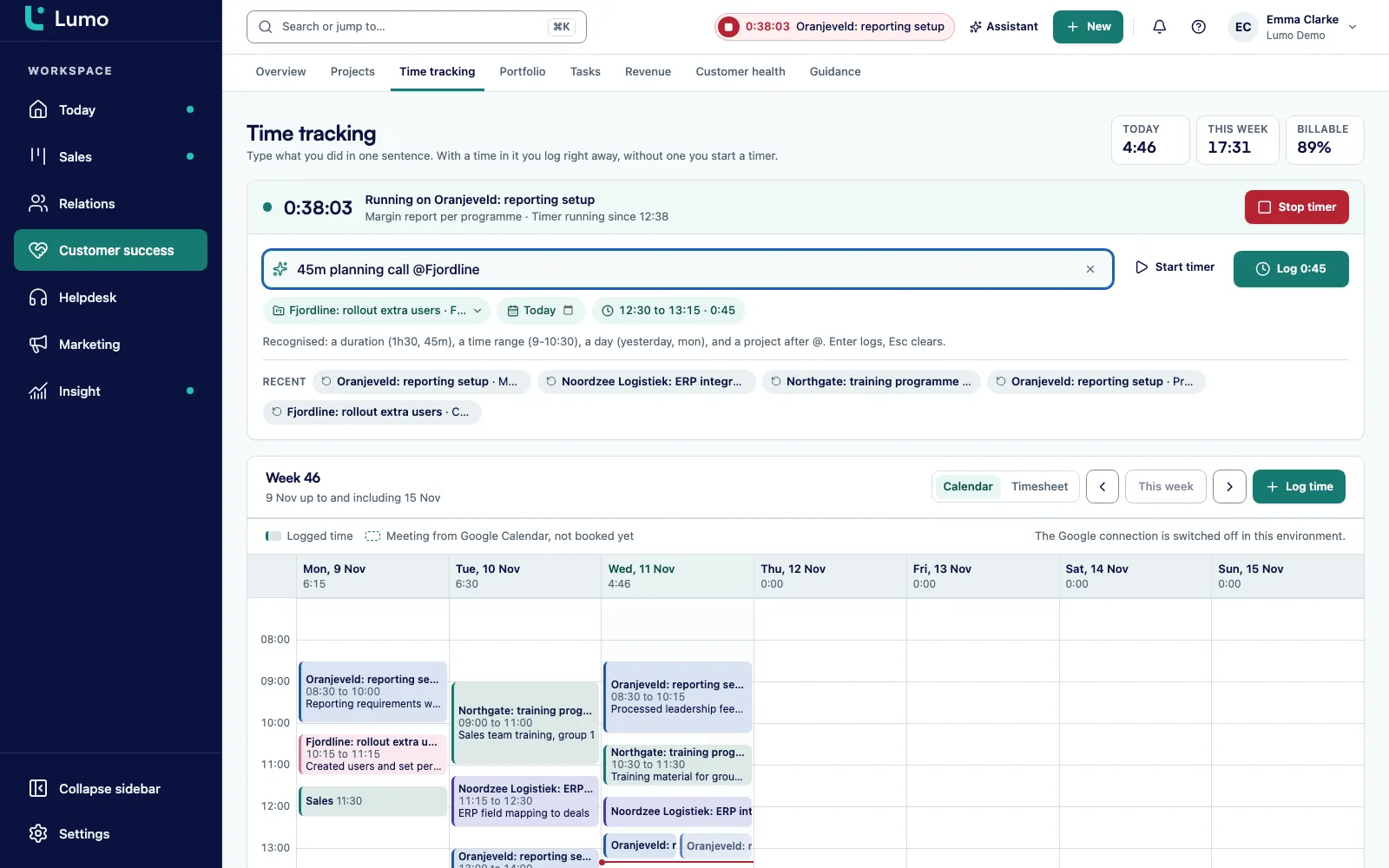
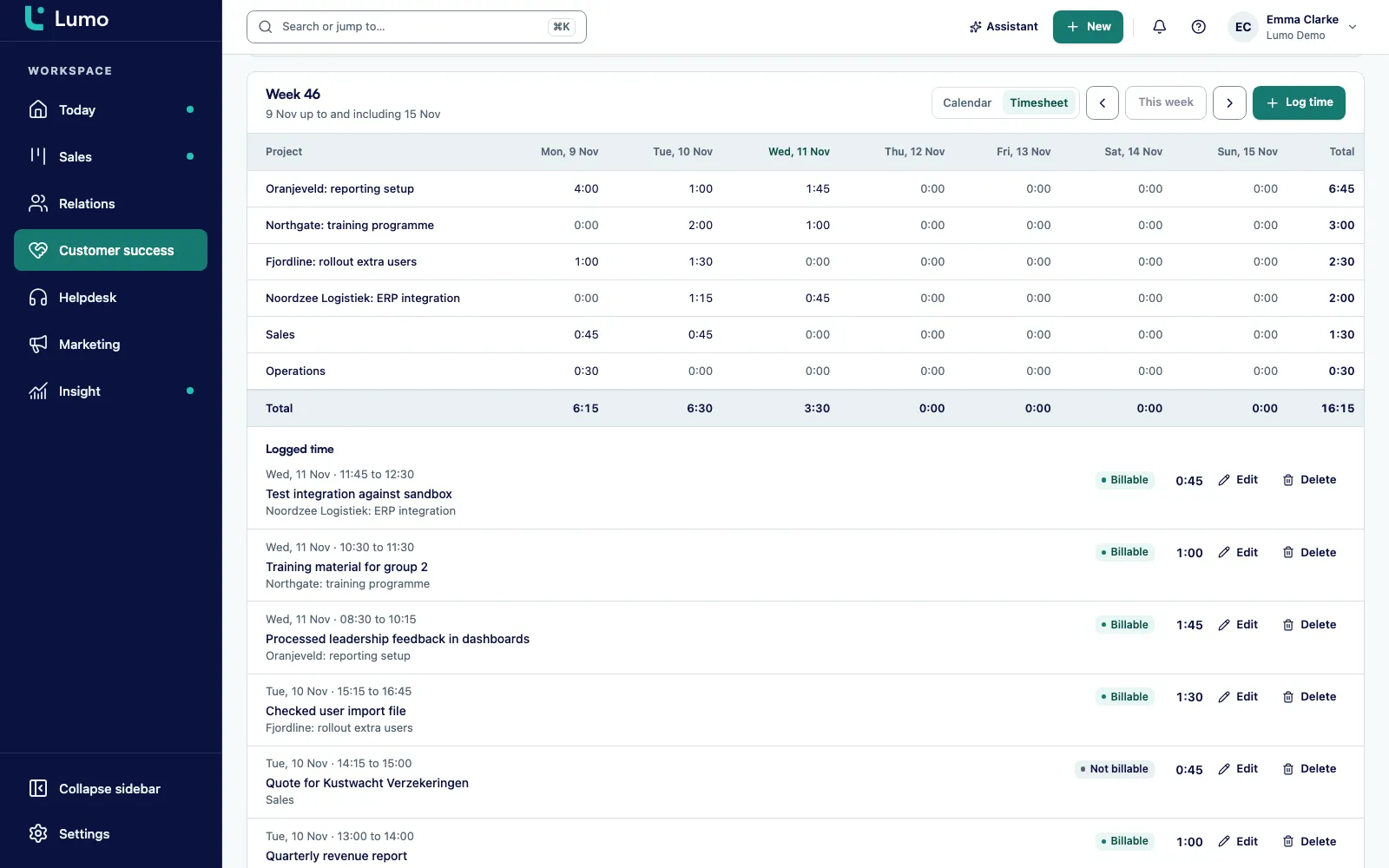
The week card has two views. Calendar is the default and looks like the calendar you already use. Timesheet puts the same hours in a table per day. Your browser remembers which one you picked last. Previous week, Next week and This week move you around.
In the calendar you drag a block in a day in 15 minute steps. A single click makes a one hour block. Then you fill in what you worked on, pick the project and click Add.
With Google Calendar connected, your own meetings that are not booked yet show up dotted next to your hours. Lumo matches a meeting to a client project through the invitees. If someone from the client is on the invite, the project is already filled in. Click Book this meeting, or book all customer meetings of the week with one button. If there is no client or project, Lumo asks you to Choose a project first.
The same meeting is never booked twice for the same person, even if you click twice. If a meeting overlaps with time you already logged, Lumo skips it. You connect Google Calendar under activities and calendar. Outlook and Microsoft 365 are on the roadmap. Until then you log time with the timer, the quick entry or by dragging.
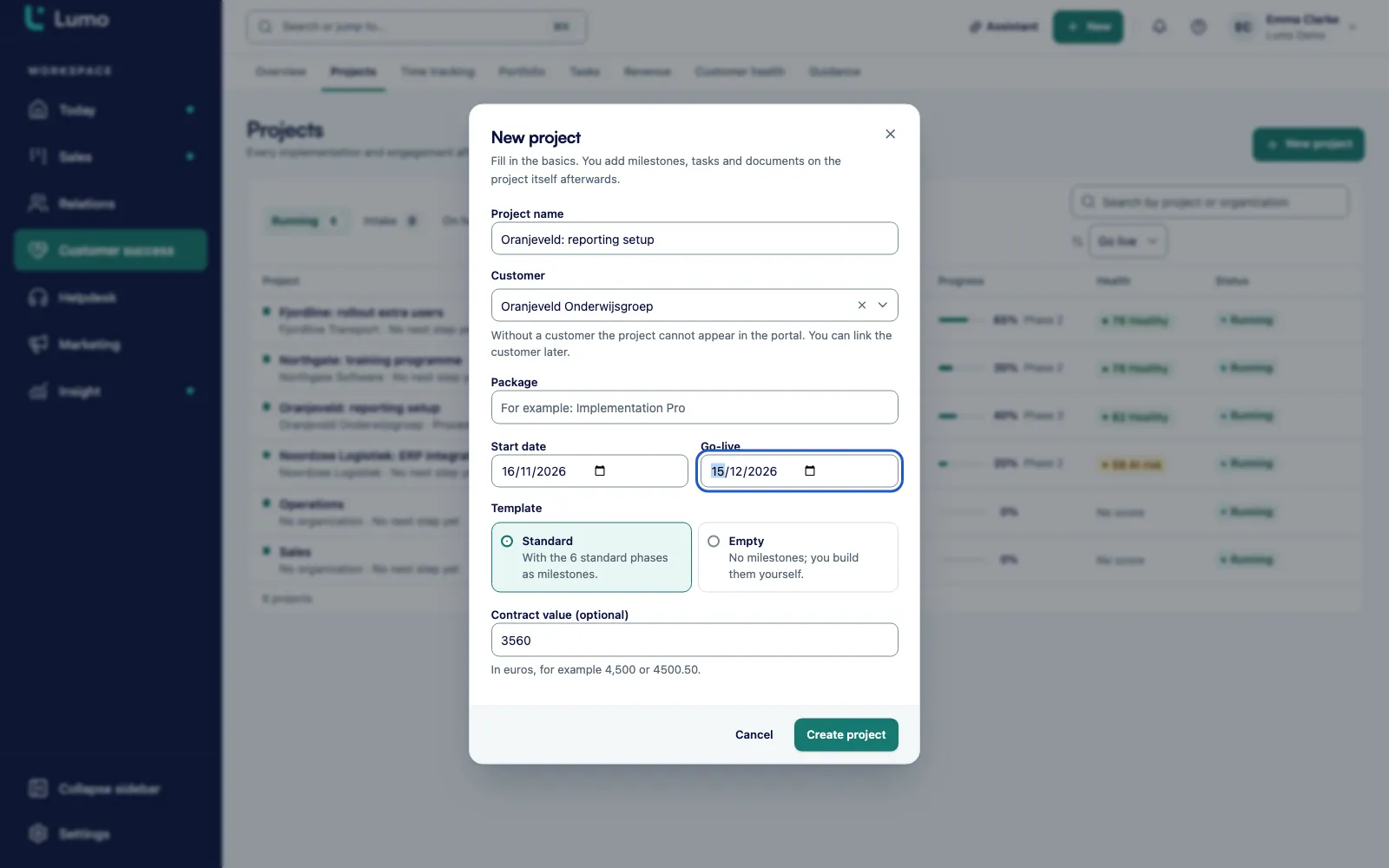
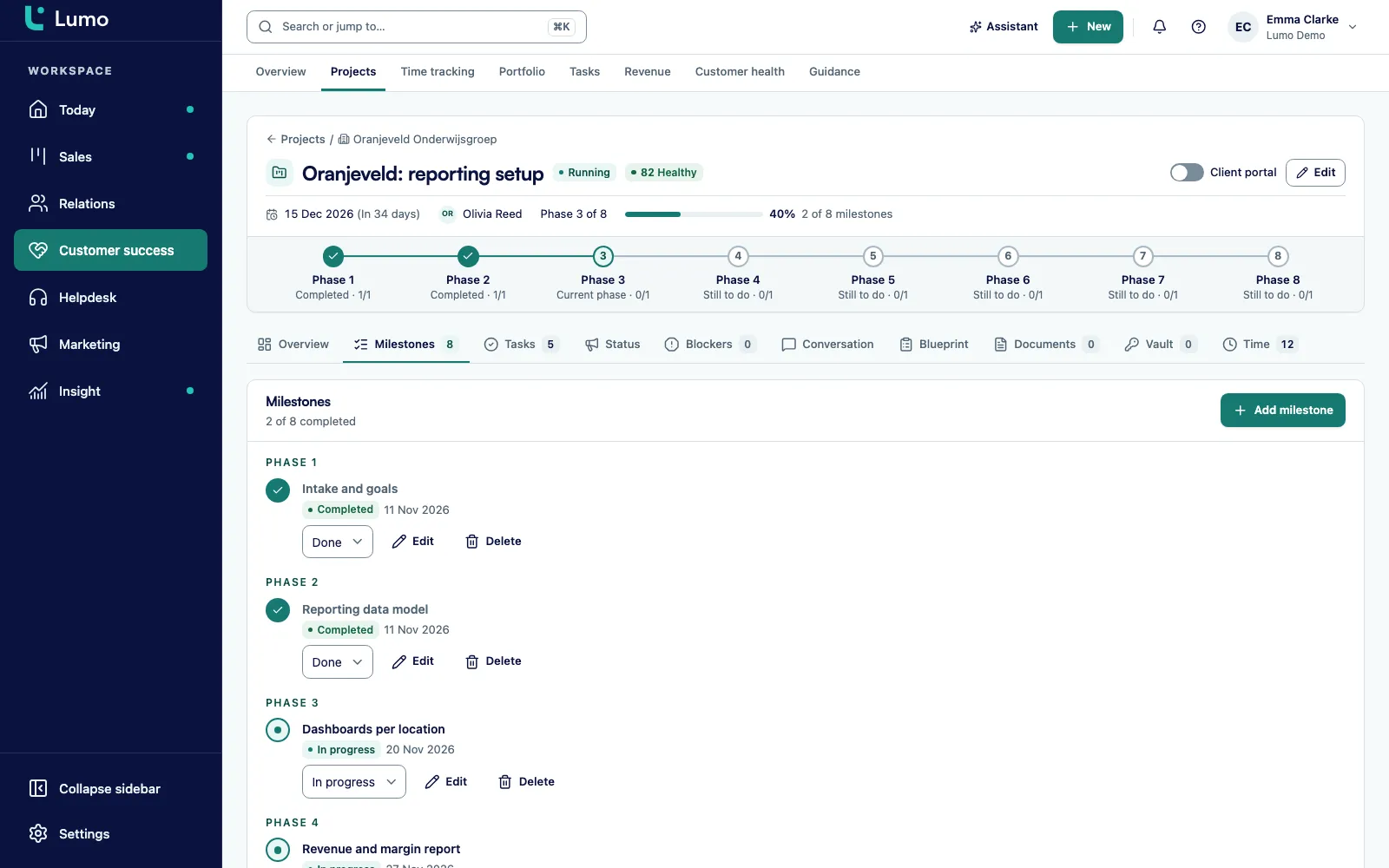
You start a project from a won deal with the Start project button. Lumo opens a new project with the deal and the organisation filled in. Pick the Standard template and you get the six fixed phases as milestones right away, from intake and discovery through build, testing and go-live to aftercare.
The project budget is the value of the linked deal. If the deal value changes later, the budget follows. Nobody retypes numbers from the pipeline into a project sheet. A project without a deal, such as internal work or an ongoing support contract, gets a budget you set yourself. The project also has a Hours budget field.
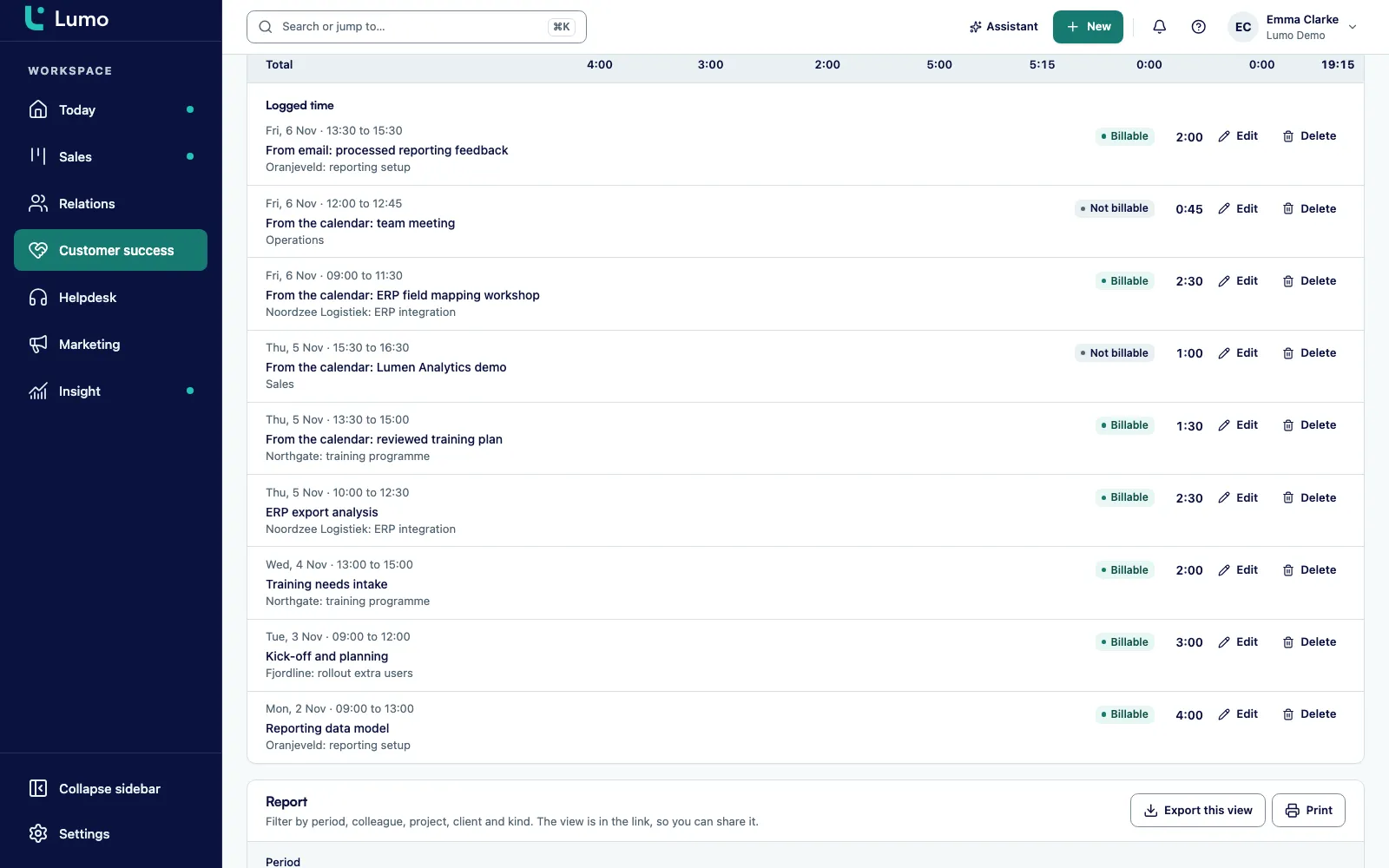
On the project you find the Time tab with the card "Time on this project": Total, Billable, Not billable and Per person. The Portfolio brings the figures together per kind of project, with "Over budget" and "No budget" as headline numbers. The budget counts everyone's hours on the project, even if you can only see your own.
Whether an hour is billable follows from the project. A client project has an organisation that is not your own, and is not of the internal or own product kind. Hours on it are billable. Hours on an internal project are not. You do not choose this per entry, and that is deliberate.
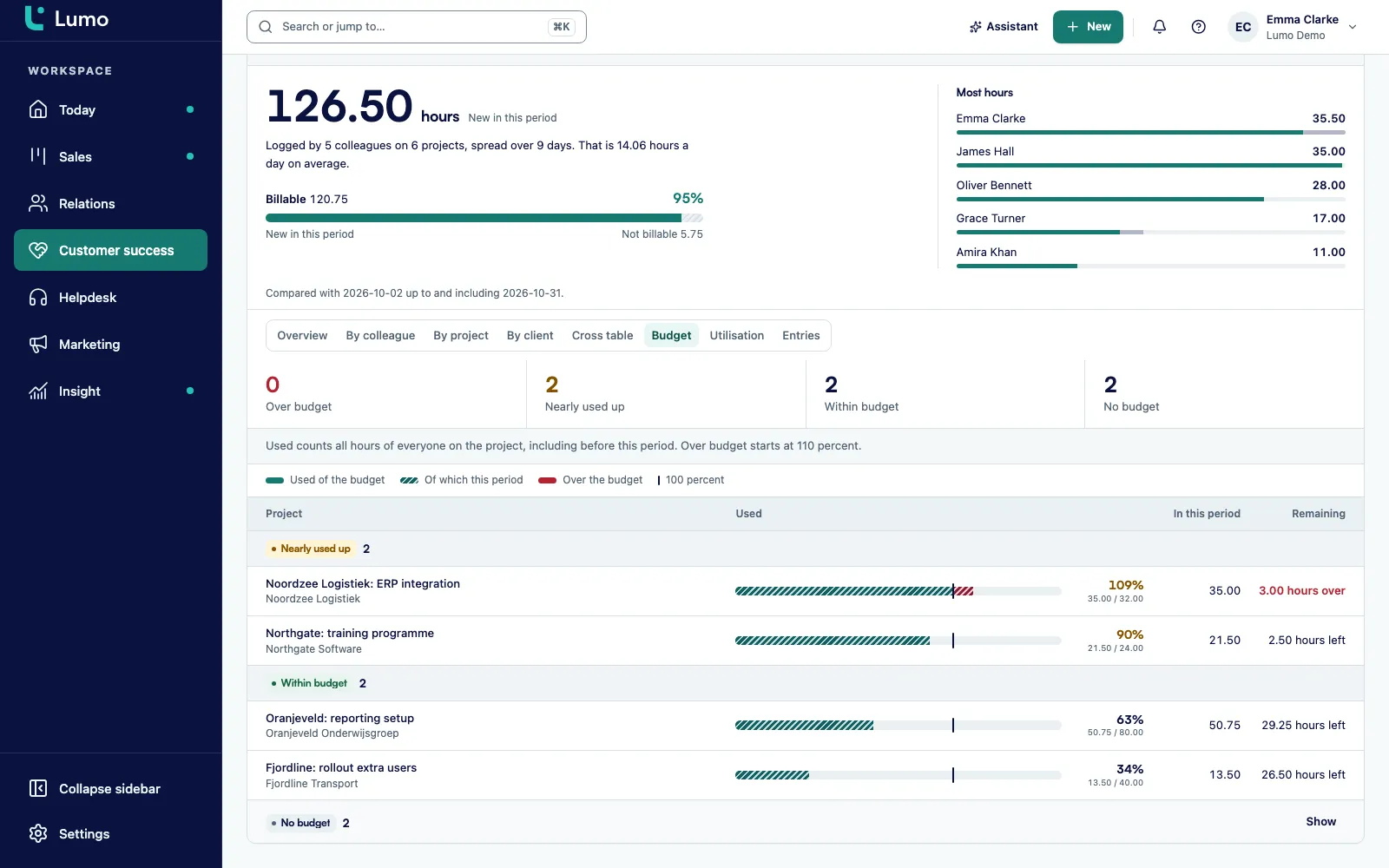
Below the week card sits the Report. You filter by period, colleague, project, client, project kind and whether hours are billable. The view lives in the link, so a colleague opens exactly what you see after you hit Copy link.
Periods are Today, This week, Last week, This month, Last month, This quarter and Custom range. Compare with the previous period puts the prior period next to it. The views are Overview, By colleague, By project, By client, Cross table, Budget, Utilisation and Entries.
In Budget every project gets a status: No budget, Within budget, Nearly used up or Over budget. Nearly used up starts at 90 percent, Over budget at 110 percent. You see a project heading for trouble before it gets there.
Utilisation sets a colleague's logged hours against the working hours in their scheduler profile, up to and including today. You set those working hours in the meeting scheduler. To combine hours with sales or service figures, build it in reports and dashboards.
Save view keeps a view for later. Export this view writes a CSV with hours as decimals, and Print gives you a clean page.
Hours never stand alone. They belong to a project, and in Lumo a project has its own workspace. The tabs are Overview, Milestones, Tasks, Blockers, Documents, Vault, Time, Conversation and Blueprint. A project is Running, Intake, Completed, Paused or Archived.
Milestones are Planned, In progress or Done. You add tasks with a quick line, drag them between milestones and handle them in bulk: complete, assign or set a deadline. The Tasks page pulls tasks from all your projects into one list, grouped into overdue, today, the next seven days, later and no deadline.
The Portfolio shows every project by kind, with status, open work and hours budget. Headline numbers include Running, Over budget, No budget and a stale status count. A status goes stale when nobody posted a status update for 14 days.
Switch on Customer sees this project in the portal and the client follows progress in the customer portal and ticks off their own tasks there. They see the subject, the deadline and whether it is done. They do not see your hours.
Every item below works this way in the app.
Log time in one line, like "45m review @client mon". With a time it books, without one it starts a timer.
Start timer and Stop timer. Starting a new one stops the running timer first, with a notice.
Drag in 15 minute steps or fill in a table. Your browser remembers your choice.
Dotted until you book them. Project found through the invitees. Never booked twice for the same person.
Client project means billable, internal project means not. Not editable per entry, enforced in the database.
The project budget is the deal value and follows when it changes. Nearly used up from 90 percent.
Eight views, and the view lives in the link. Expanding shows the first 50 entries, the Entries tab the first 500.
Members and viewers see their own hours. Owners, admins and anyone with the permission to view all time see the whole team.
Say a small CRM consultancy with six consultants is running three client projects at once. This is a made up example to show how it works, not a customer story.
On Monday account manager Priya wins a deal with a distributor, Example Ltd. On the won deal she clicks Start project, picks the Standard template and creates the project. It has the six phases as milestones from the start, and its budget is the deal value. She adds consultant Sam to the project team as the lead.
On Tuesday Sam runs the kickoff. The meeting was already in his Google Calendar, with two people from Example Ltd on the invite. In Time tracking it shows up dotted with the project filled in. Sam clicks Book this meeting. He then spends two hours on the design and types "2h blueprint @example" in Log time. Enter. On Wednesday he forgets to log an hour. On Thursday he drags a block from 14:00 to 15:15 on Wednesday, picks the project and clicks Add.
On Friday there is an internal team meeting in his calendar. He books it on the internal Operations project. Lumo marks those hours as not billable without Sam thinking about it.
Three weeks later Priya opens the Report, view Budget, period This quarter. Example Ltd shows Nearly used up. That is early. She switches to By colleague and sees that the build phase takes longer than planned. She copies the link to that view and sends it to Sam. Together they call the client about the extra scope before the project reaches Over budget. No export from another tool, no spreadsheet next to the CRM.
Everything you do in Time tracking, an AI agent can do too, through the Lumo MCP server or the REST API. The time tools are list_time_entries, get_running_timer, start_timer, stop_timer, log_time, log_time_bulk, update_time_entry, delete_time_entry, time_summary and time_report. Every tool is also a REST endpoint under /api/v1/tools.
For the project work around it there are tools such as create_project, add_project_milestone, add_project_task, complete_project_task, add_project_status_update and get_project_portfolio.
An agent follows the same rules as a person. An entry without a project is rejected, billable follows the project, and the agent only sees the hours its key is allowed to see. So an agent can suggest your hours from your calendar at the end of the day, or book a full week of entries in one call with log_time_bulk. How to connect an agent and which permissions a key gets is covered on headless CRM and AI agents and API and integrations.
One thing to know: the built in AI assistant in the app has no tools for hours or projects. It handles CRM records, campaigns, automations and reports. For hours you use the screen or an agent over MCP.
This is what we go through when a team starts logging time in Lumo.
Time tracking lives in customer success, next to the projects. A project starts from a won deal in the pipeline, and its budget comes from that deal. What was sold and what was worked sit in the same system.
What the client sees of a project is set in the customer portal. Every blocker on a project is a ticket in the helpdesk, so stuck work lives in one place too.
Managers see the hours again in one-on-one meetings, together with the billable percentage and the target per person. Who sees which hours is set in roles and permissions. If you want something to happen when a milestone is done, such as telling the client, build it in automations with the project triggers that are already there. For figures across everything, use reports and dashboards.
Lumo does not create invoices from hours. You see per client, per project and per period what is billable, and Export this view puts that in a CSV for your accounting or invoicing tool.
You do not choose billable per entry. It always follows the project. If you decide not to charge a client for some work, handle that on the invoice, not in the hours. That keeps the record of what you did for a client honest.
Utilisation does not subtract leave or public holidays. Read a low number in a week with a day off with that in mind. Saved views stay in your own browser. Share a view with a colleague through Copy link.
Meetings are read from Google Calendar today. Outlook and Microsoft 365 are on the roadmap. Until then the timer, the quick entry and the calendar work for everyone, also when your mail and calendar live in Outlook.
No. Every entry sits on a project. Internal work goes on an internal project, such as Operations or Sales. This applies in the app, in the REST API and over MCP.
From the project. Hours on a client project are billable, hours on an internal project are not. A client project has an organisation that is not your own and is not of the internal or own product kind. You do not set this per entry.
No. Lumo shows per client and per period what is billable. Export this view gives you a CSV for your accounting or invoicing tool.
Your own meetings that are not booked yet appear dotted in the calendar view. Lumo finds the client project through the invitees. Book this meeting books one, or you book all customer meetings of the week at once. The same meeting is never booked twice for the same person.
Reading meetings works with Google Calendar today. Outlook and Microsoft 365 are on the roadmap. Logging time with the timer, the quick entry or by dragging works for everyone regardless.
From the value of the linked deal. When the deal value changes, the budget follows. A project without a deal gets its own budget. The status turns Nearly used up at 90 percent and Over budget at 110 percent.
Members and viewers see their own hours. Owners, admins and anyone with the permission to view all time see the whole team. A project hours budget always counts everyone.
No, each person has at most one running timer. Starting a new one stops the running timer first. An entry lasts at most 24 hours and cannot end in the future.
As logged hours against the working hours in your scheduler profile, up to and including today. Leave and public holidays are not subtracted.
Yes, through the MCP server or the REST API with tools such as log_time, log_time_bulk, start_timer and time_report. The agent follows the same rules: a project is required and billable follows the project. The built in AI assistant in the app has no time tools.
In a demo we start a project from a won deal, book a few meetings from the calendar and look at budget and utilisation in the Report. Lumo is built by Sales Surge, with more than 150 CRM implementations behind it.